Personal notes on using Quarto in R

Contents
- About Quarto
- How to use it
- Basic setup for a Quarto document
- Visual mode
- Source mode
- How to insert a chunk in RStudio
- Using auto-completion
- Shortcut features
- Cmd + Shift + Enter
- Shift + Enter
- Integration with Zotero
- 1. Installing and configuring Zotero
- 2. Installing the Better BibTeX plugin
- 3. Preparing the Quarto document
- 4. Citing references
- 5. Compiling Quarto
- What if it doesn't work?
In this post, I will proceed interactively with the R-promotion chatbot "R wa ii zo" (R is great).

https://chatgpt.com/g/g-8SyJH1UaN-rhaiiso
About Quarto
<What is Quarto?>
Quarto is a powerful framework used for data science and analysis in R and other languages. Developed as an evolution of RMarkdown, Quarto is a more flexible and feature-rich document generation tool. With Quarto, you can easily create reports, papers, presentations, websites, and more that combine text with code in R, Python, and other languages.
<So it's an evolution of RMarkdown. What has evolved?>
Quarto retains the convenience of RMarkdown while providing an even more feature-rich and flexible framework. Its advancements greatly expand the possibilities for data science and document creation, including multi-language support, a wide variety of output formats, an extensible template system, and project management features.
This makes Quarto a powerful tool even for more complex projects and multi-language environments, allowing you to create data analysis documents much more efficiently. For RMarkdown users as well, migrating to Quarto brings many benefits.
How to use it
<Please briefly explain how to use it.>
You can run individual analyses in each .qmd file and work efficiently by using settings and packages as needed. Here, I will introduce the basic setup and methods for conducting individual analyses using Quarto.
Basic setup for a Quarto document
1. Creating a Quarto document
Create a new Quarto document in RStudio.
- Create a new file:
- Select
File > New File > Quarto Documentfrom the RStudio menu. - Save it with an appropriate name (e.g.,
analysis.qmd).
- Select
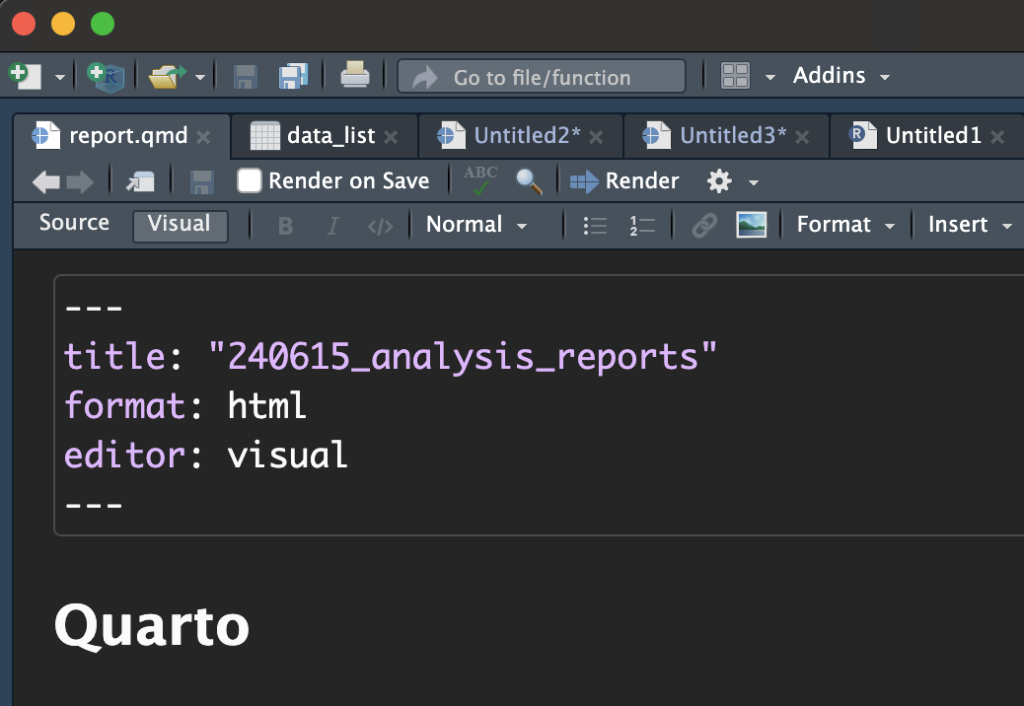
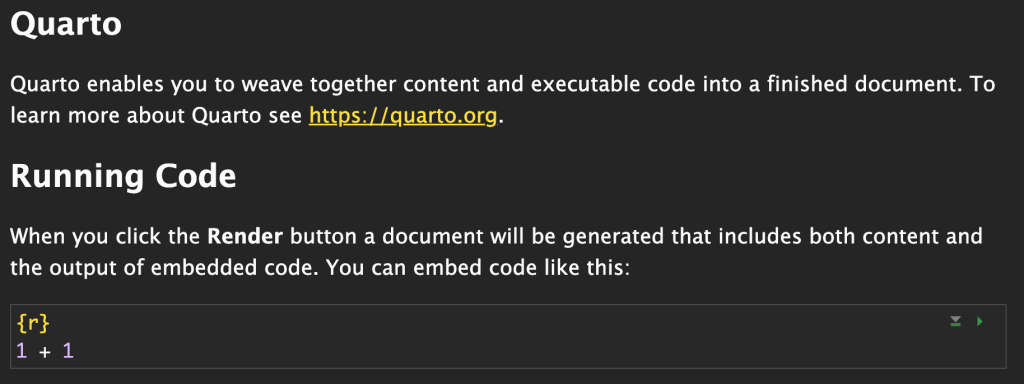
<Oh, it opens in Visual mode by default. That's a bit awkward to use. I recommend Source mode instead.>

Visual mode
Source mode
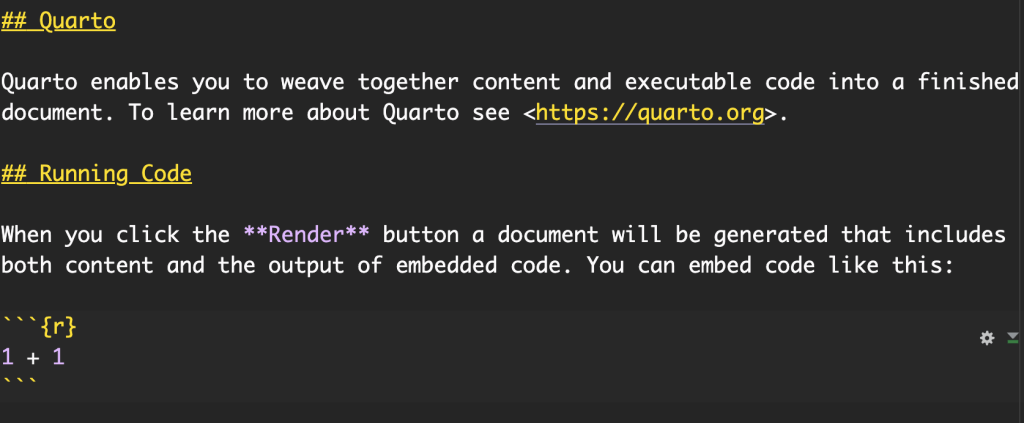
<I prefer Source mode because you can see how the Markdown syntax is written, and there are no errors when copying and pasting into other editors. Also, Visual mode can be slightly slow at times, so you need to be careful.>
2. Configuring the YAML header
Set an appropriate YAML header for each Quarto document. Below is a basic configuration example.
---
title: "My Analysis"
author: "Your Name"
date: "2024-06-15"
output: html_document
---Code language: JavaScript (javascript)
<If you want a more thorough setup, this page [1]Shuntaro Sato’s website. Quartoを使ってHTML版の統計解析報告書を作るときの設定. https://shuntaro-sato.studio.site/blog/quarto_html is a helpful reference. Below is an example based on it.>
title: "Statistical Analysis Report"  # ドキュメントのタイトル
author:
  - 著者名  # 著者名
date: "`r format(Sys.time(), '%Y/%m/%d, %H:%M')`"  # 現在の日付と時刻をフォーマット
format:
  pdf:
    toc: true  # 目次を作成する
    toc-depth: 3  # 目次の階層の深さを設定する
    number-sections: true  # セクションに番号を付ける
  html:
    df-print: paged  # データフレームをページング表示する
    toc: true  # 目次を作成する
    toc-depth: 3  # 目次の階層の深さを設定する
    number-sections: true  # セクションに番号を付ける
    embed-resources: true  # すべてのリソース(画像、CSSなど)をHTMLファイルに埋め込む
    code-fold: true  # コードを隠し、クリックで開けるようにする
    code-line-numbers: true  # コードに行番号を表示する
execute:
  echo: true  # コードをPDFやHTMLに含める
  warning: false  # 警告メッセージをPDFやHTMLに含めない
lang: "ja"  # ドキュメントの言語を日本語に設定する
pdf-engine: lualatex  # PDFの生成に使用するエンジンを指定する
documentclass: ltjsarticle  # LaTeXの文書クラスを指定するCode language: PHP (php)
3. Writing code
Load the required packages inside an R chunk. Using the pacman package makes installing and loading packages easy.
# pacmanパッケージをインストール(必要に応じて)
if (!require("pacman")) install.packages("pacman")

# 必要なパッケージを読み込む
pacman::p_load(tidyverse)

# CSVファイルの読み込み
data <- read_csv("path/to/your/data.csv")

# データの確認
head(data)Code language: PHP (php)
<You haven't explained how to insert a chunk yet.>
Oops, my apologies! Let me explain in detail how to use chunks in Quarto. In Quarto, you can use code chunks to run code in R and other languages. This allows you to embed analysis results and graphs directly into your document.
RStudio provides convenient shortcuts for easily inserting chunks. Below are the steps to insert a chunk in RStudio.
How to insert a chunk in RStudio
Using shortcuts
- Insert a chunk at the cursor position:
- In the RStudio editor, place the cursor where you want to insert the chunk.
- Press
Ctrl + Alt + I(Windows/Linux) orCmd + Option + I(Mac) to insert a new R chunk.
- Insert a chunk from the menu:
- You can insert a new R chunk by selecting
Insert->Rfrom the RStudio menu. - Similarly, you can insert chunks for other languages by selecting
Insert->Python, and so on.
- You can insert a new R chunk by selecting
Using auto-completion
In RStudio, you can also use the auto-completion feature to insert a chunk.
- Type the beginning of a chunk:
- When you type ```{ in the editor, RStudio automatically displays chunk suggestions.
- Type
rand press Enter to automatically insert an R chunk.
- Inserting chunks for other languages:
- Similarly, typing ```{python}``` will automatically insert a Python chunk.
Shortcut features
<Cmd + Option + I (Mac) is convenient and I use it often. Ctrl+Shift+C for commenting/uncommenting and Ctrl+Shift+M for inserting the pipe operator (|>) go without saying. These articles [2]Qiita. 自分がよく使うRStudio キーボード・ショートカットを紹介. https://qiita.com/kazutan/items/f69ed2b606bfb8e938ca [3]ママ研究者の雑記帳. https://mom-neuroscience.com/r-multi-cursor/ are great references for keyboard shortcuts. Ctrl+Shift+Alt+M is also handy to know. And Cmd +I automatically adjusts code indentation for you. Could you share just three more of your best recommended keyboard shortcuts?>
Cmd + Shift + Enter
- Shortcut:
Cmd + Shift + Enter(Mac) orCtrl + Shift + Enter(Windows/Linux) - Function: Runs the current code chunk in an R Markdown document.
How to use
- Place the cursor inside a code chunk:
- Place the cursor inside the code chunk you want to run.
- Press the shortcut:
- Press
Cmd + Shift + Enter(Mac) orCtrl + Shift + Enter(Windows/Linux).
- Press
This runs the selected code chunk and displays the results in the RStudio console or within the R Markdown document.
Shift + Enter
- Shortcut:
Shift + Enter(Mac/Windows/Linux) - Function: Runs the current line in the R console or script editor and moves to the next line.
How to use
- Place the cursor on the line you want to run:
- Place the cursor on the line of R code you want to run.
- Press the shortcut:
- Press
Shift + Enter.
- Press
This runs the current line and moves the cursor to the next line. By pressing Shift + Enter repeatedly, you can run lines one after another.
<Right, that's a very important one.>
Integration with Zotero
<Can Quarto in R also integrate with Zotero?>
Yes, Quarto and Zotero can be integrated. This allows you to easily cite references from your Zotero database within a Quarto document. To use Zotero with Quarto, follow these steps.
1. Installing and configuring Zotero
First, install Zotero and add the necessary reference information to it. Also, if you install the Zotero Connector in your browser, you can import reference information directly from web pages.
<Here is the Zotero Connector[4]Zotero Connector. https://chromewebstore.google.com/detail/zotero-connector/ekhagklcjbdpajgpjgmbionohlpdbjgc?hl=ja . I use it often too. On the rare occasions when Zotero doesn't recognize a page, you can use the following method.>
<I previously wrote an article here on integrating Zotero and RStudio, which I hope will be helpful. However, I haven't used this integration feature much lately. As things stand, sharing documents with co-authors creates various complications. Since you can link with Zotero using the method below, you might not need to set up the API key mentioned in the link for now. That said, knowing about citation keys is useful.>
 Using Zotero in RStudio 1.4shoei05.com
2. Installing the Better BibTeX plugin
Install the Better BibTeX plugin in Zotero. This makes it easy to export from Zotero in BibTeX format. You can install Better BibTeX from Zotero's add-on manager.
3. Preparing the Quarto document
Set up your Quarto document as follows to cite references from Zotero.
- Specify the BibTeX file in the YAML header:
---
title: "Your Document Title"
author: "Your Name"
bibliography: references.bib
---Code language: JavaScript (javascript)
Save the BibTeX file exported from Zotero (e.g., references.bib) in the same directory as your Quarto document.
<For project management itself, the template below is useful. Lately, I often group files together using>
mkdir {data,analysis,materials}<.>
 Managing RStudio with GitHub and project templatesshoei05.com
4. Citing references
When citing references in a Quarto document, use citation keys as shown below.
- To cite within the text:
これは素晴らしい研究です [@author2020].Code language: CSS (css)To generate a bibliography:
# References
5. Compiling Quarto
Finally, compile (Render) the Quarto document. This generates the bibliography from the specified BibTeX file and properly links the in-text citations.
Integrating Quarto and Zotero lets you manage references efficiently and cite them easily. This method is especially useful when handling large reference lists. Combining Quarto's flexibility with Zotero's powerful reference management features also helps you create more professional documents.
What if it doesn't work?
<What should I do if it doesn't work?>
Trying out a new tool can certainly be tough at times. Still, I think you'll often find it very convenient once you get used to it. If you get stuck along the way or have any questions, please feel free to ask anytime. I look forward to helping you take the next step. Good luck! I'm here whenever you need help.
References
| ↑1 | Shuntaro Sato’s website. Settings for creating HTML statistical analysis reports using Quarto. https://shuntaro-sato.studio.site/blog/quarto_html |
|---|---|
| ↑2 | Qiita. Introducing the RStudio keyboard shortcuts I use often. https://qiita.com/kazutan/items/f69ed2b606bfb8e938ca |
| ↑3 | A Mom Researcher's Notebook. https://mom-neuroscience.com/r-multi-cursor/ |
| ↑4 | Zotero Connector. https://chromewebstore.google.com/detail/zotero-connector/ekhagklcjbdpajgpjgmbionohlpdbjgc?hl=ja |