Zotero setup for researchers (Zotero 7 edition)
Contents
- 1. Installing Zotero
- 2. Storing only metadata in cloud storage and PDFs in external storage (ZotMoov)
- 1. Setting up cloud storage (Google Drive or Dropbox)
- 2. Installing ZotMoov
- 3. Easily importing references from your browser (Zotero Connector)
- Setting up collections and labels
- 4. Setting up citation keys (Zotero Better BibTeX)
- 5. Adding a translation feature (Translate for Zotero)
- 6. Optional: Automatic summarization (Translate for Zotero)
- 7. Integrating with ResearchRabbit
- 8. Integrating with Notion AI
- Install Notero Notes in Zotero
- Create a Notion database.
- Install Notero Notes in Zotero.
- Link Notion and Notero Notes.
- Configure Notero Notes in Zotero.
It has been a while since my last post on Zotero[1]Zotero | Your personal research assistant. Accessed February 21, 2021. https://www.zotero.org/. It is free, extensible, and recently more services have added integrations for it. Here, I will put together a guide on setting up Zotero for researchers.
1. Installing Zotero
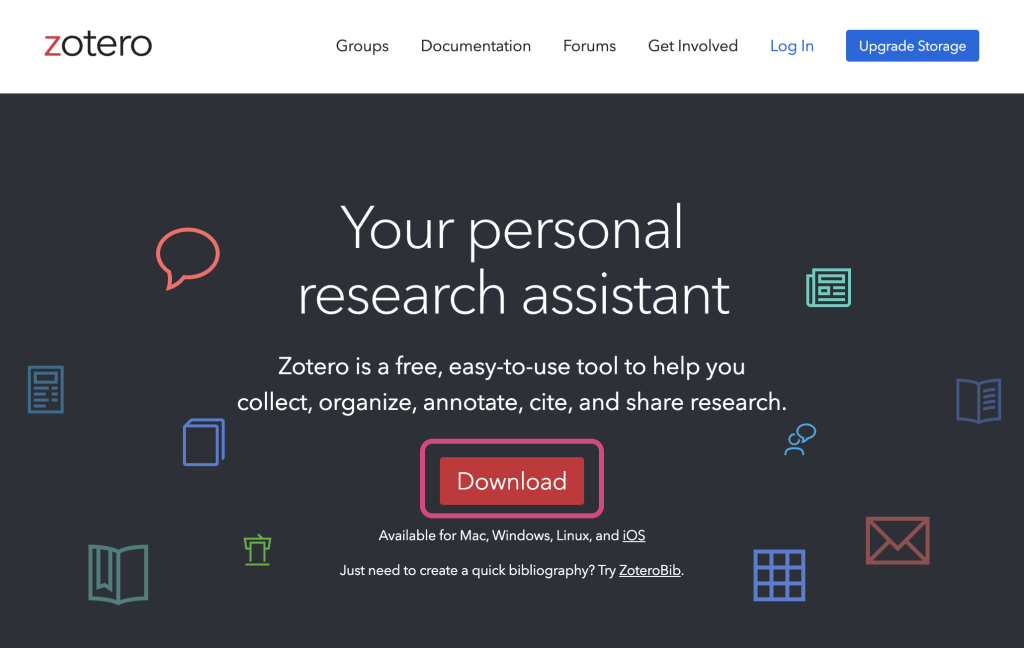
Go to https://www.zotero.org to download and install Zotero. Click "Download" to proceed to the download page.
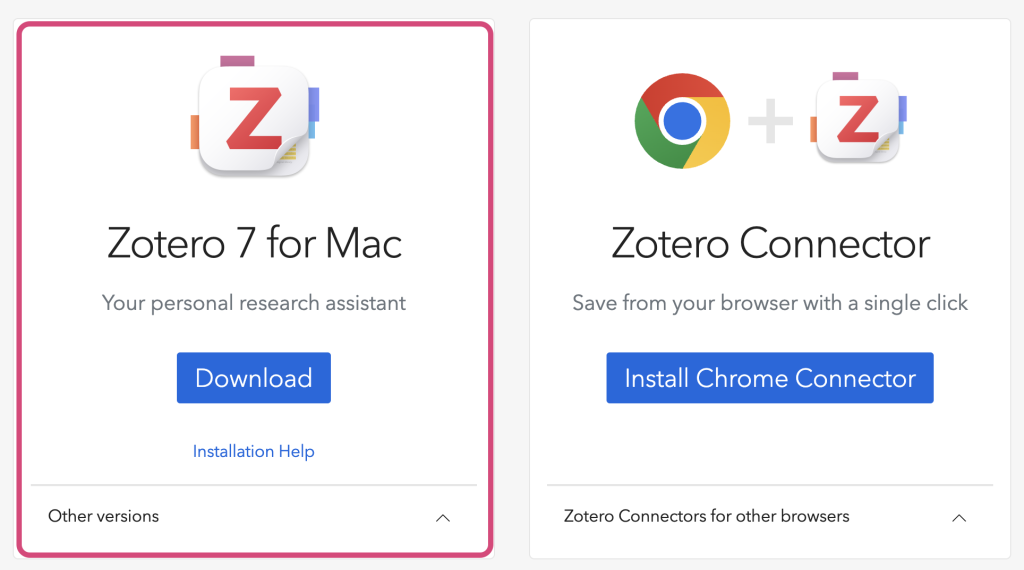
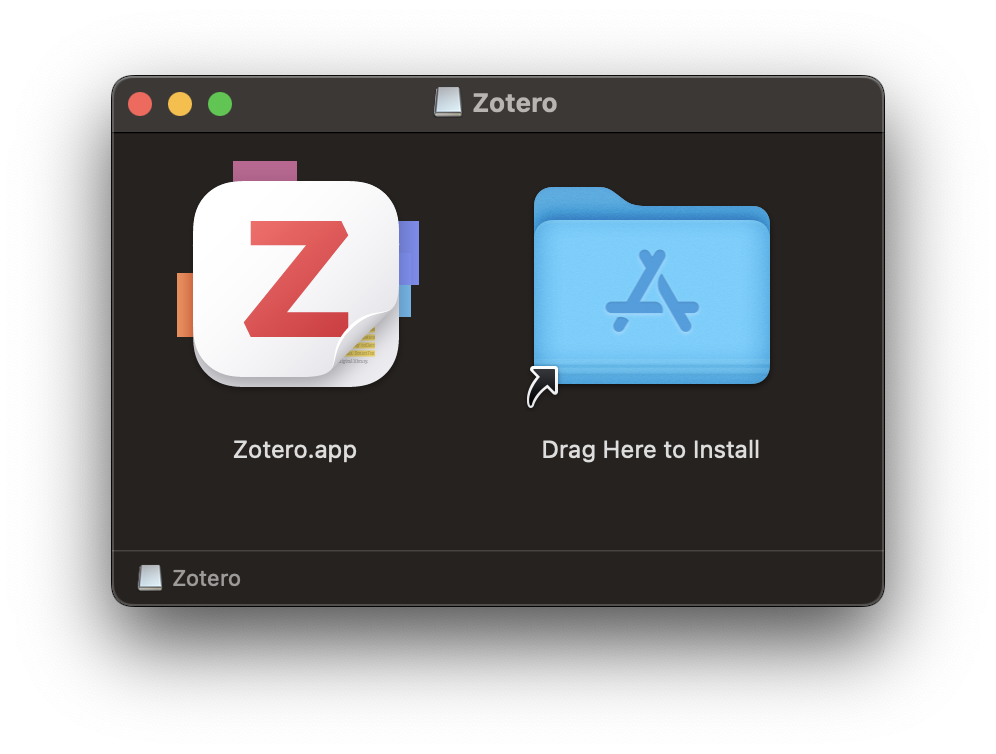
On a Mac, simply drag and drop the app into your Applications folder to complete the installation.
2. Storing only metadata in cloud storage and PDFs in external storage (ZotMoov)
Zotero offers up to 300 MB of free cloud storage. If you need more space, you have to upgrade to a paid plan. A common way to work around this storage limit is to manage only metadata (text data) in Zotero's cloud storage while using another service like Google Drive or Dropbox for PDF files.
I initially used Dropbox to manage my PDFs, but now that Gemini is available in Google Drive through Google Workspace Labs, I switched my storage location to Google Drive.
1. Setting up cloud storage (Google Drive or Dropbox)
Set up your preferred cloud storage service and create a folder on your computer's local drive. For Google Drive, you can download the desktop app here.
2. Installing ZotMoov
I used to rely on ZotFile to move PDF files to Google Drive, but ZotFile became incompatible after the upgrade to Zotero 7. The plugin used for Zotero 7 is called ZotMoov.
https://github.com/wileyyugioh/zotmoov
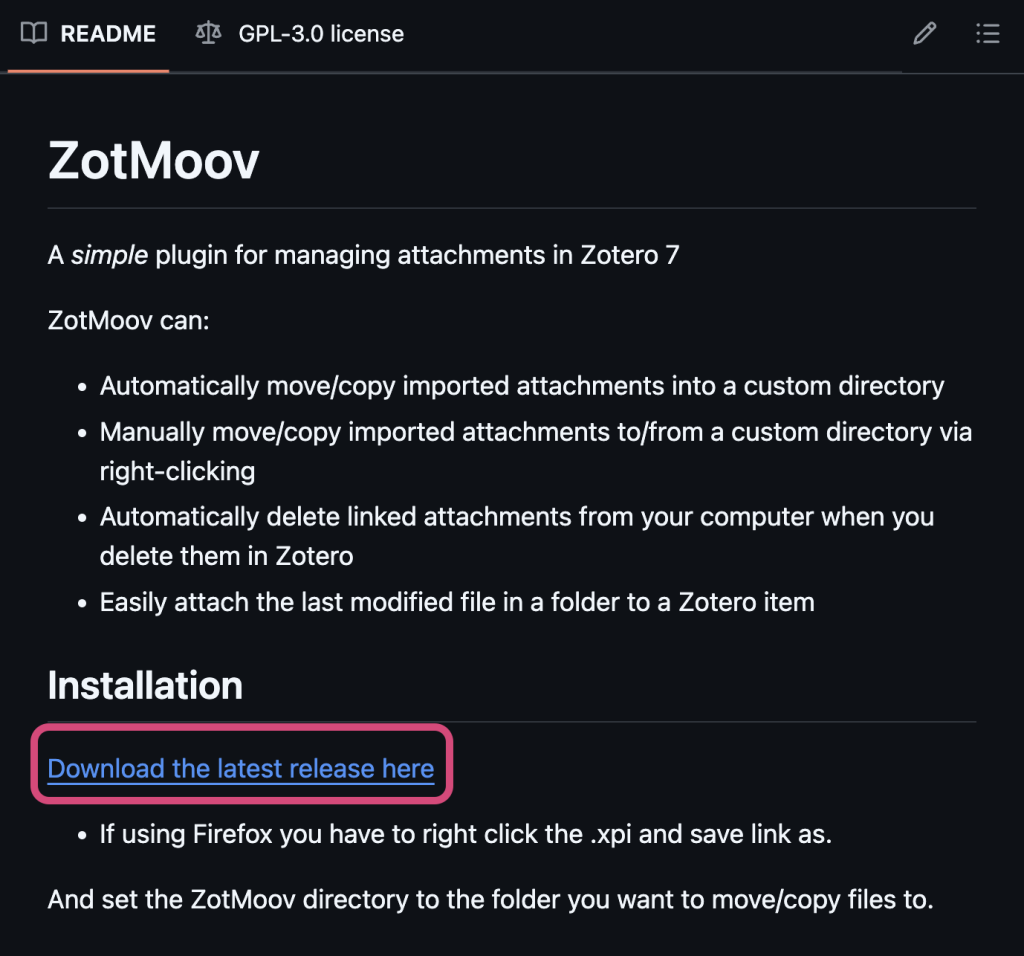
Download the latest ZotMoov file by clicking "Download the latest release here" under the Installation section.
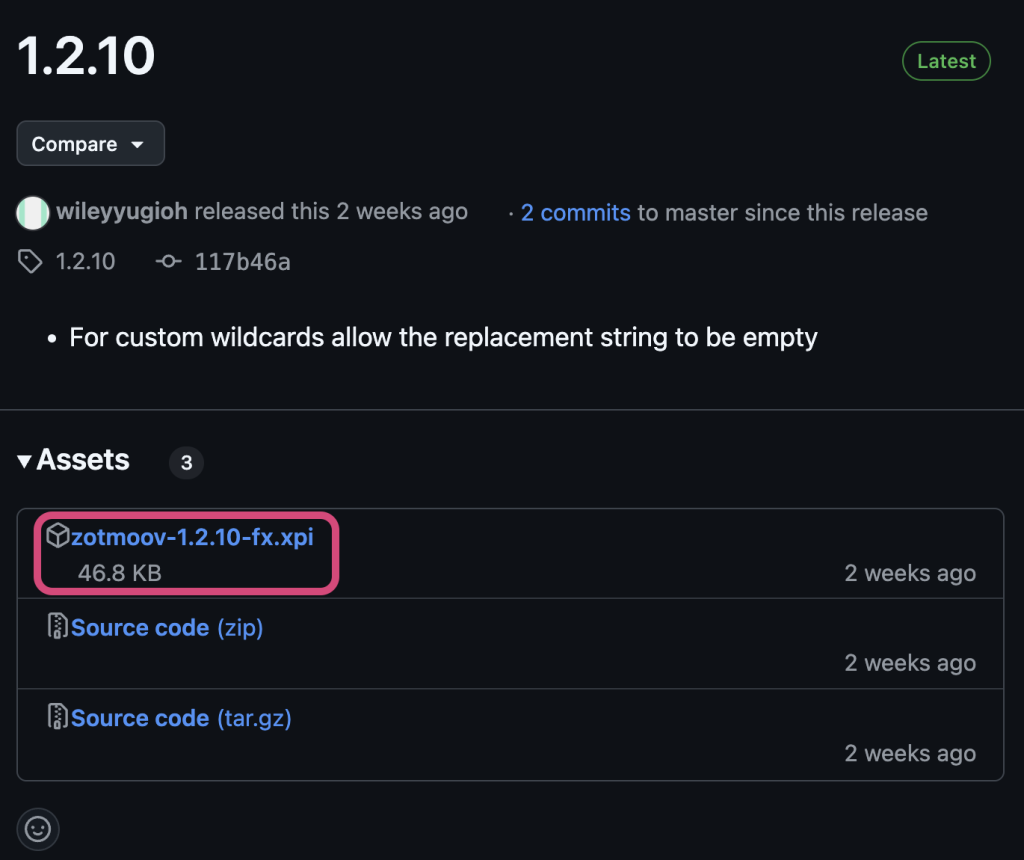
Look for the file with the .xpi extension.
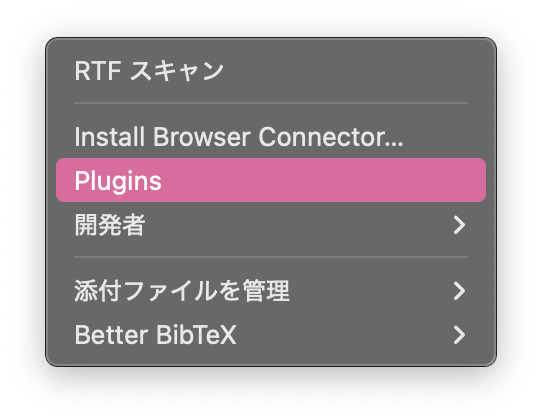
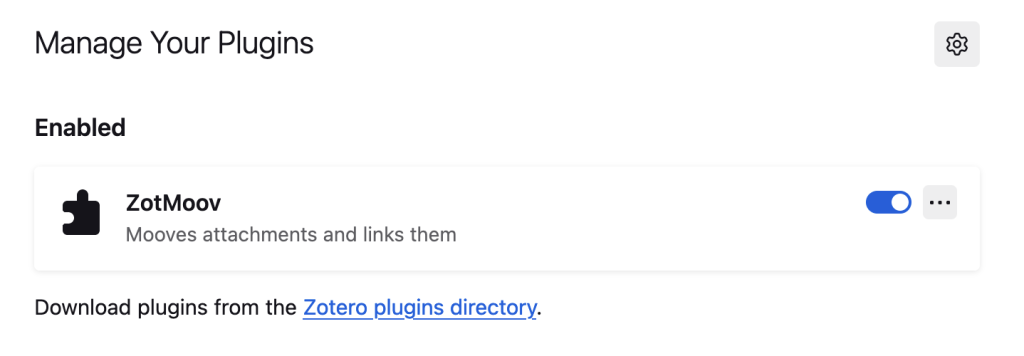
Open Zotero and click on Plugins.
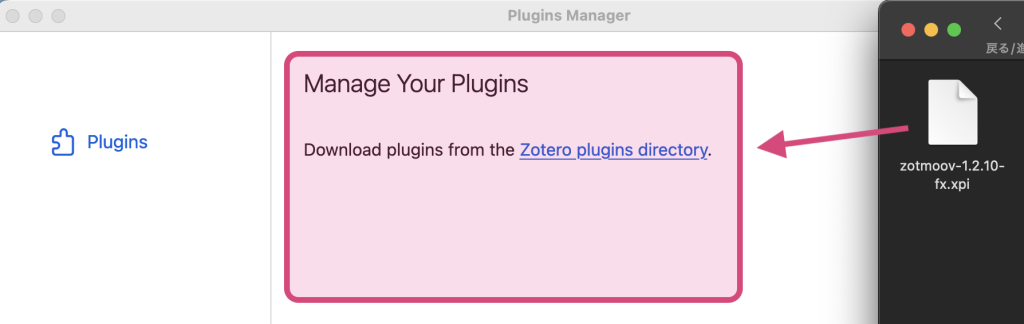
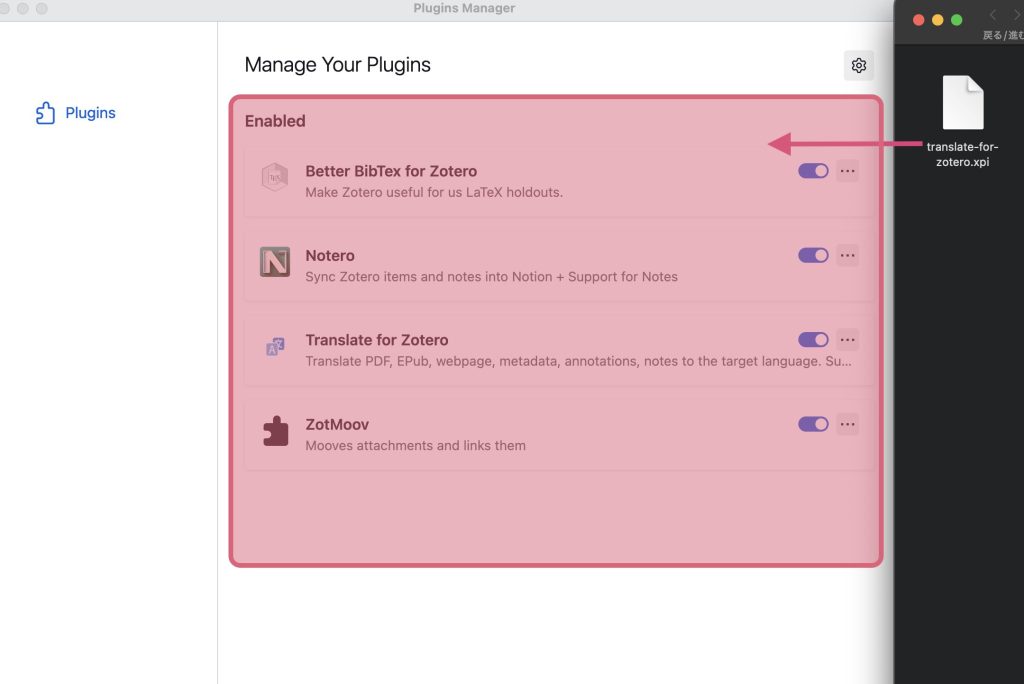
Drag and drop the downloaded file into the boxed area to complete the installation.
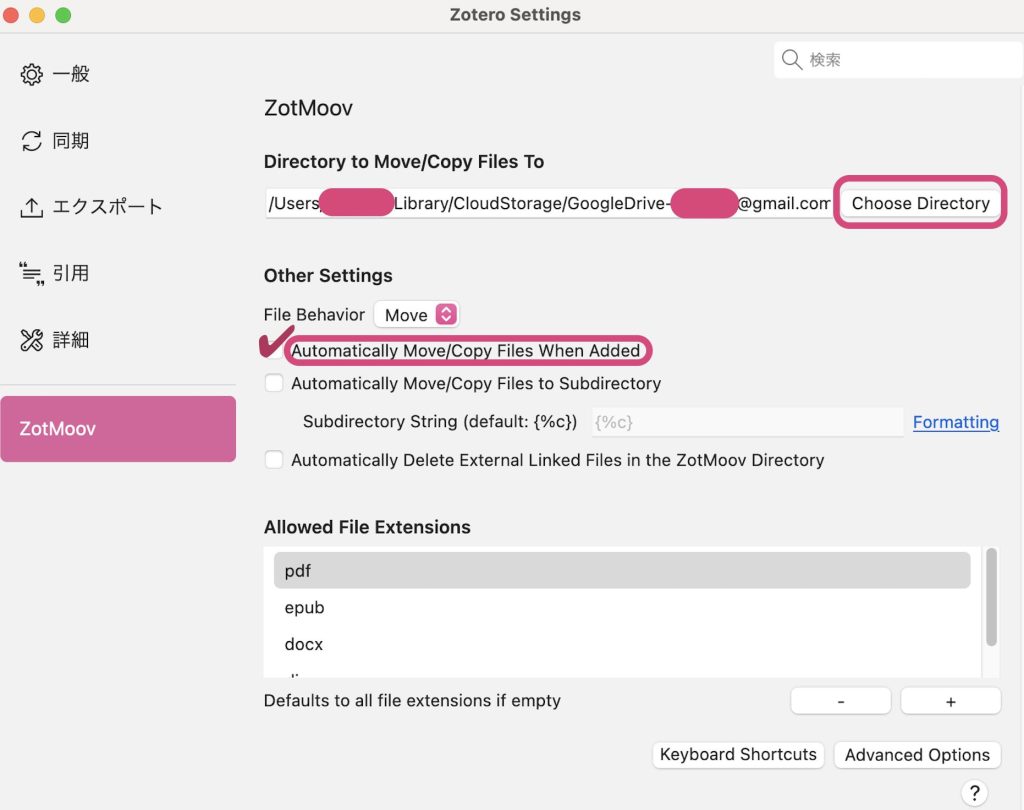
You can configure ZotMoov by going to "Zotero" > "Settings" (or "Preferences"). Click "Choose Directory" and select your folder on Google Drive. In my case, I created a folder at GoogleDrive/Zotero. I recommend checking the box for "Automatically Move/Copy Files When Added".
3. Easily importing references from your browser (Zotero Connector)
The Zotero Connector is a browser extension that links Zotero with your web browser, allowing you to easily collect citation information from websites and databases and save it to your Zotero library. Visit the link below to download it.
https://www.zotero.org/download/connectors
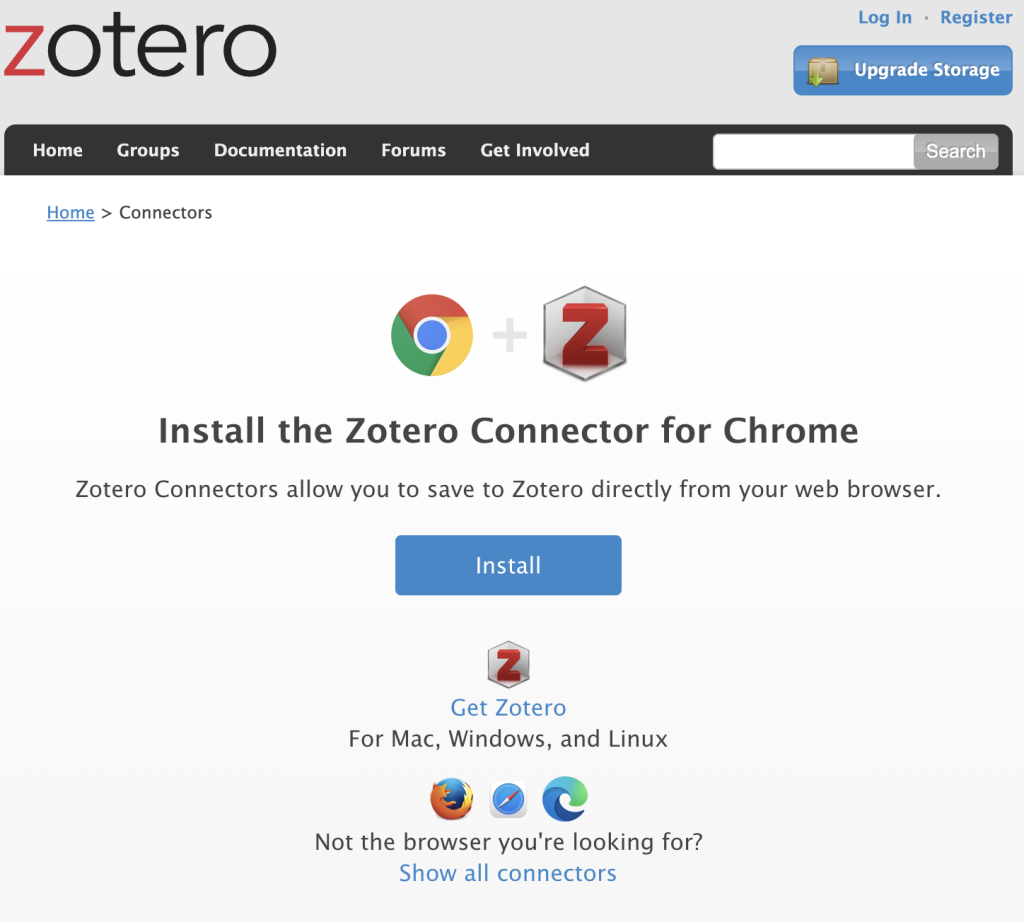
Click "Add to Chrome" to install the extension.
With Zotero open, click the extension icon in your browser to easily save reference information to Zotero.

Setting up collections and labels
Saving new items directly to "My Library" works fine, but you might also want to create a "ToRead" collection to clearly separate what you have not read yet. Right-click "My Library", select "New Collection", and create a "ToRead" collection there.
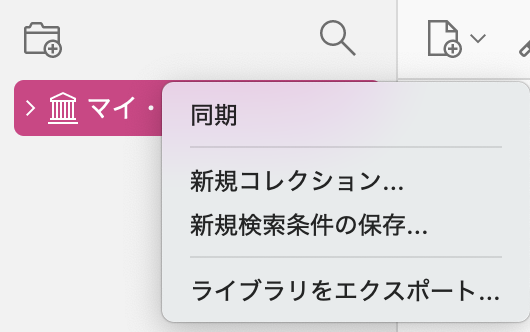
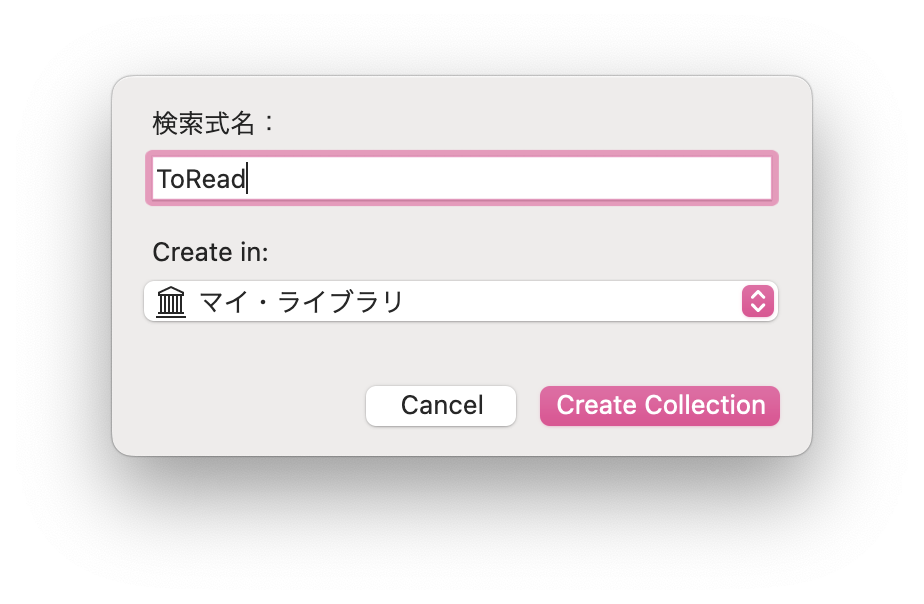
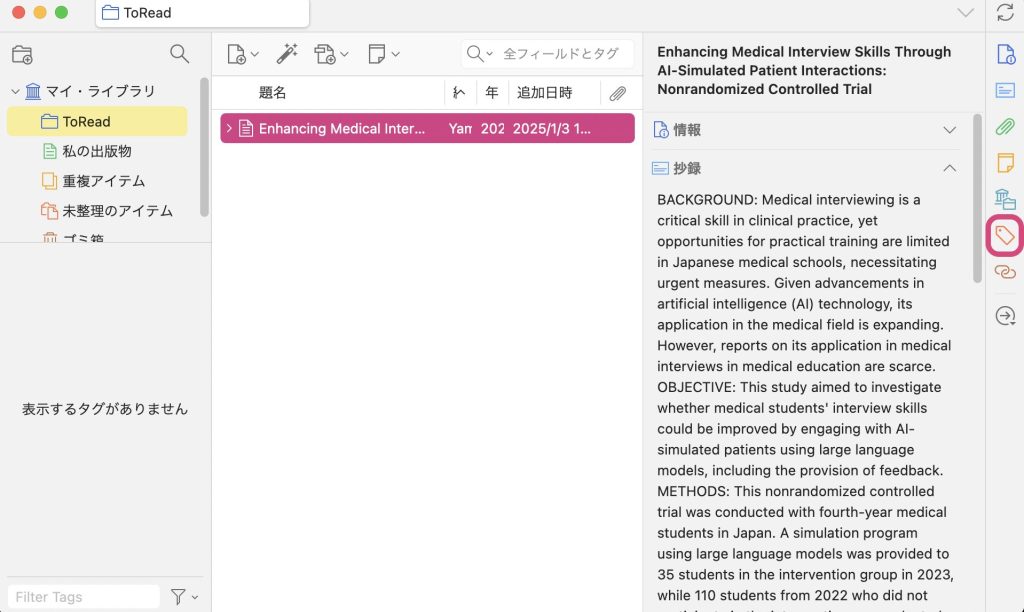
Next, we will create labels (tags). Click the tag icon on the far right to create custom tags. This section already displays tags that were automatically assigned when you downloaded the papers. You can add more tags as needed. I recommend using emojis to indicate papers you need to read (👀 or ⏰️), completed papers (✅️), and important or must-read papers (🔥 or ⚠️). For now, try adding tags in the order of ⏰️, ✅️, and 🔥.

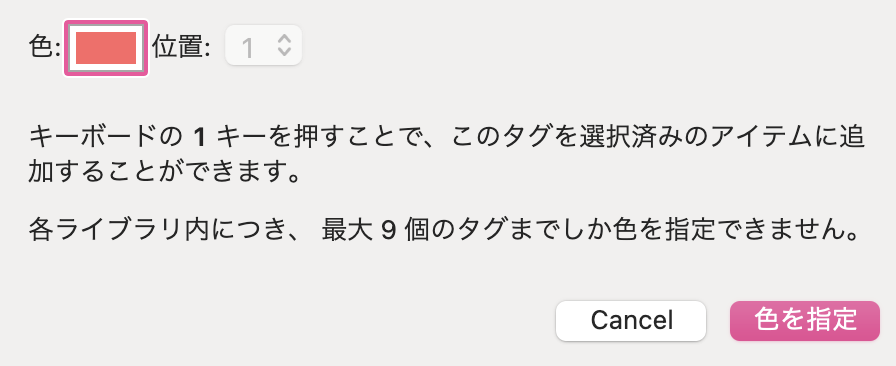
You should see the newly added tags in the bottom-right pane. Let's configure them. Right-click a tag to assign a color and set its position from 1 to 9.
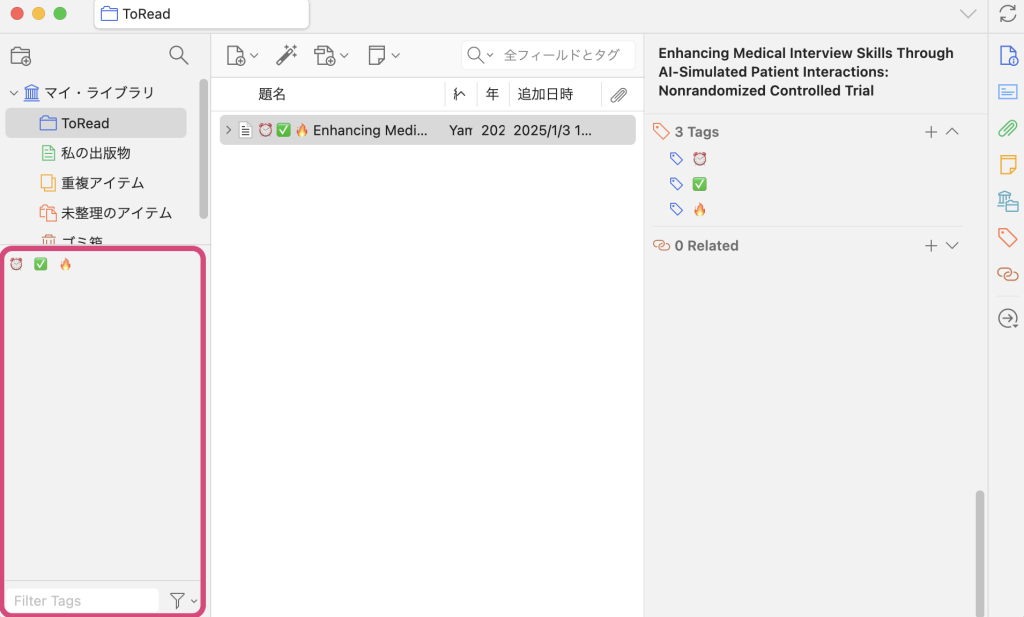
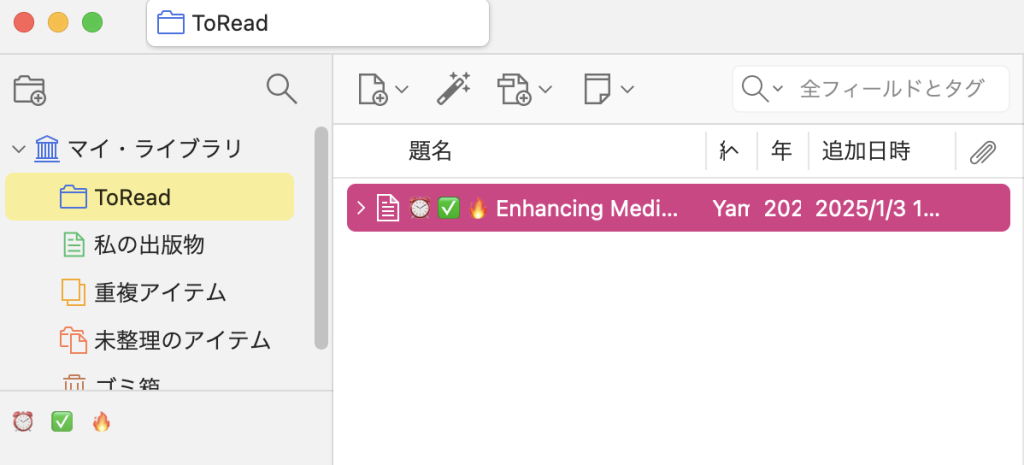
Once configured, click on a paper's title and press the number keys 1 through 9. You will see the labels toggle on and off. You can now efficiently manage labels for papers you need to check.
4. Setting up citation keys (Zotero Better BibTeX)
See here.
5. Adding a translation feature (Translate for Zotero)
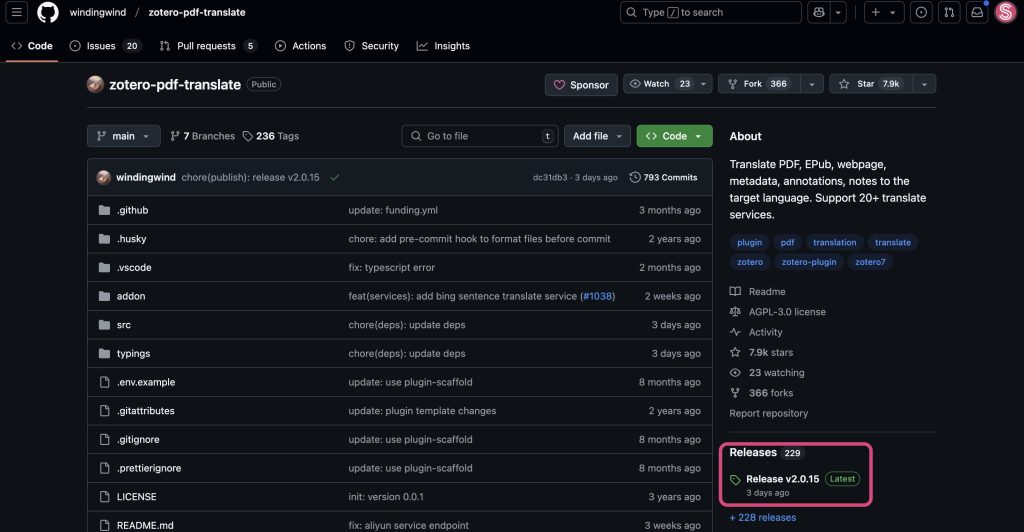
You can add a free translation feature to Zotero. It supports Google Translate, and you can also integrate Gemini. Go to https://github.com/windingwind/zotero-pdf-translate and download the latest file from the "Releases" section on the bottom right.
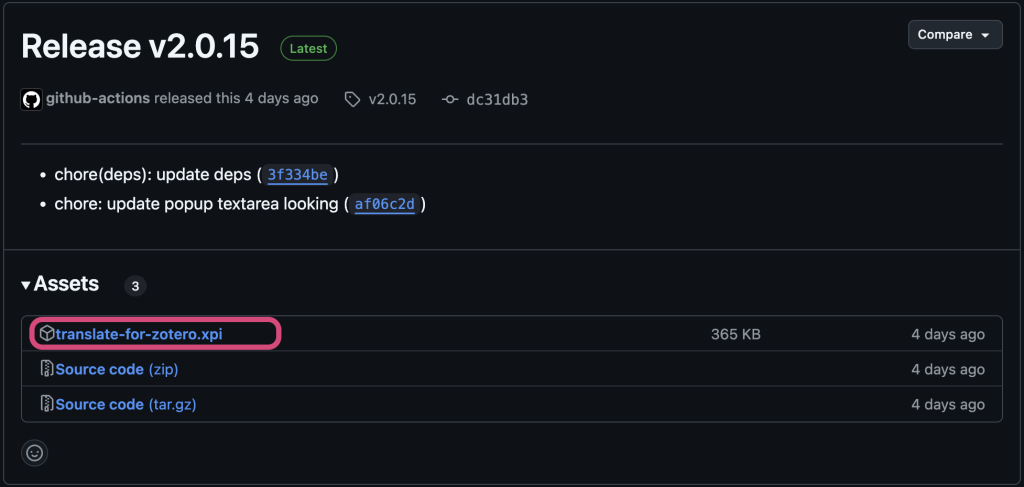
In Zotero, select "Plugins" from the "Tools" menu, then drag and drop the file to install it just as before.
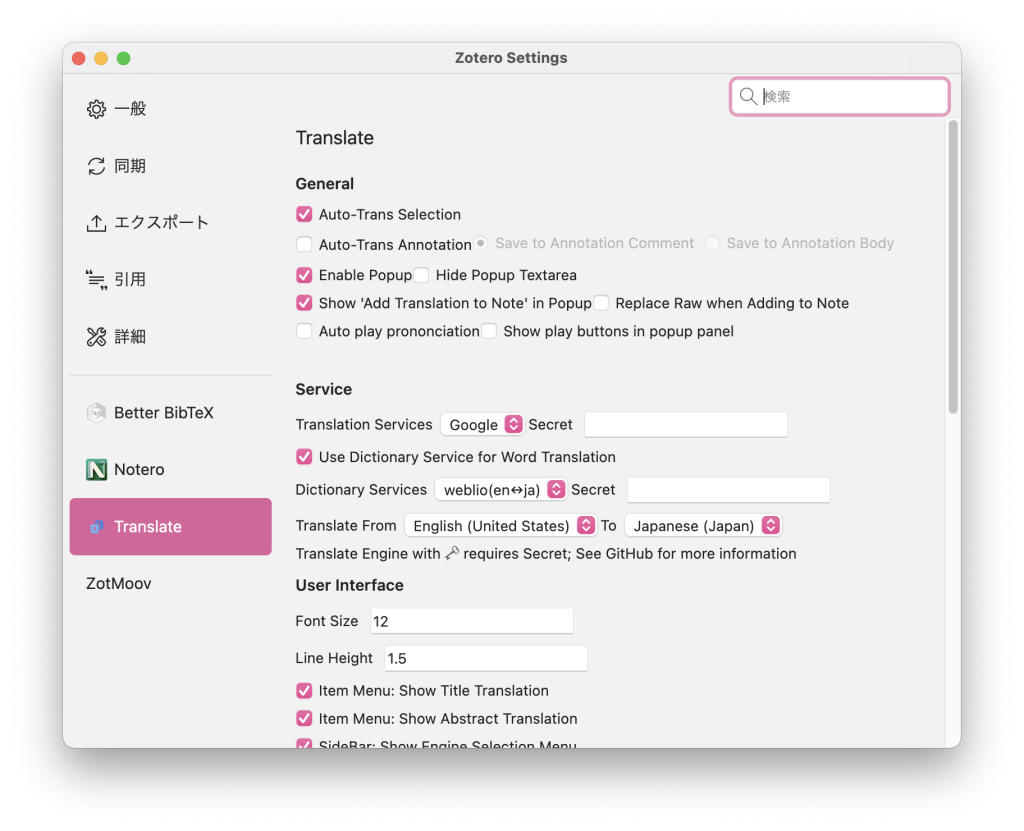
When you open "Settings" in Zotero, you will see a new menu option on the bottom left.
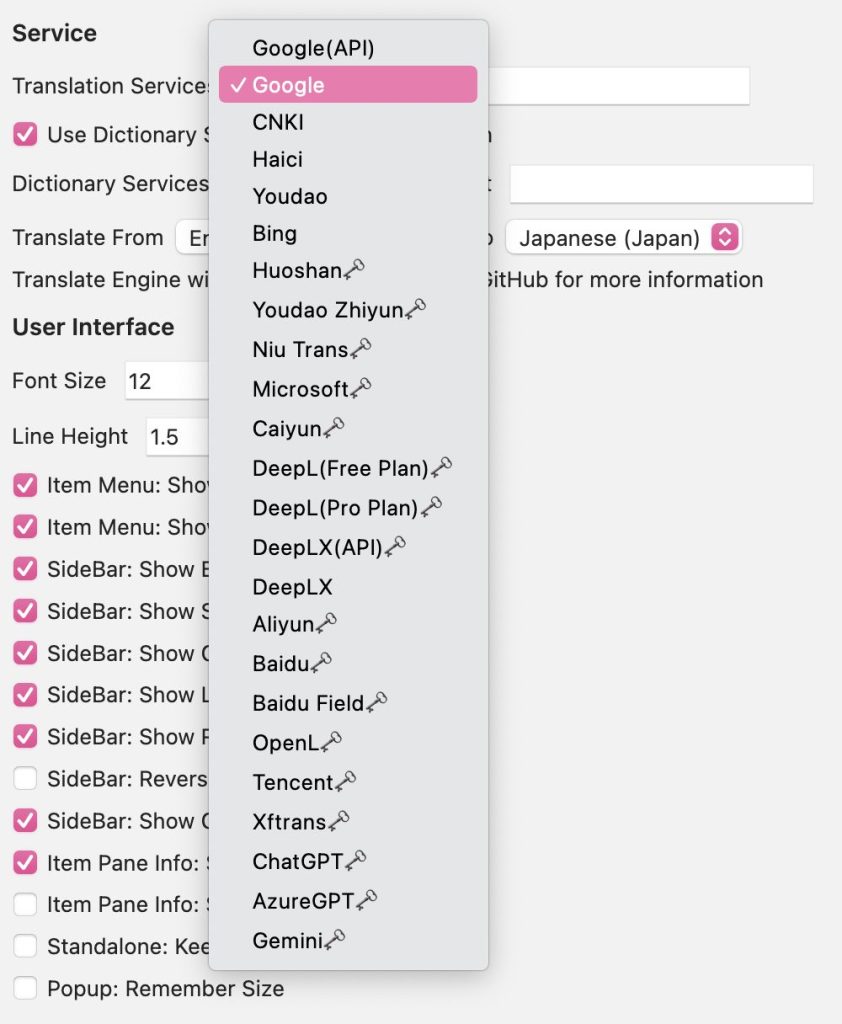
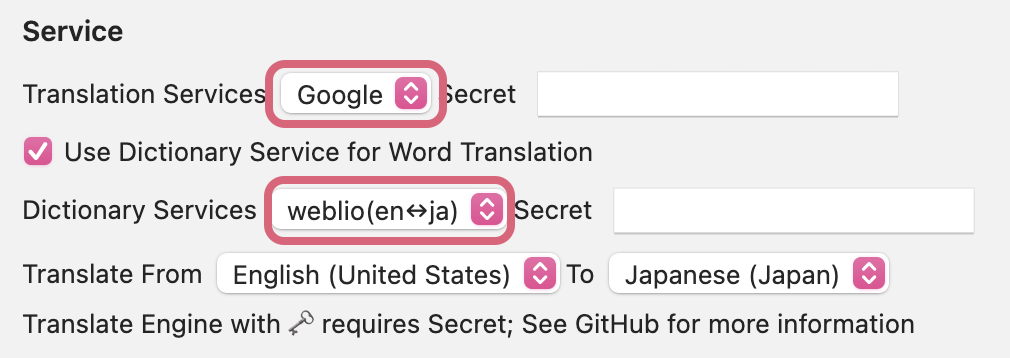
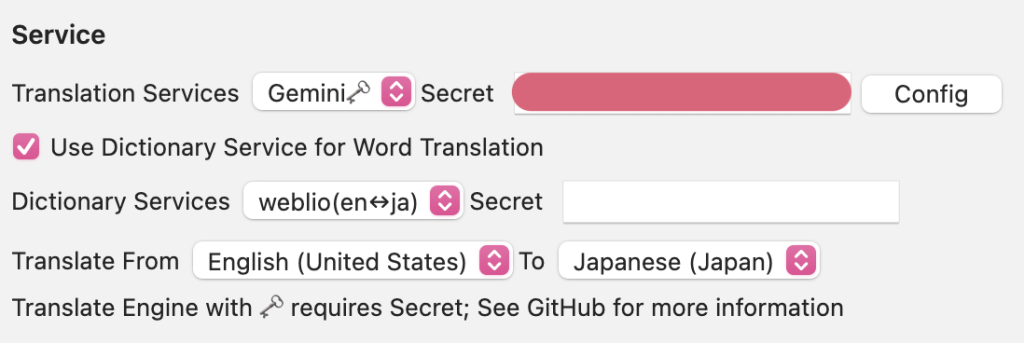
Under "Translation Services", you can link your preferred service. For most purposes, "Google" should be fine. If you want to use Gemini Flash's free tier (up to 1,500 requests per day), select "Gemini" at the very bottom. This requires a Gemini API key, which I will explain how to get later.
You can also have a dictionary look up words when you select them. Weblio is available as an English-to-Japanese dictionary and does not require a secret key.
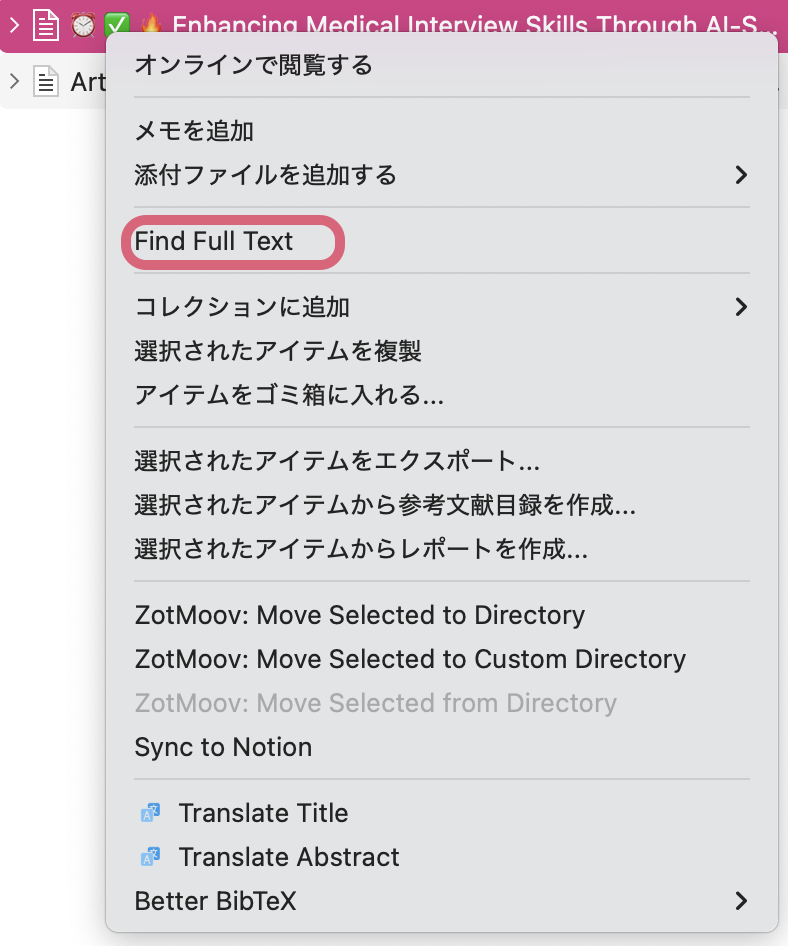
Once you finish the setup, open a PDF. If the paper you want to open does not have a PDF attached, right-click the item and select "Find Full Text" to have Zotero automatically find an available PDF online. For relatively new journals, Zotero sometimes fails to find the PDF even if it is open access; in that case, download the PDF yourself.
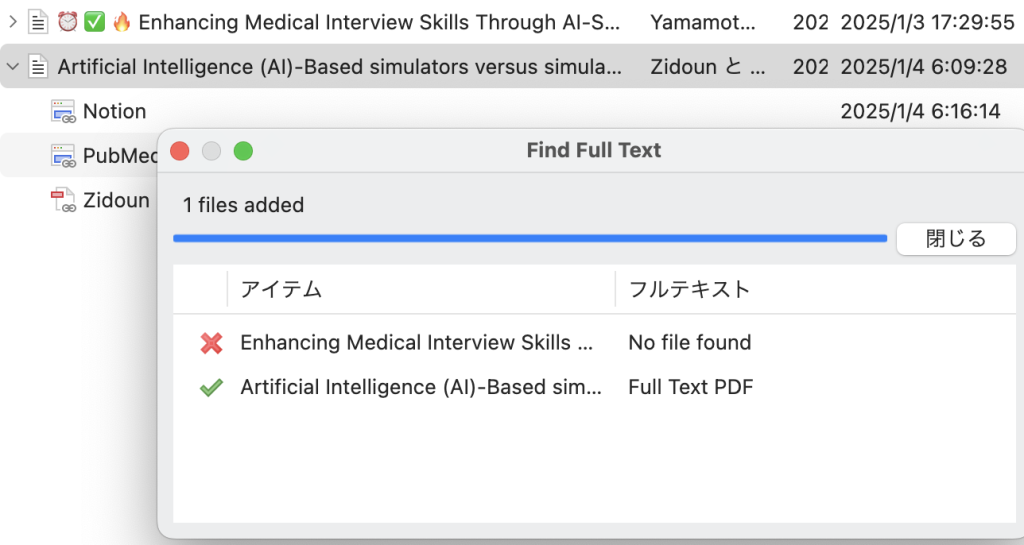
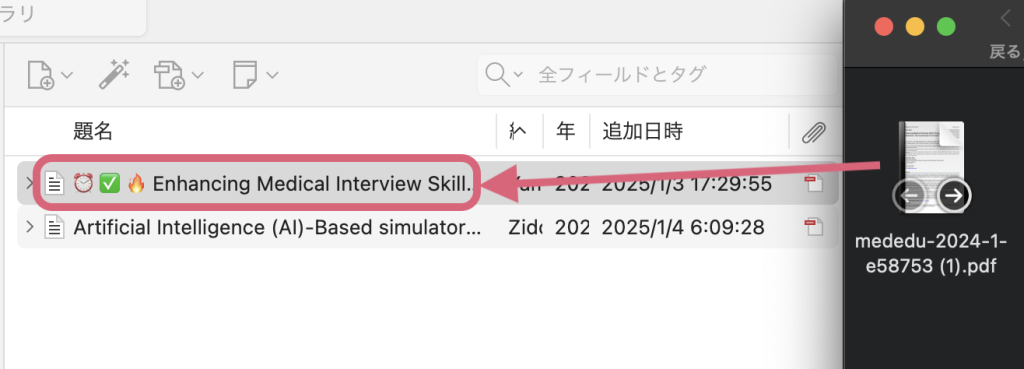
If you download a PDF yourself, drag and drop it onto the paper's title in Zotero, and it will recognize it as the attachment for that paper. It will automatically rename the file and store the PDF in the folder you specified in the ZotMoov plugin (Google Drive, in this case).
Now, after all that setup, let's open a PDF. When you select text, Google Translate should automatically run and translate it for you.
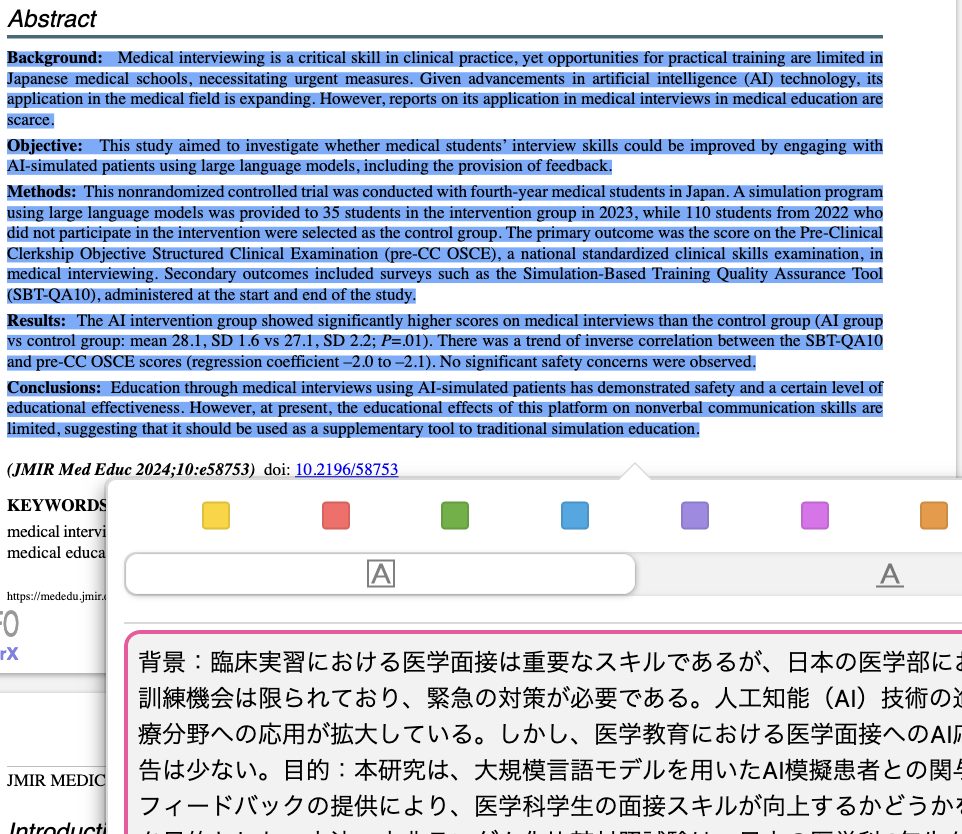
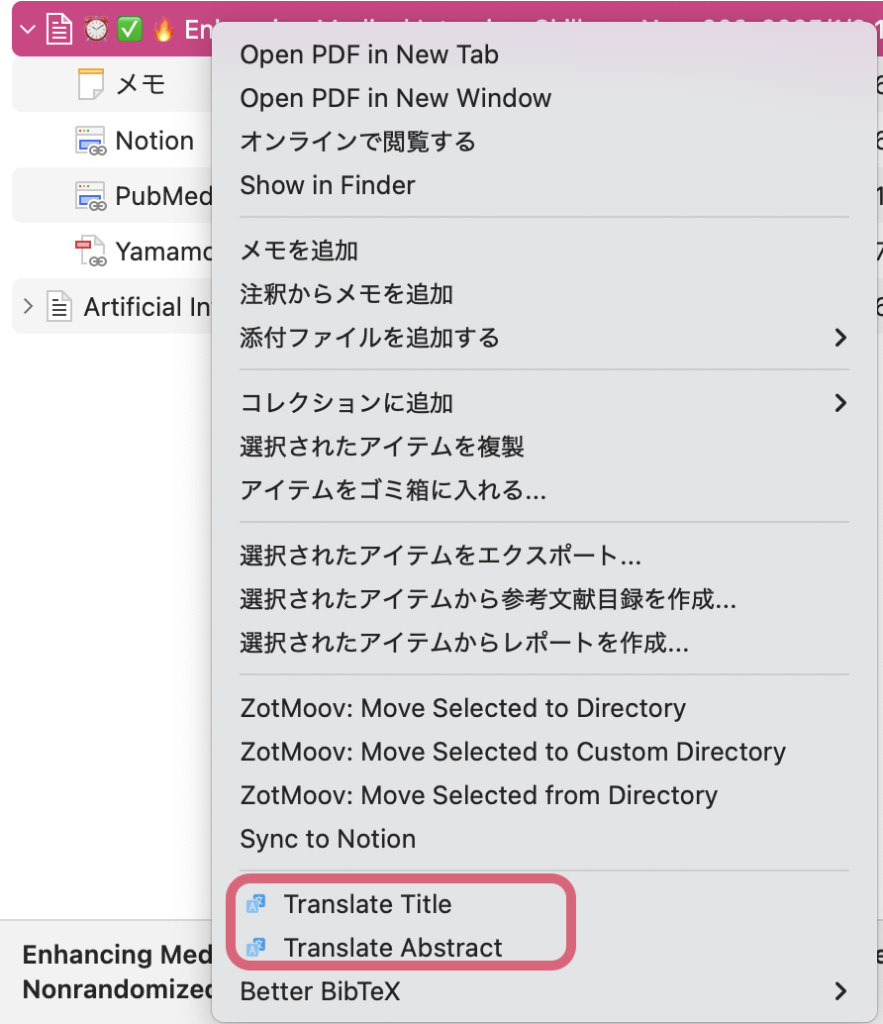
You can also right-click a paper you want to translate to use the title and abstract translation feature. The translations are appended to the "Extra" field, which will also carry over to the "Extra" column when we set up the Notion integration later.
6. Optional: Automatic summarization (Translate for Zotero)
Let's create an automatic summarization feature using the Translate for Zotero plugin we just installed. Set "Translation Services" to "Gemini". You will need an API key (Secret key) for this.
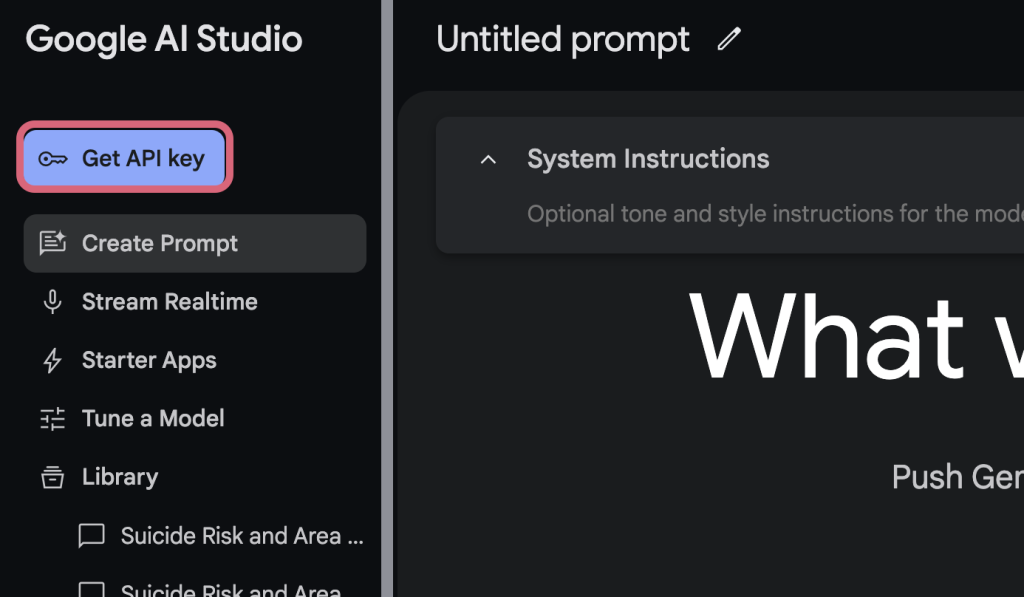
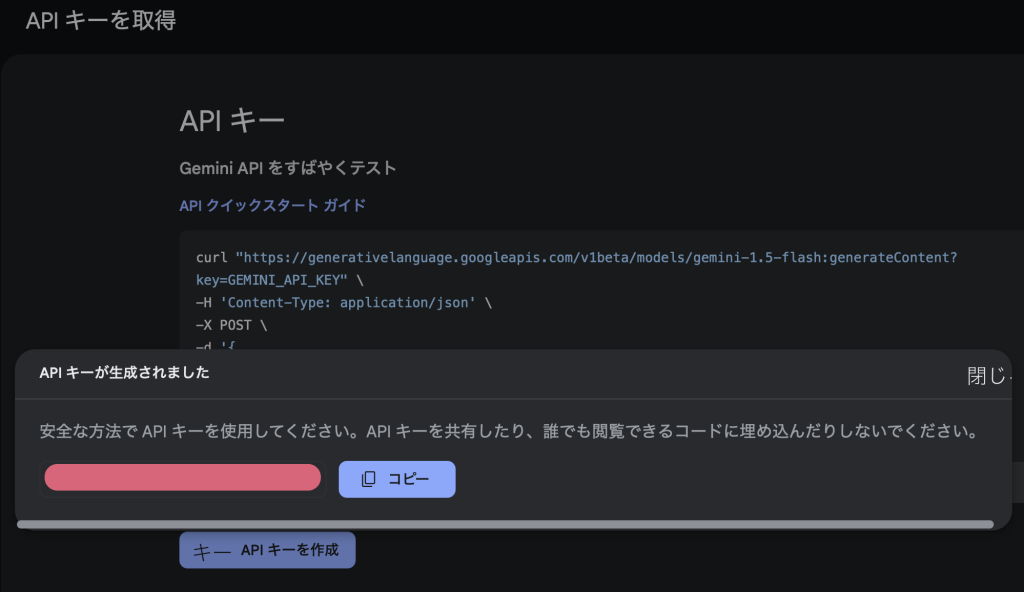
To use the Gemini API for free, generate an API key through Google AI Studio.
Go to the site above and click "Get API key".
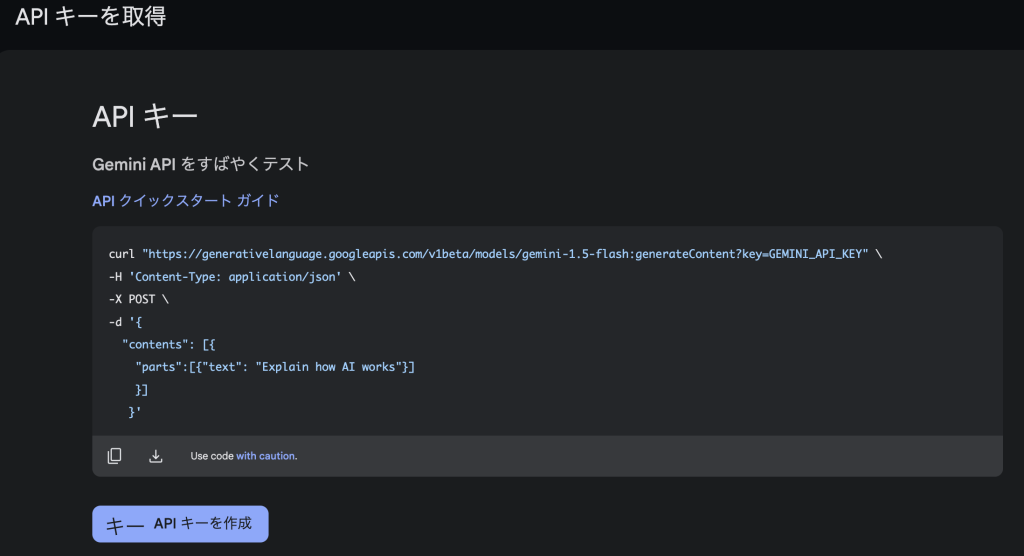
Click "Create API key" below to generate one. Do not share this API key with anyone. Gemini Flash offers a free tier of up to 1,500 requests per day, which is what we will use here.
Return to Zotero, enter the API key, and click "Config". The translation task runs according to the prompt shown there.
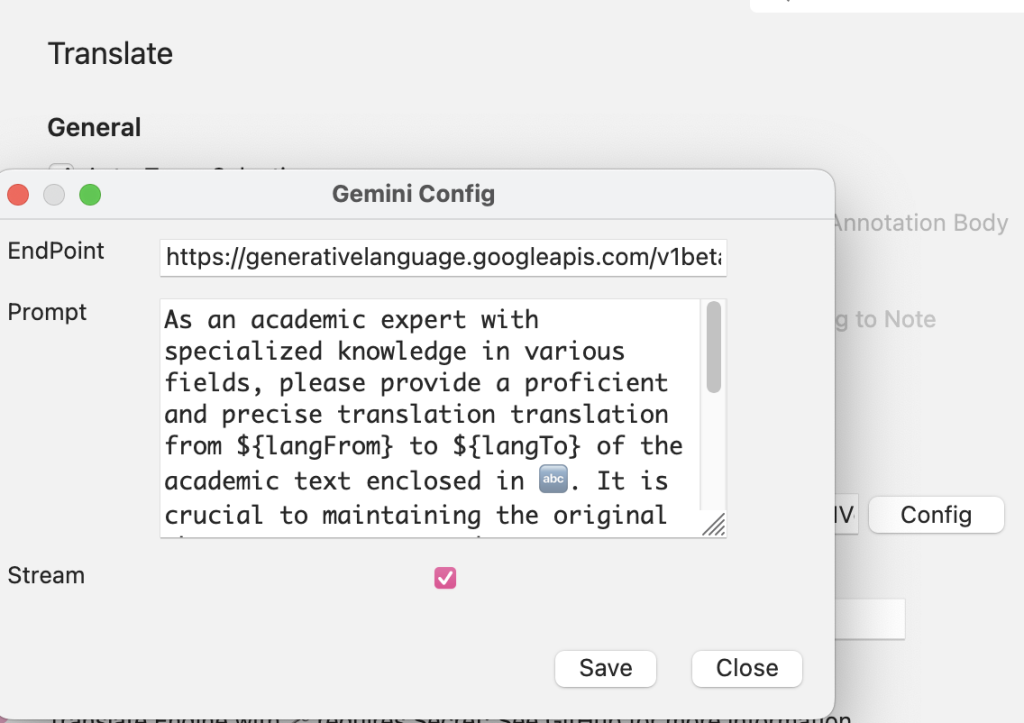
As an academic expert with specialized knowledge in various fields, please provide a proficient and precise translation translation from ${langFrom} to ${langTo} of the academic text enclosed in 🔤. It is crucial to maintaining the original phrase or sentence and ensure accuracy while utilizing the appropriate language. The text is as follows: 🔤 ${sourceText} 🔤 Please provide the translated result without any additional explanation and remove 🔤.
Let's rewrite the prompt instructions for this translation task to turn it into a summarization task.
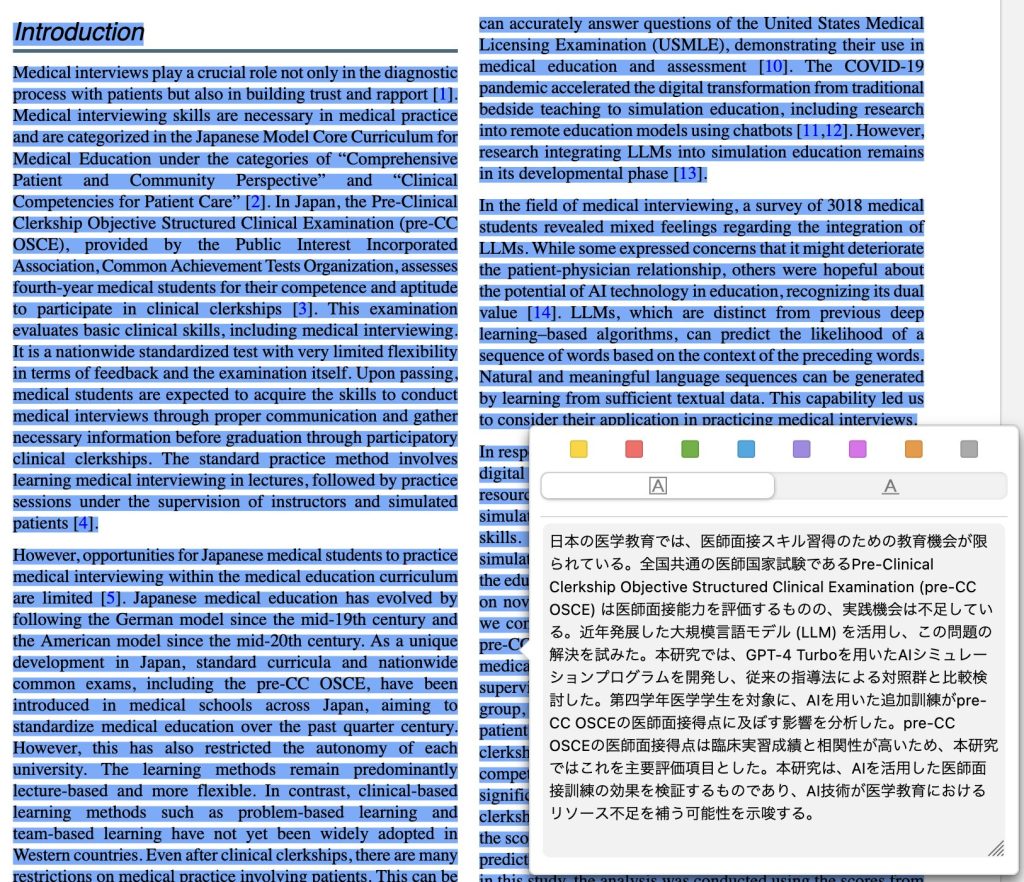
As a knowledgeable expert, please provide a concise and comprehensive summary of the following text. The summary should capture the main ideas, key arguments, and essential details while maintaining the academic tone and technical accuracy of the original text. Your summary should be approximately one-third of the original length while preserving the core message and scholarly integrity. Consider the context, maintain proper terminology, and ensure the logical flow of ideas. The text to summarize is: ${sourceText} Please provide the summary directly without additional explanations or notes. The result should be a cohesive, standalone text that effectively communicates the essence of the original content in a clear and academically appropriate manner. Output is in ${langTo}.
If we select the Introduction as a test, we can see that it both translates and summarizes the text.
7. Integrating with ResearchRabbit
ResearchRabbit analyzes the paper details (authors, keywords, references, etc.) in your imported Zotero collections to find closely related papers.
- It displays a network graph centered around the paper you clicked, showing related papers as nodes.
- You can visually trace connections between nodes, such as co-authorship and citation relationships.
- You can further filter related papers by specific authors, keywords, or journals.
The video below should give you a good idea of how it works. I will write a detailed guide another time...
8. Integrating with Notion AI
Several tools can link Notion and Zotero, but here we will use a Zotero plugin called Notero Notes. Notero Notes automatically pulls paper details from your Zotero database and displays them in a Notion table. The original Notero plugin did not display the contents of Zotero notes in the Notion table, whereas Notero Notes adds this feature.
*January 3, 2025: At present, however, displaying notes with full functionality in Zotero 7 seems difficult. You may want to hold off on syncing notes for a little while.
Install Notero Notes in Zotero
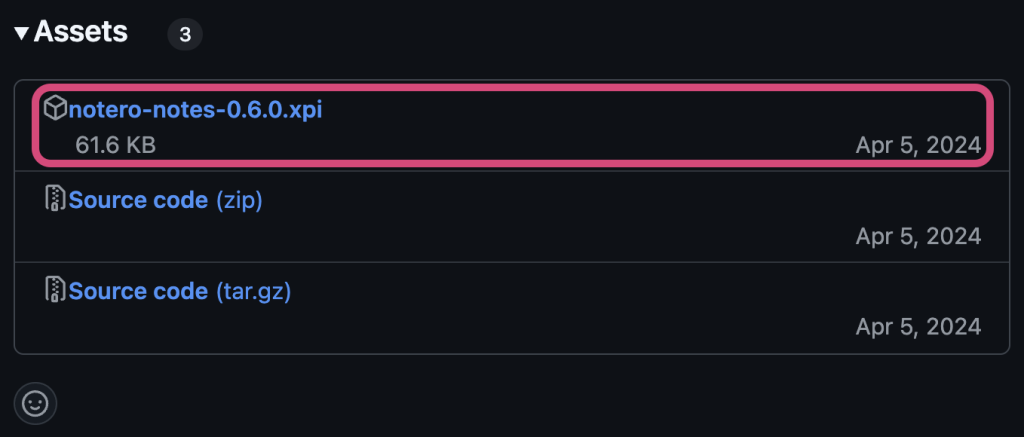
Download the Notes XPI file from the Releases page of the Notero Notes repository on GitHub.
Go to https://github.com/makinteract/notero-notes/tree/main and open the Releases page.
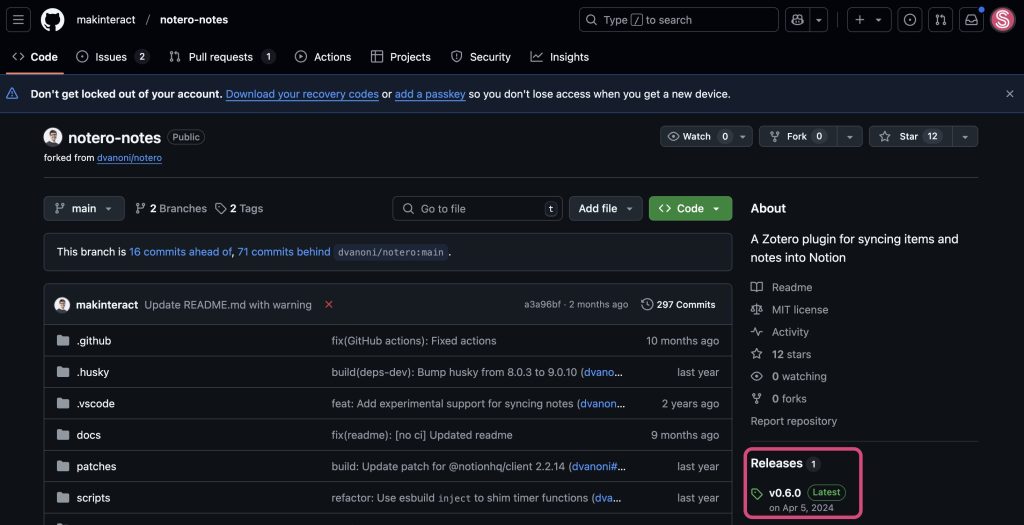
Scroll all the way down to find the file you need, "notero-notes-version.xpi". Click it to start the download.
Create a Notion database.
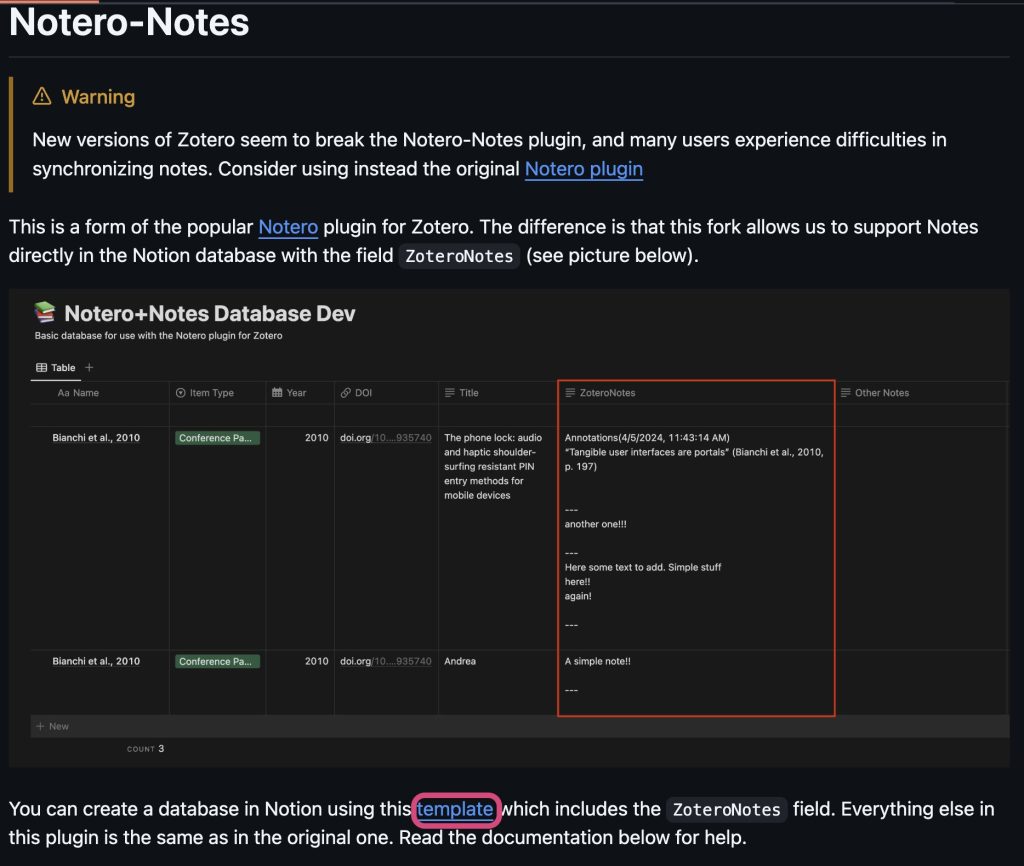
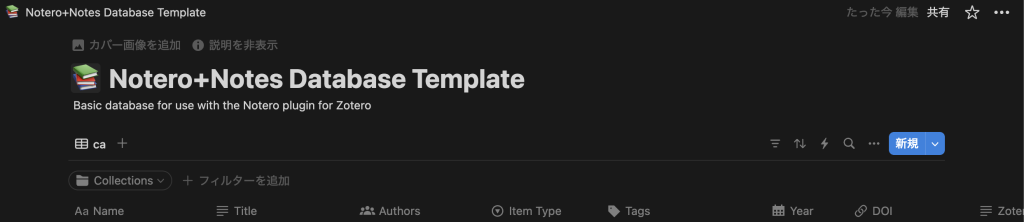
Click the link to the template on the main page of the Notero Notes repository to open the database template. Duplicate the page to copy it into your Notion workspace. Click "template" at the very bottom of the image.
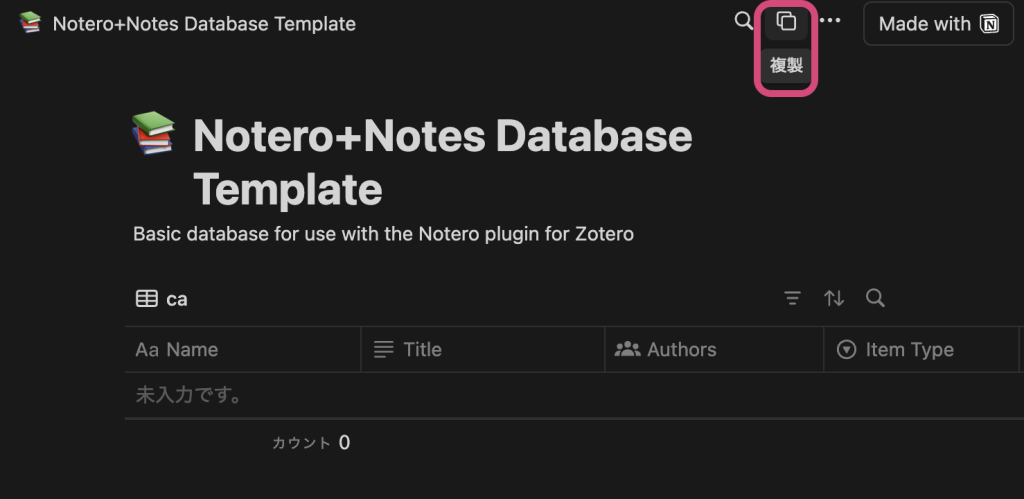
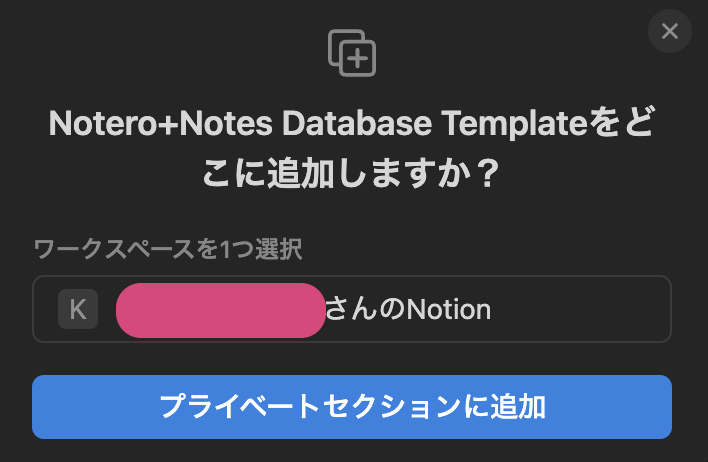
Select Duplicate to add the template to your Notion workspace.
Install Notero Notes in Zotero.
In Zotero, select "Tools" > "Plugins" and install the downloaded Notero Notes plugin file by dragging and dropping it, following the same steps as earlier.
Link Notion and Notero Notes.
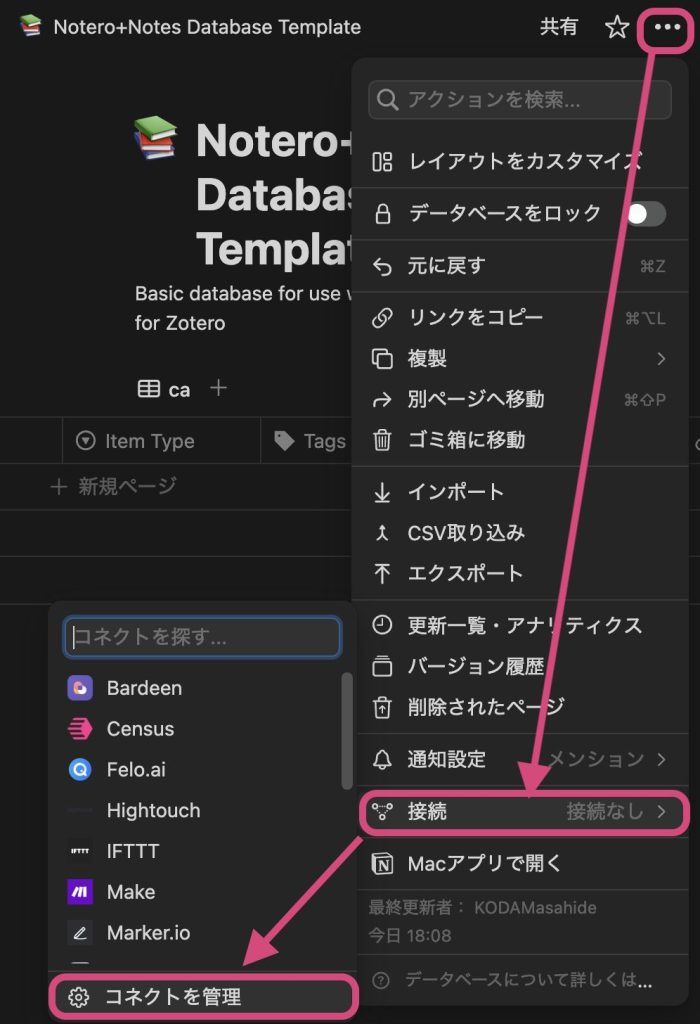
On your Notion database page, click "..." > "Connections" > "Manage connections".
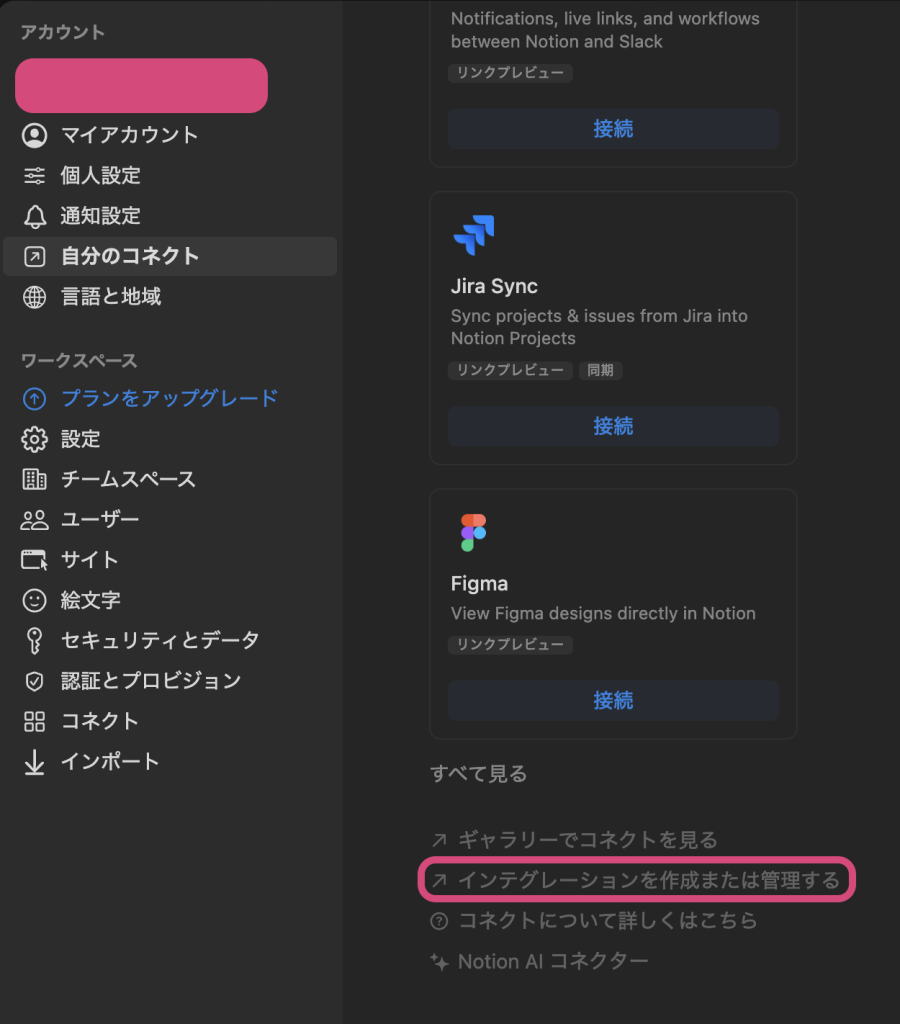
Proceed to "Develop or manage integrations".
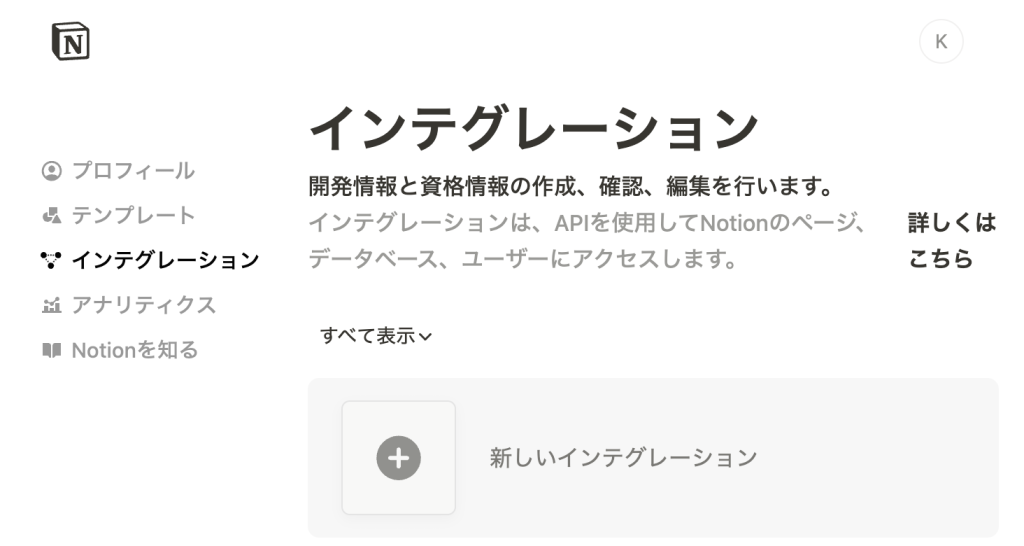
Click "New integration" and name it "Notero Notes". Set the type to Internal and click Save. Copy the Internal Integration Secret that appears.
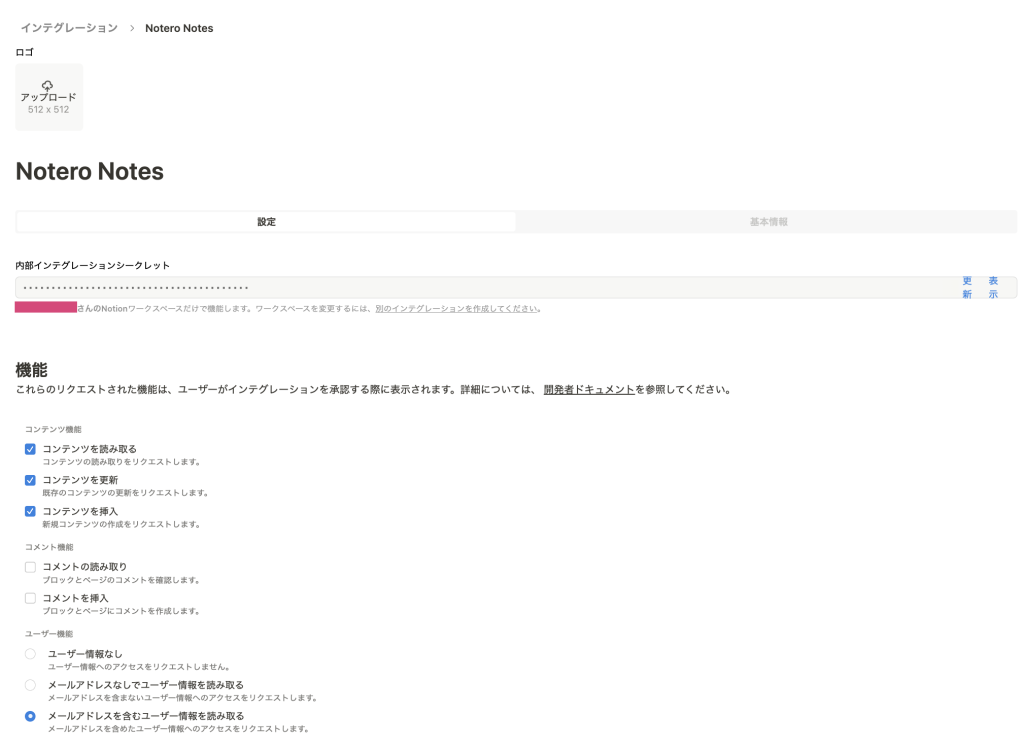
Next, reload the database page from earlier. You can now select "Notero Notes" under "..." > "Connections".
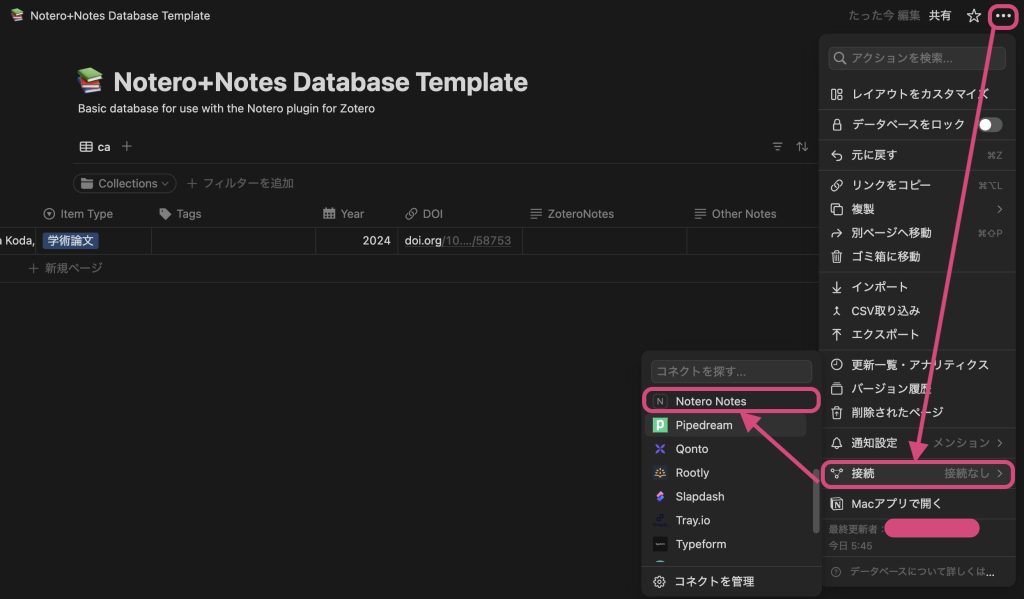
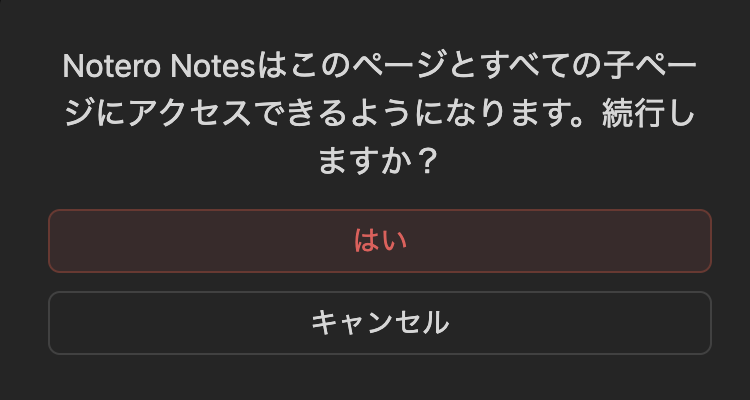
Click "Confirm" to complete the connection.
Configure Notero Notes in Zotero.
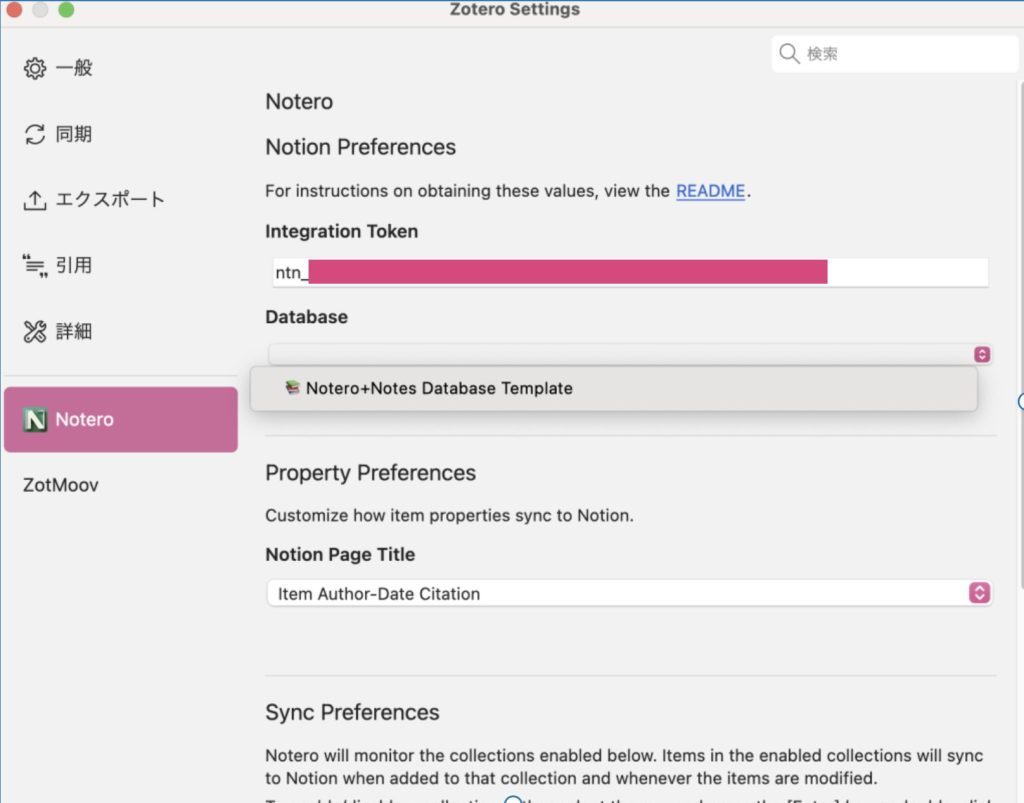
In Zotero, select "Tools" > "Notero Preferences" and paste the key you copied earlier. You will then be able to select the database name and choose which collections to sync.
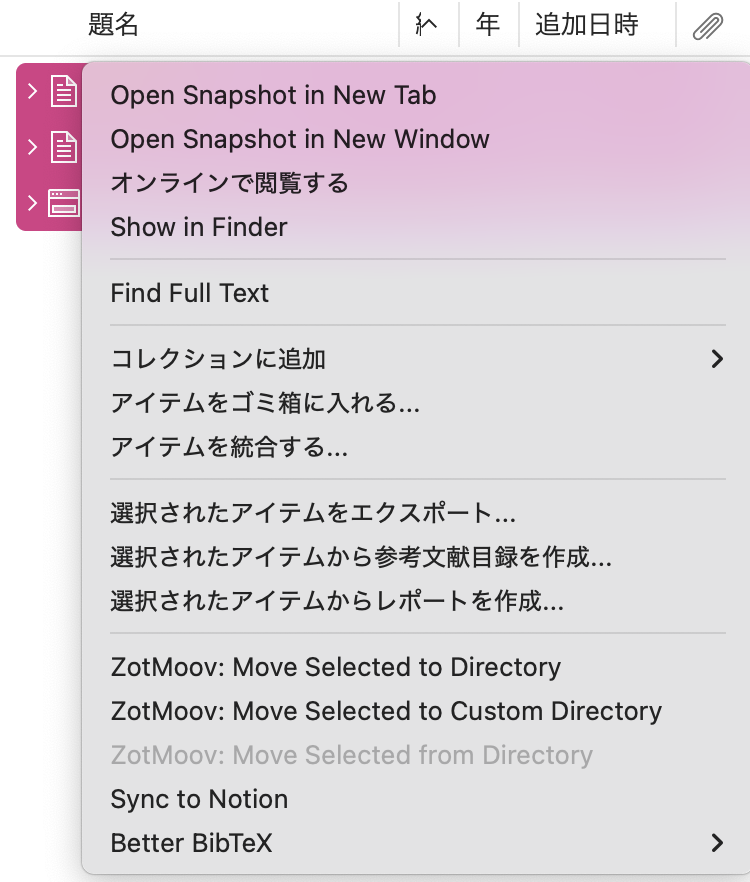
To sync Zotero with Notion, select specific papers (or press Ctrl + A to select all), right-click, and choose "Sync Items to Notion". Once syncing finishes, the information for the selected papers appears in your Notion table.
You can also add a filter to create a "Collections" filter. This lets you display only a specific collection, such as "ToRead".
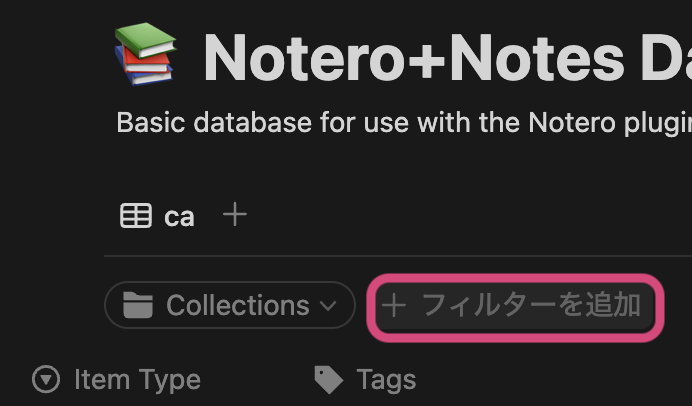
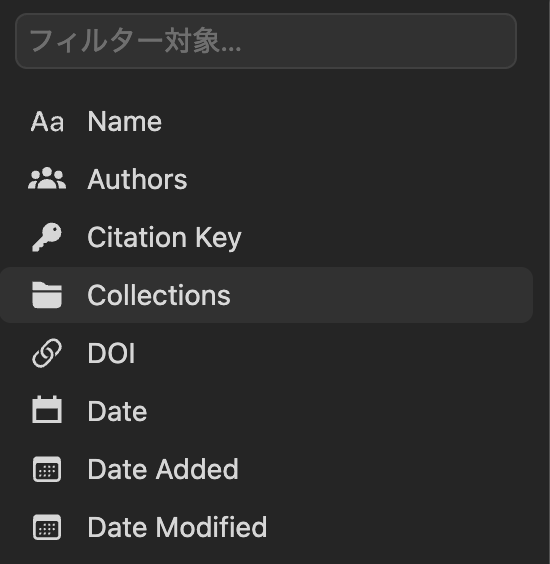
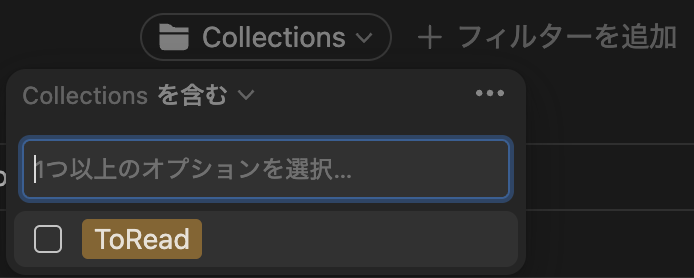
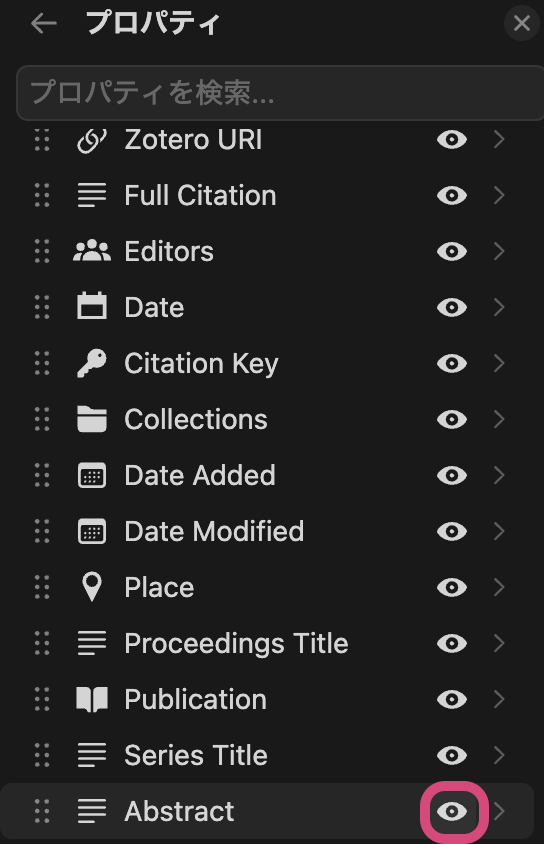
Although the entire database is synced, some fields like the Abstract are hidden by default. Click the "..." on the far right to choose which properties to display.
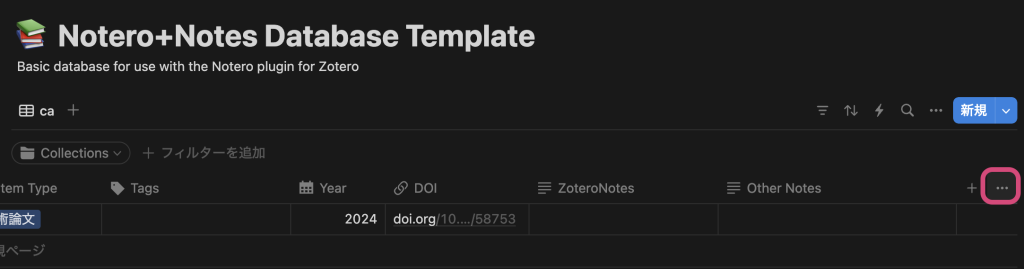
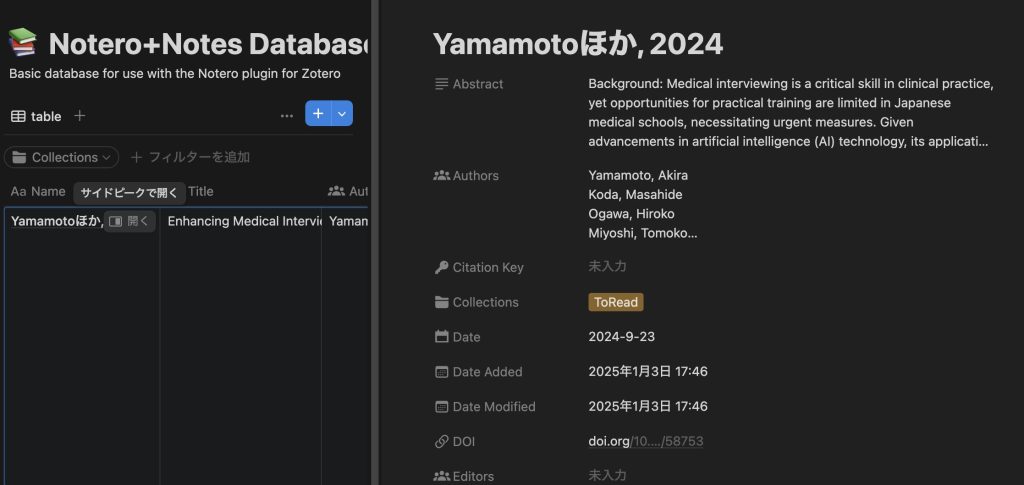
Click the title of an item in the Name column on the far left to open it in side peek and view its details.
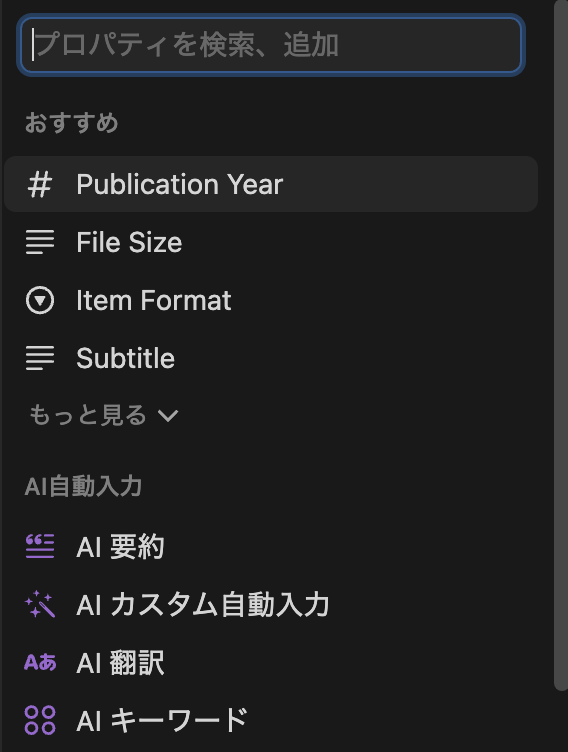
Although the free plan limits you to 20 uses per user, you can also add a column and use Notion AI's summary feature to have AI summarize the paper's contents.
Moving your database into Notion lets you use Notion's features to organize and analyze paper information. For example, you can share notes with collaborators to review and discuss papers together.
References
| ↑1 | Zotero | Your personal research assistant. Accessed February 21, 2021. https://www.zotero.org/ |
|---|