Using Zotero in RStudio 1.4
Contents
Starting with RStudio 1.4, you can easily cite references from Zotero using the visual markdown editor. If you use the desktop version of RStudio, no extra setup is needed; it automatically detects your local Zotero library so you can insert citations directly. However, if you use RStudio Server, such as in a Docker environment, you need to follow a few extra steps. This post focuses mainly on how to set up the latter.
Getting a Zotero API key
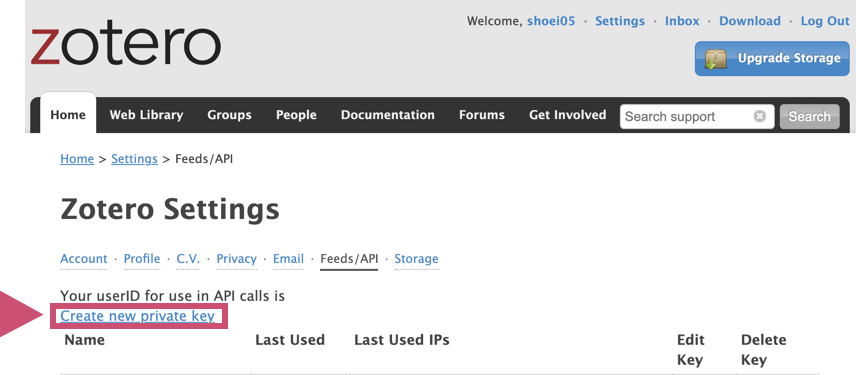
First, log in to Zotero and go to Home > Settings > Feeds/API. Then jump to the Create new private key page.
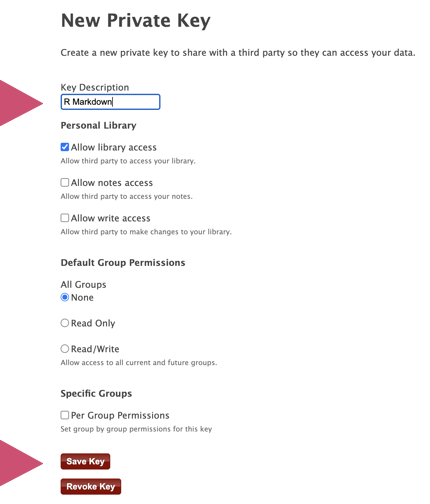
Enter any name you will recognize in the Key Description field. You can leave the other checkboxes at their default settings. Once you have filled this in, click Save Key.
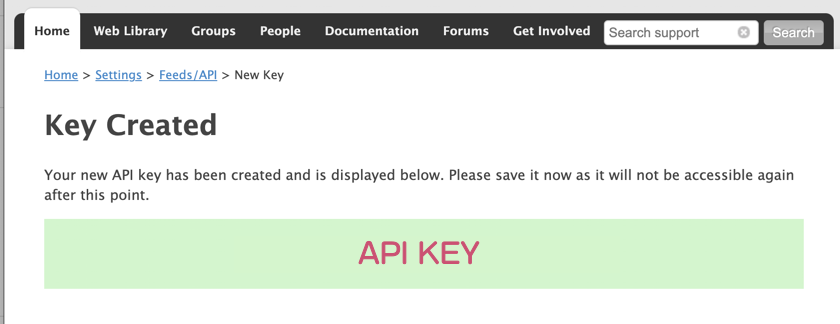
This generates your API key, so make sure to save it. As the warning states:
Please save it now as it will not be accessible again after this point.
Be careful, because you cannot view the key again later. If you lose it, follow the same steps to create a new API key.
Registering the API key in RStudio
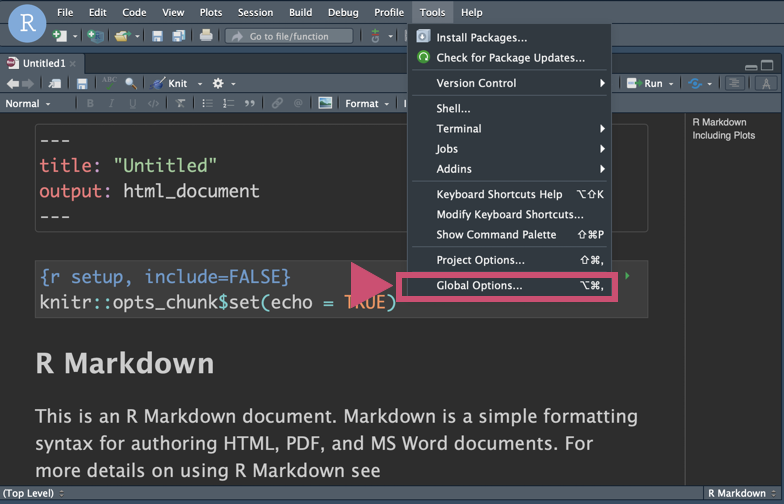
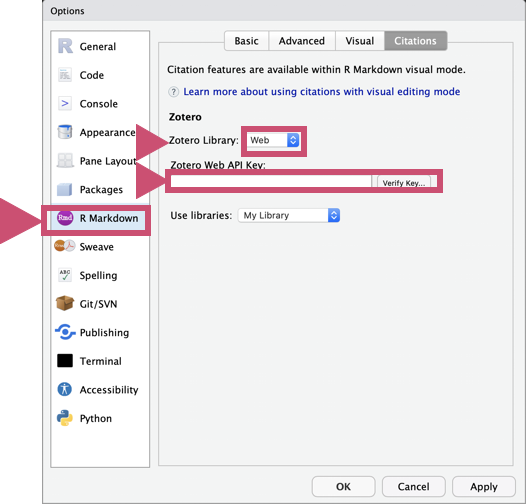
In RStudio, select Global Options from the Tools menu, then go to R Markdown > Citations. Under Zotero Library, select Web. You will be prompted to enter your API key. Enter the key and click Verify Key to complete the setup.
Launching the visual markdown editor
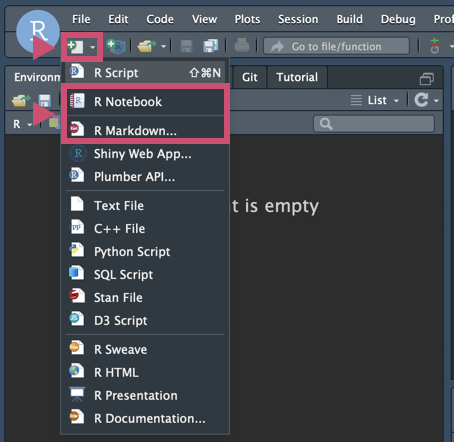
You can launch the visual markdown editor from an R Markdown or R Notebook file. Click the new file button and create an R Notebook or R Markdown document.
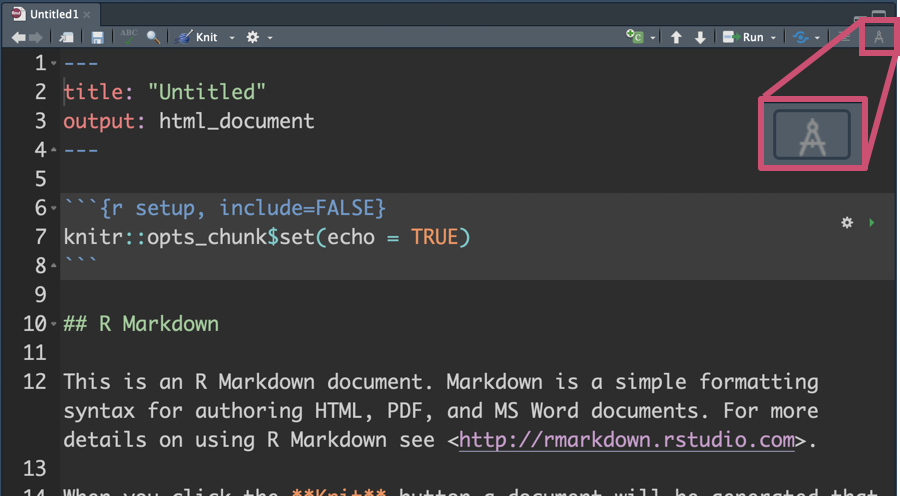
Click the compass-like icon in the top right corner to launch the visual markdown editor.
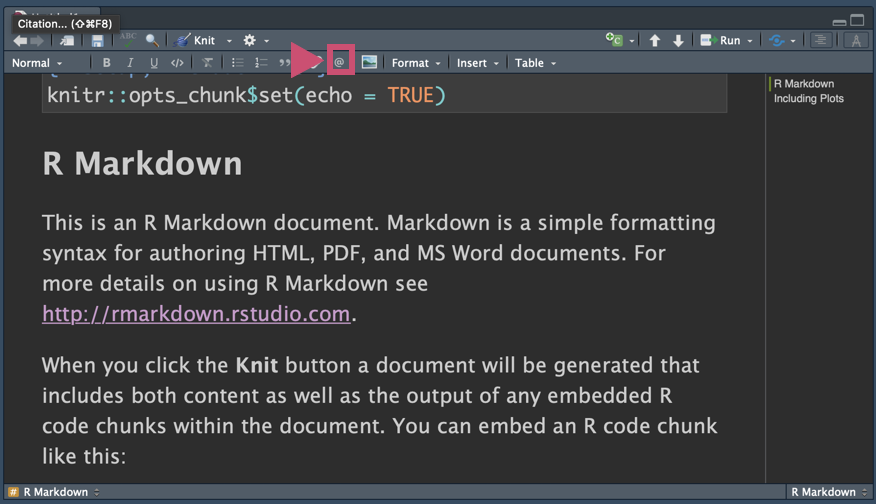
Click the @ icon where you want to insert a citation to access your Zotero library (the first launch takes a little time to sync). When you select a paper, RStudio automatically generates a references.bib file and records the reference data.
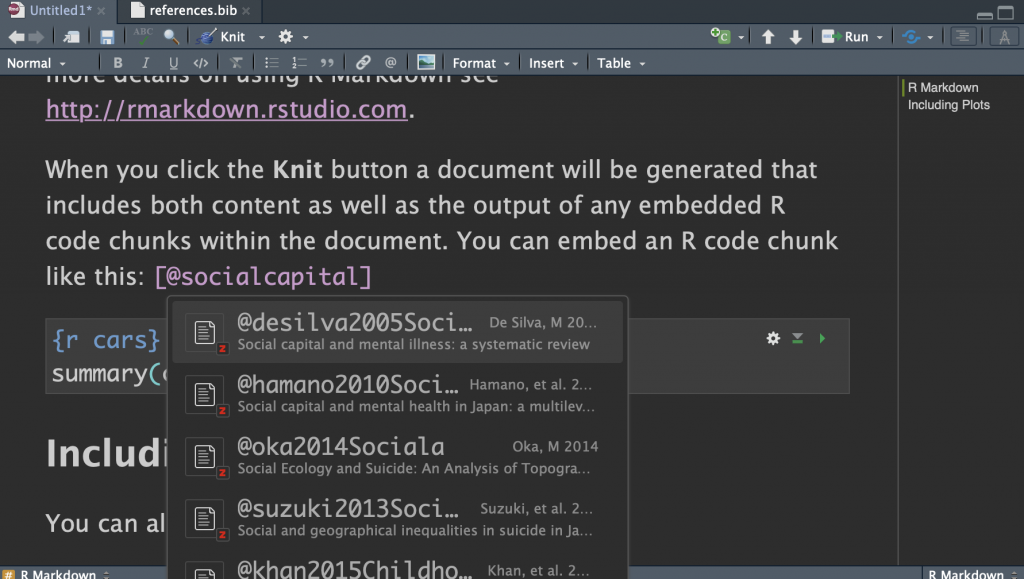
Alternatively, you can simply type @ directly in the body text to search by citation key and insert a reference.
Garbled text when importing Japanese references into a .bib file
While local setups of RStudio and Zotero seem to work fine, there is currently a bug when using RStudio Server with the Zotero Web API where Japanese references become garbled upon import. Searching for and inserting the citation key works fine, so you will need a workaround—such as preparing a .bib file in advance, or exporting a .bib file from your local Zotero later to overwrite the affected entries. If anyone knows a fix for this, I would appreciate hearing about it.
This page provides detailed instructions on how to configure .bib files for Japanese references ((Writing an undergraduate or master's thesis in RStudio | Why write your thesis in RStudio? Accessed February 21, 2021. https://kunisatolab.github.io/main/how-to-write-with-rstudio.html)).
Update: Solution by importing as .yaml or .json
I found that importing references in CSL-YAML or CSL-JSON format handles Japanese references without garbling the text. When you import your first reference and are prompted for a format, set Format: to CSL-YAML or CSL-JSON, and RStudio will automatically generate a references.yaml or references.json file.

If you have other references in a .bib file that you also want to use, specify them in the YAML header as:
bibliography: [references.bib, references.yaml]Code language: CSS (css)Enclosing the filenames in square brackets [] like this lets you use them alongside a .bib file.
Bonus: Setting custom citation keys
Currently, the Zotero Web API generates citation keys automatically, but you can change them to custom keys just like in local Zotero. See the link below for instructions on how to set this up.
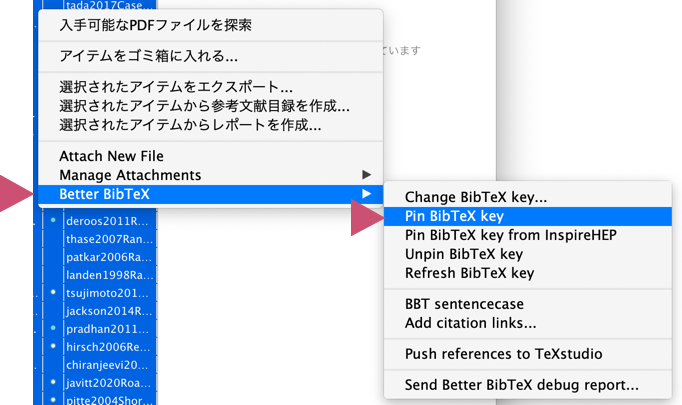
Once you have configured your citation keys, select all items in My Library with Control + A, then right-click and select Better BibTeX > Pin BibTeX key. This writes the current keys to the Extra field in your Web Library, allowing you to use the exact same citation keys in the Zotero Web Library. Personally, I standardize my keys to match the BibTeX citation key format generated by Google Scholar ((Google Scholar. Accessed February 21, 2021. https://scholar.google.com/)). If you use another reference manager alongside Zotero, I recommend configuring your citation keys to match its naming rules. Keeping them compatible will make recovery much smoother if your main machine ever breaks down (though I hope that day never comes).
Final thoughts
For now, I have jotted down what I have noticed so far. With version 1.4, RStudio feels much easier to use as a text editor. As for the garbled text bug with Japanese references, you can work around it using the method in the update section above.