Batch-correcting typos using an Excel table (Google Colab)
Contents
This article and its code were created using Gemini 1.5 Pro.
Speech recognition has made taking meeting minutes easier, but fixing typos is still a chore. Correcting people's names and technical terms every single time is especially tedious.
Here I will show you how to automate this tedious work using Google Colaboratory (Colab) and Excel. Google Colaboratory (Colab) is a free cloud service that lets you write and run code in your browser, making it useful for machine learning study and data analysis. It requires no environment setup, so anyone can easily get started with Python. You do not need any complicated settings—just paste the code into your browser.
First
I created a custom GPT to handle this task. Since data analysis is now available on the free tier, you should be able to use it while keeping an eye on the usage limits. Click "Where do I start?" (何から始めたらいい?) and follow the instructions.
https://chatgpt.com/g/g-oBq9SnKDY-replace-text
Steps
- Create replacement rules in Excel: List commonly misrecognized words and their correct spellings in an Excel file.
- Run the code in Colab: Copy, paste, and run the code below!
- Upload the files: Upload the Excel file and the text file you want to correct.
- Correction complete!: Colab automatically corrects and downloads the file.
1. Create typo correction rules in Excel
In an Excel file, list the strings you want corrected in Column A and the correct spellings in Column B. Save it as an .xlsx file anywhere on your PC.
Example of a replacement rule file (Excel)
| Column A | Column B |
|---|---|
| 難因性 (misrecognized word) | 内因性 (endogenous) |
| 神奇的 (misrecognized word) | 心気的 (hypochondriacal) |
| ... (string to replace) | ... (correct string) |
Once completed, save it as an .xlsx file with any name and in any location.
2. Run the code in Colab
Save a copy of the Google Colab notebook below to your own Drive.
If you want to learn more about Google Colab, see "Introduction to Python Programming" (Pythonプログラミング入門)[1]Center for Research and Education in Mathematical and Data Sciences, The University of Tokyo. Python プログラミング入門 (Introduction to Python Programming). https://utokyo-ipp.github.io/ published by the Center for Research and Education in Mathematical and Data Sciences at the University of Tokyo.
https://colab.research.google.com/drive/1PHlm5I7RKGSgA07_FKkPMpXAqzSbAwog?usp=sharing
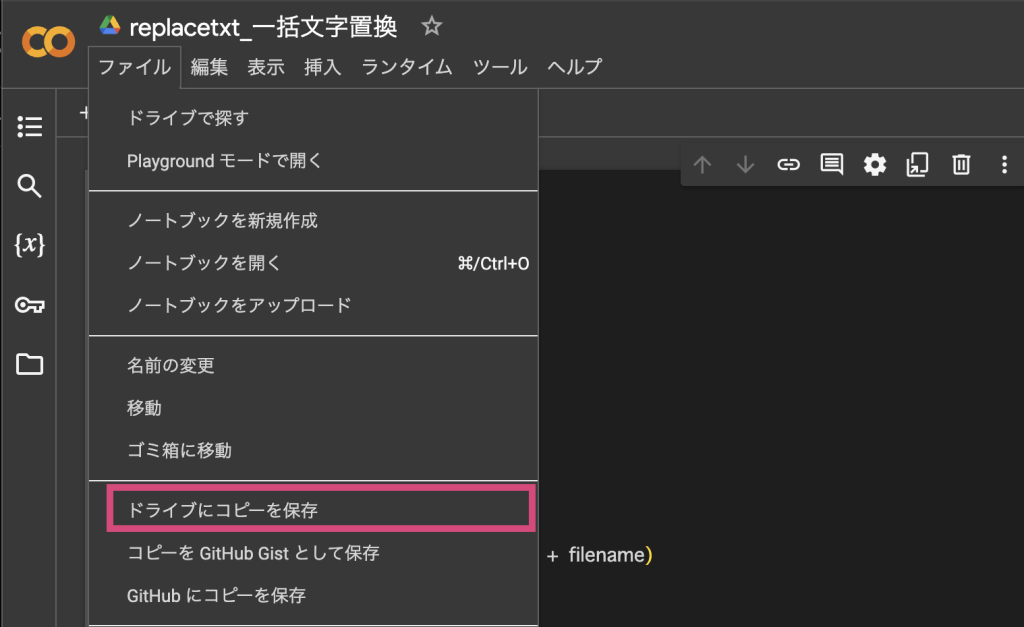
Once you have made a copy, click the button on the left to run the code.
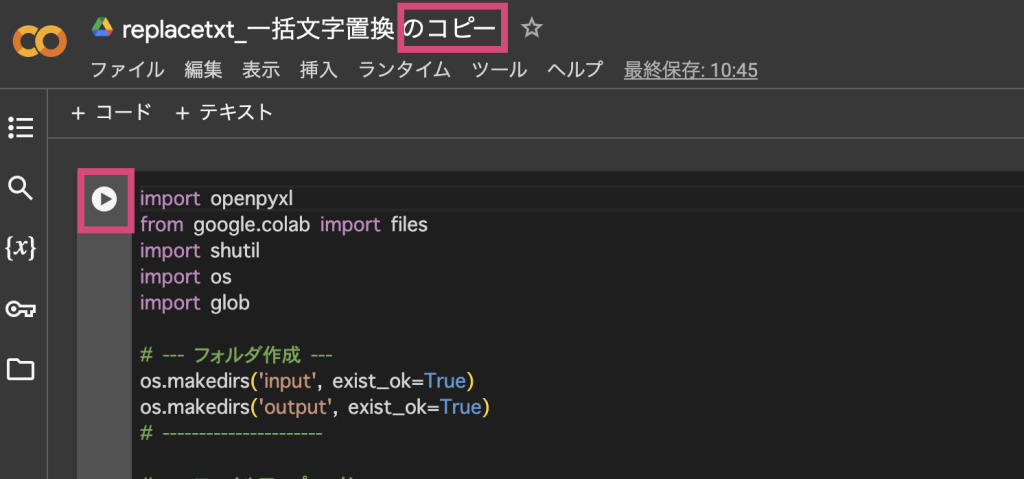
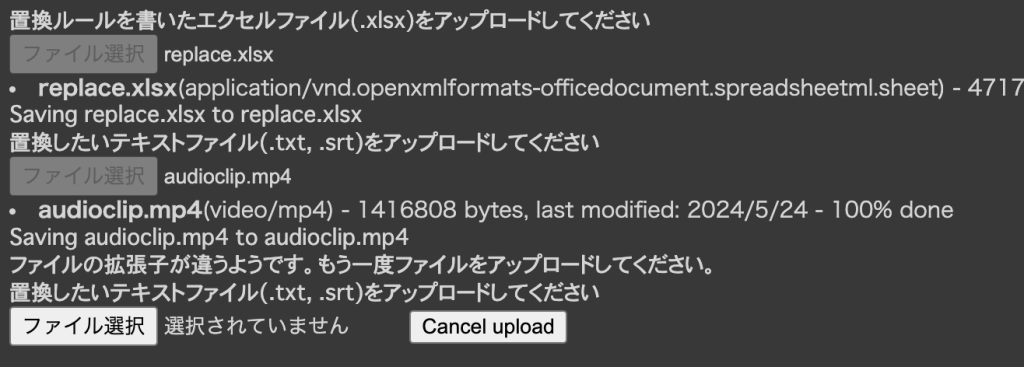
Shortly after running it, buttons will appear below to upload (1) the Excel file with replacement rules and (2) the text file you want to replace. Upload your files there.
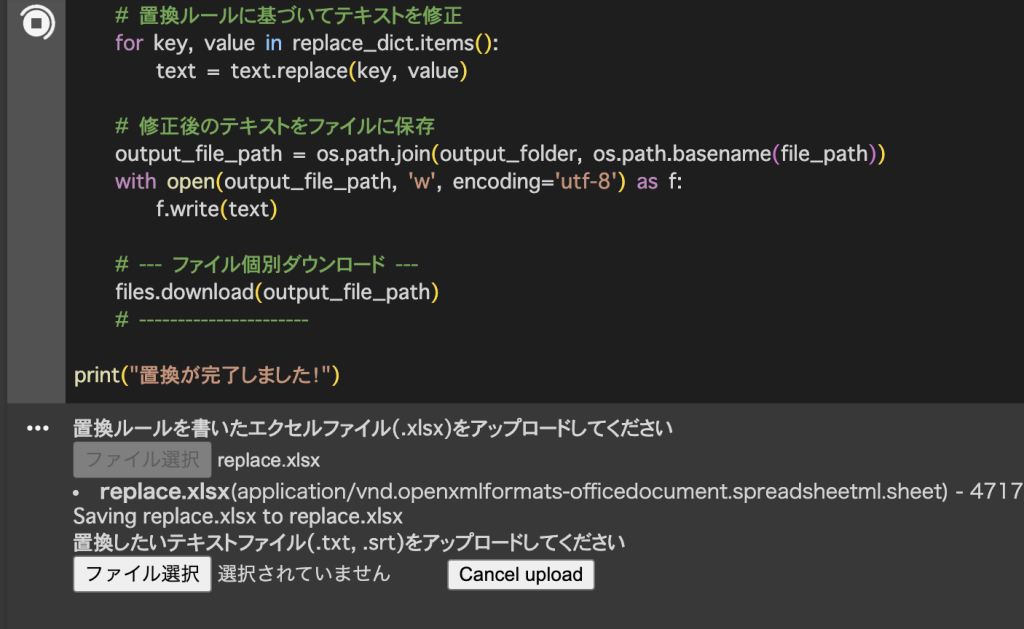
If the file format is incorrect, instructions will appear asking you to upload the file again.
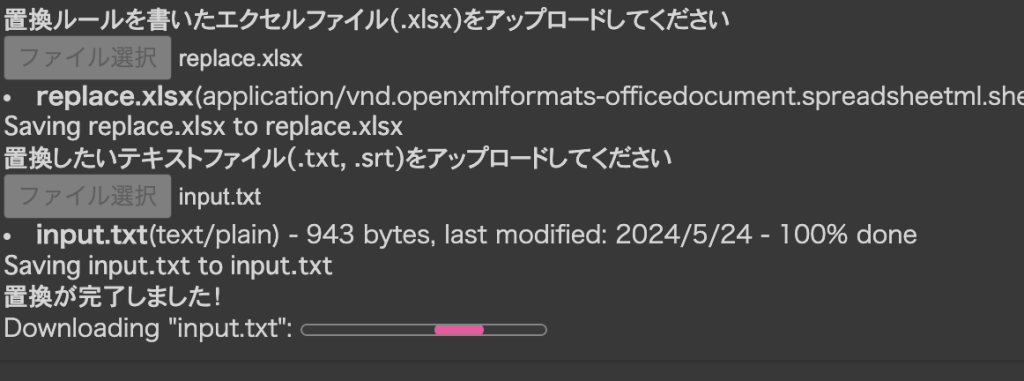
Once the replacement is complete, the download will start automatically.
.ipynb code to run in Colab
import openpyxl
from google.colab import files
import shutil
import os
import glob

# --- フォルダ作成 ---
os.makedirs('input', exist_ok=True)
os.makedirs('output', exist_ok=True)
os.makedirs('replace_rule', exist_ok=True)
# ----------------------

# --- 置換ルールファイルのアップロード ---
while True:
  print("置換ルールを書いたエクセルファイル(.xlsx)をアップロードしてください")
  uploaded = files.upload()
  for filename in uploaded.keys():
    if not filename.endswith(".xlsx"):
      print("ファイルの拡張子が違うようです。もう一度ファイルをアップロードしてください。")
      break
  else:
    shutil.move(filename, f"/content/replace_rule/{filename}")
    break
# ----------------------

# --- 置換対象ファイルのアップロード ---
while True:
  print("置換したいテキストファイル(.txt, .srt)をアップロードしてください")
  uploaded = files.upload()
  for filename in uploaded.keys():
    if not filename.endswith((".txt", ".srt")):
      print("ファイルの拡張子が違うようです。もう一度ファイルをアップロードしてください。")
      break
  else:
    shutil.move(filename, f"/content/input/{filename}")
    break
# ----------------------

# --- 設定 ---
excel_path = glob.glob("replace_rule/*.xlsx")[0] # replace_rule ディレクトリ内のExcelファイルを指定
input_folder = 'input'                 # 修正したいファイルがあるフォルダ名
output_folder = 'output'                # 修正後のファイルを保存するフォルダ名
# ----------------------

# Excelファイルを読み込み、置換ルールを辞書に格納
wb = openpyxl.load_workbook(excel_path)
sheet = wb.active
replace_dict = {}
for row in sheet.iter_rows(min_row=2, values_only=True):
    if row[0] is not None and row[1] is not None:  # セルの値がNoneでないことを確認
        replace_dict[str(row[0])] = str(row[1])

# テキストファイルと字幕ファイルを一括処理
for file_path in glob.glob(os.path.join(input_folder, '*.txt')) + glob.glob(os.path.join(input_folder, '*.srt')):
    with open(file_path, 'r', encoding='utf-8') as f:
        text = f.read()

    # 置換ルールに基づいてテキストを修正
    for key, value in replace_dict.items():
        text = text.replace(key, value)

    # 修正後のテキストをファイルに保存
    output_file_path = os.path.join(output_folder, os.path.basename(file_path))
    with open(output_file_path, 'w', encoding='utf-8') as f:
        f.write(text)

    # --- ファイル個別ダウンロード ---
    files.download(output_file_path)
    # ----------------------

print("置換が完了しました!")Code language: PHP (php)
Running with Python on your local PC
Preparation
1. Install Python
If you have not installed it yet, download and install it from the official Python website.
Open Command Prompt or Terminal:
- Windows: Press the Windows key, type "cmd", and press Enter.
- Mac: Click Spotlight Search (the magnifying glass icon), type "Terminal", and press Enter.
python -VType the following:
Python 3.12.3Code language: CSS (css)If you see output like the following, Python is already installed:
2. Install required libraries
Run the following command to install the required libraries.
pip install openpyxl- In the same directory, create a "replace_rule" folder to store the replacement rule .xlsx file and an "input" folder to store the text data you want to replace, then place the respective files inside them.
- Create the following folder structure:
任意のフォルダ
   ├── replace_text.py
   ├── replace_rule
   │   └── replace_rules.xlsx  # 置換ルールを定義したExcelファイル(名前は任意)
   ├── input
   │  └── (修正したい.txtファイルと.srtファイルを置く)
   ├── output (自動で生成)
   │  └── (修正後の.txtファイルと.srtファイルが格納される)
   └── done (自動で生成)
       └── (元ファイルは処理後にこちらに移動) Code language: CSS (css)
Copy the code below and save it as replace_text.py.
import openpyxl
import os
import glob
import shutil

# --- 設定 ---
excel_folder = 'replace_rule'  # 置換ルールを定義したExcelファイルがあるフォルダ名
input_folder = 'input'         # 修正したいファイルがあるフォルダ名
output_folder = 'output'        # 修正後のファイルを保存するフォルダ名
done_folder = 'done'           # 処理済みのファイルを移動するフォルダ名
# ----------------------

# Excelファイルのパスを取得
excel_files = glob.glob(os.path.join(excel_folder, '*.xlsx'))
if not excel_files:
    print("エラー: replace_rule フォルダに .xlsx ファイルが見つかりません。")
    exit()
excel_path = excel_files[0]

# Excelファイルを読み込み、置換ルールを辞書に格納
wb = openpyxl.load_workbook(excel_path)
sheet = wb.active
replace_dict = {}
for row in sheet.iter_rows(min_row=2, values_only=True):
    if row[0] is not None and row[1] is not None:
        replace_dict[str(row[0])] = str(row[1])

# 出力フォルダと処理済みフォルダが存在しない場合は作成
os.makedirs(output_folder, exist_ok=True)
os.makedirs(done_folder, exist_ok=True)

# テキストファイルと字幕ファイルを一括処理
for file_path in glob.glob(os.path.join(input_folder, '*.txt')) + glob.glob(os.path.join(input_folder, '*.srt')):
    with open(file_path, 'r', encoding='utf-8') as f:
        text = f.read()

    # 置換ルールに基づいてテキストを修正
    for key, value in replace_dict.items():
        text = text.replace(key, value)

    # 修正後のテキストをファイルに保存
    output_file_path = os.path.join(output_folder, os.path.basename(file_path))
    with open(output_file_path, 'w', encoding='utf-8') as f:
        f.write(text)

    # 処理後のファイルを done フォルダに移動
    shutil.move(file_path, os.path.join(done_folder, os.path.basename(file_path)))

print("置換が完了しました!")Code language: PHP (php)
Execution steps
1. Open Command Prompt / Terminal
- Windows: Press the Windows key, type "cmd", and press Enter.
- Mac: Click Spotlight Search (the magnifying glass icon), type "Terminal", and press Enter.
2. Navigate to the directory containing the script
In Command Prompt or Terminal, use the cd command to move to the directory where replace_text.py is located.
cd /path/to/your/directory (Example: cd /Users/Documents/任意のディレクトリ)
On Windows, you should be able to see the directory location by right-clicking and selecting Properties.
On a Mac, if you right-click to open the menu and hold down the "Option" key, "Copy" changes to "Copy ... as Pathname", allowing you to get the path.
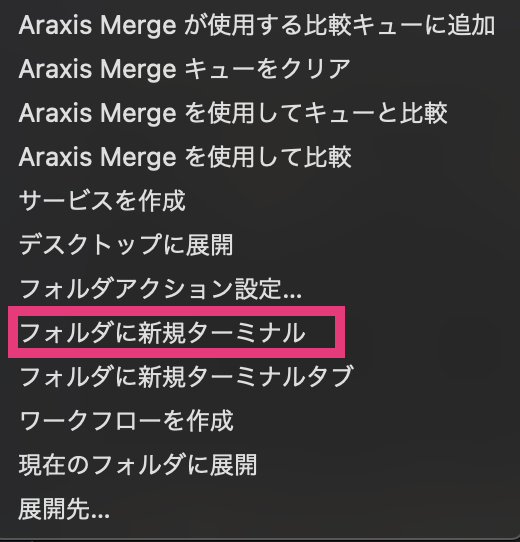
Alternatively, on a Mac, you can right-click the target directory and select Services > New Terminal at Folder to open Terminal directly at that path. In that case, the
cd /path/to/your/directorycommand above is not needed.

3. Run the script: Run the following command.
python replace_text.pyCode language: CSS (css)When processing finishes, the corrected files are created in the output folder. A done folder is automatically generated, and the original files are moved there.
Summary
Using Colab and Excel, you can easily automate typo correction in meeting minutes and subtitle files. Fellow minute-takers, give this method a try to make preparing minutes easier and more accurate.
Bonus
As of May 25, 2024, my personal AI usage frequency looks something like Gemini 1.5 Pro/Flash > GPT-4o > Claude-3. Having a free tier in Google AI Studio and being able to handle a massive context window makes a huge difference. For long-text summarization tasks, Claude-3 Opus seems a cut above the rest. For code generation, I use Gemini 1.5 Pro/Flash and GPT-4o together.
References
| ↑1 | Center for Research and Education in Mathematical and Data Sciences, The University of Tokyo. Python プログラミング入門 (Introduction to Python Programming). https://utokyo-ipp.github.io/ |
|---|