Managing RStudio with Docker Compose
In my previous post, I wrote about launching RStudio with Docker. While that method works fine as is, typing and remembering a long command every time you execute `docker run` is a hassle. In the future, you might also want to use various other containers alongside RStudio Server. That is where Docker Compose comes in handy.
Create a docker-compose.yml file
Create a file named `docker-compose.yml` in the same directory as the `Dockerfile` from the previous post, and open it in an editor. Just like last time, we will work inside the `Dropbox > docker` folder (e.g., `/Users/user/Dropbox/docker` on Mac, or `D:\Dropbox\R\docker` on Windows).
Last time, when running `docker build` and `docker run`, we wrote:
docker build -t geo:geospatial .Code language: CSS (css)docker run -p 8787:8787 -v C:\Users\user\Dropbox\R\:/home/rstudio -d geo:geospatialCode language: JavaScript (javascript)Setting this up in `docker-compose.yml` looks like this:
version: '3'

services:
  rstudio:
    build: .
    image: geo:geospatial
    container_name: geo
    ports:
      - 8787:8787
    environment:
      TZ: Asia/Tokyo
    volumes:
      - ../R:/home/rstudio
    tty: true
    stdin_open: trueCode language: JavaScript (javascript)
Remember to put a single space after each colon (`:`) and dash (`-`). For example, in `version: '3'`, there is a space between `version:` and `'3'`. Similarly, `build: .` requires a space before the dot (`.`). Follow this as a strict formatting rule.
Also, this time I specified `volumes` using a relative path. If you want to set `C:\Users\user\Dropbox\R` as the RStudio home directory, since you are currently in `C:\Users\user\Dropbox\docker`, you use `..` to move up one level (to `C:\Users\user\Dropbox\`) and then specify the `/R` directory.
Using a relative path makes the code independent of the host machine's environment. Now you can manage the setup on both Mac and Windows using the exact same `docker-compose.yml` file.
Build with docker-compose up -d
This step is the same as with standard Docker. Open Terminal on Mac, or TeraTerm or Windows Terminal on Windows. Navigate to the directory containing your `Dockerfile`.
# 自分(Mac)の場合 /Users/user から /Users/user/Dropbox/docker へ移動

cd Dropbox
cd dockerCode language: PHP (php)
Once you are in the directory with your `Dockerfile` and `docker-compose.yml`, simply type and run `docker-compose up -d` instead of `docker build` and `docker run`. That's all it takes.
# /Users/user/Dropbox/docker

docker-compose up -dCode language: PHP (php)
If you get an error, first check that you haven't forgotten the spaces mentioned earlier. If everything goes well, you should be able to connect to RStudio at http://localhost:8787 just like in the previous setup.
If you see an error like:
ERROR: You must set a unique PASSWORD first!! e.g. run with:
docker run -e PASSWORD=<YOUR_PASS> -p 8787:8787 rocker/geospatialCode language: HTML, XML (xml)
you will need to set a password separately. Add the `environment` option to the `.yml` file you created earlier:
version: '3'

services:
  rstudio:
    build: .
    image: geo:geospatial
    container_name: geo
    ports:
      - 8787:8787
    environment:
      PASSWORD: YOUR_PASS
      TZ: Asia/Tokyo
    volumes:
      - ../R:/home/rstudio
    tty: true
    stdin_open: trueCode language: JavaScript (javascript)
Replace `YOUR_PASS` with any password you like.
I have skipped the finer details, but this gives you the general idea.
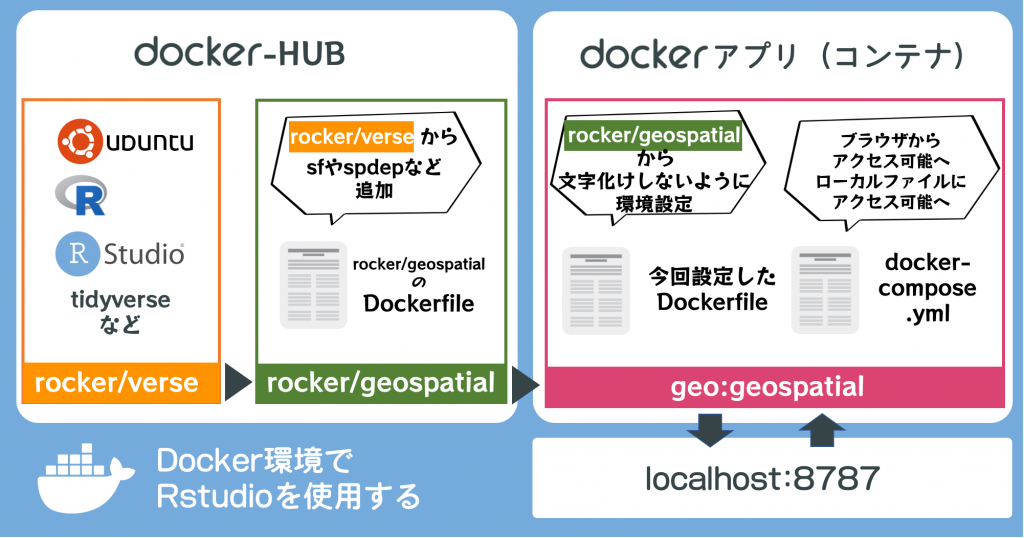
For this post, I referred to the Docker course ((Docker Course Taught from Scratch by a US AI Developer. Udemy. Accessed February 21, 2021. https://www.udemy.com/course/aidocker/)) by US-based AI developer Kameleon ((Kame @ US 🇺🇸 Data Scientist / Running the "DataScienceHub" community (@usdatascientist) / Twitter. Twitter. Accessed February 21, 2021. https://twitter.com/usdatascientist)). The course uses `docker-compose` to set up a web application (Rails) development environment, and I adapted that approach here to configure RStudio.
On a slight tangent, I used to use Monaca ((Monaca – App development for everyone. Accessed February 21, 2021. https://ja.monaca.io/)) for app development. It was easy to use, too, but I also want to build my own web app development environment on Docker. I plan to keep studying and preparing for that little by little.