A timer that shows the time in large digits, and a shared timer you can control remotely
Contents
I made two browser-based timers for study sessions and group work, to show on screen when the session resumes or when people should be back. One is “timer”, which works as soon as you open its URL. The other is “presentimer”, which shares the same display across several devices so you can change the time from somewhere else. This article rewrites the version I posted on note in February 2026 so that the steps are easier to follow. The apps themselves are in Japanese.
Video
The narration (in Japanese) is synthesized speech, using the voice “Ayaka” from the ElevenLabs voice library with the Eleven v4 model.
timer: open the URL and it works

- App: https://shoei05.github.io/timer/
- Source code: https://github.com/shoei05/timer
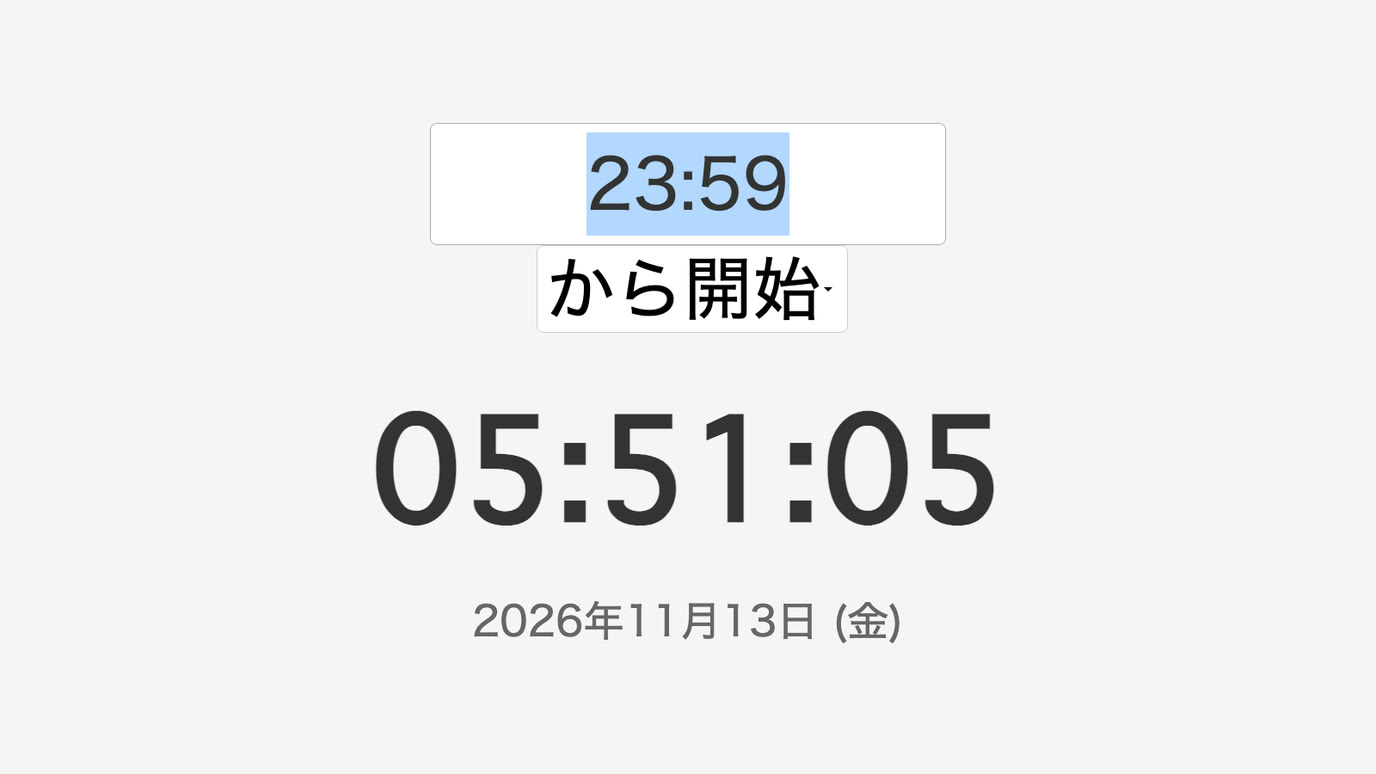
There is nothing to install and no account to create. Open the URL on a computer with an internet connection and the current time and date fill the screen. Put this screen on a projector or a large monitor and the time is readable from anywhere in the room.
Setting the time
- Click the text “23時59分から開始” (start at 23:59) at the top of the screen.
- Type the time in half-width digits. Use four digits without a colon:
1000for 10:00,1700for 17:00, and930for 9:30. - In the box below, choose “から開始” (start at) or “まで” (until).
- Press Enter. The display changes to, for example, “10時00分から開始” or “17時00分まで”.
When the set time arrives, the background changes from gray to pink. People can tell that the break is over or the deadline has come from the color, without reading the clock.
When to use it
- During a break in a training session or workshop, show “14時10分から開始” (resuming at 14:10).
- In group work, show “15時30分まで” (until 15:30) so that everyone shares how much time is left.
- Show the time in large digits in the waiting room for an exam or interview.
Using it as an app in Chrome
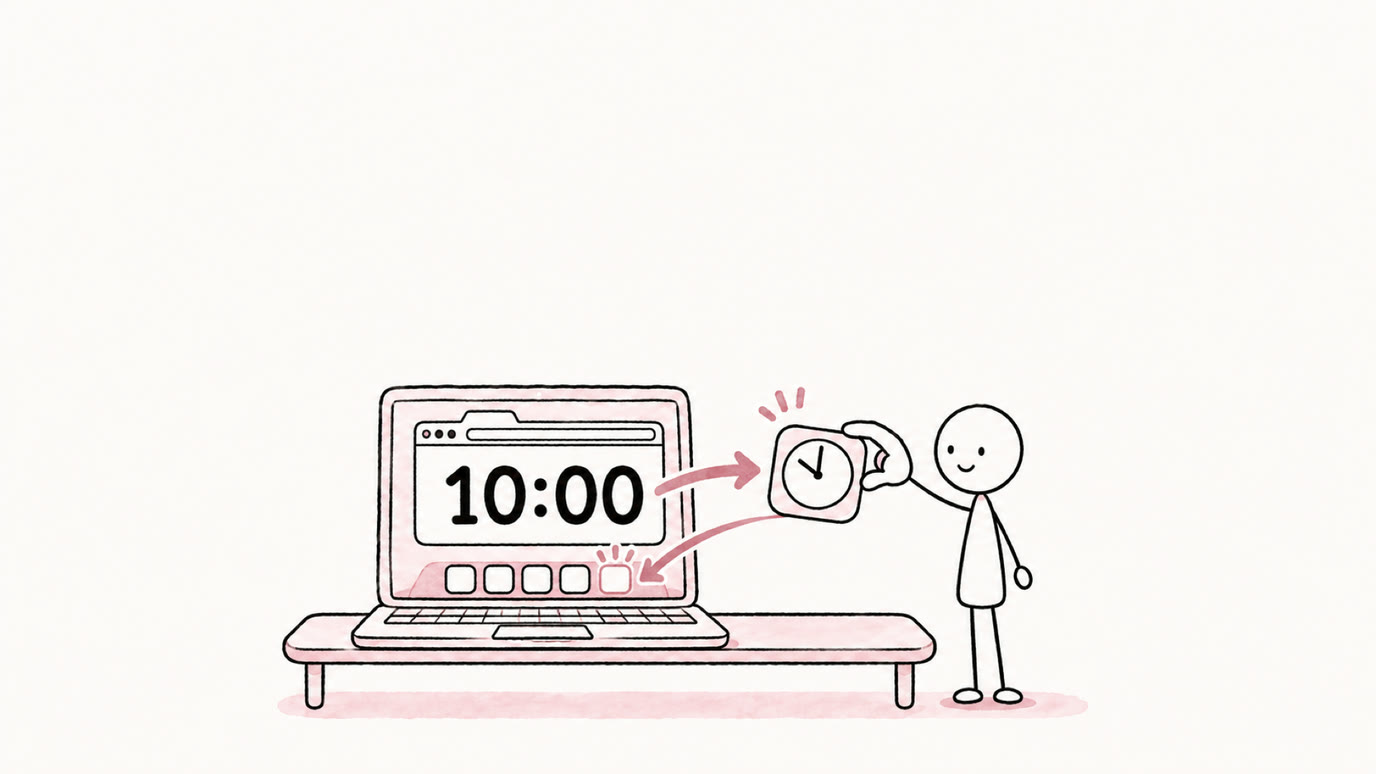
In Google Chrome you can save this page as an app. From the menu (⋮ at the top right), choose “Cast, save, and share” → “Install page as app”. The page then opens in its own window and can be launched from the Dock or the desktop. Without the address bar and tabs, only the time is visible when the screen is projected.
presentimer: a shared timer you can control remotely
- Source code: https://github.com/shoei05/presentimer
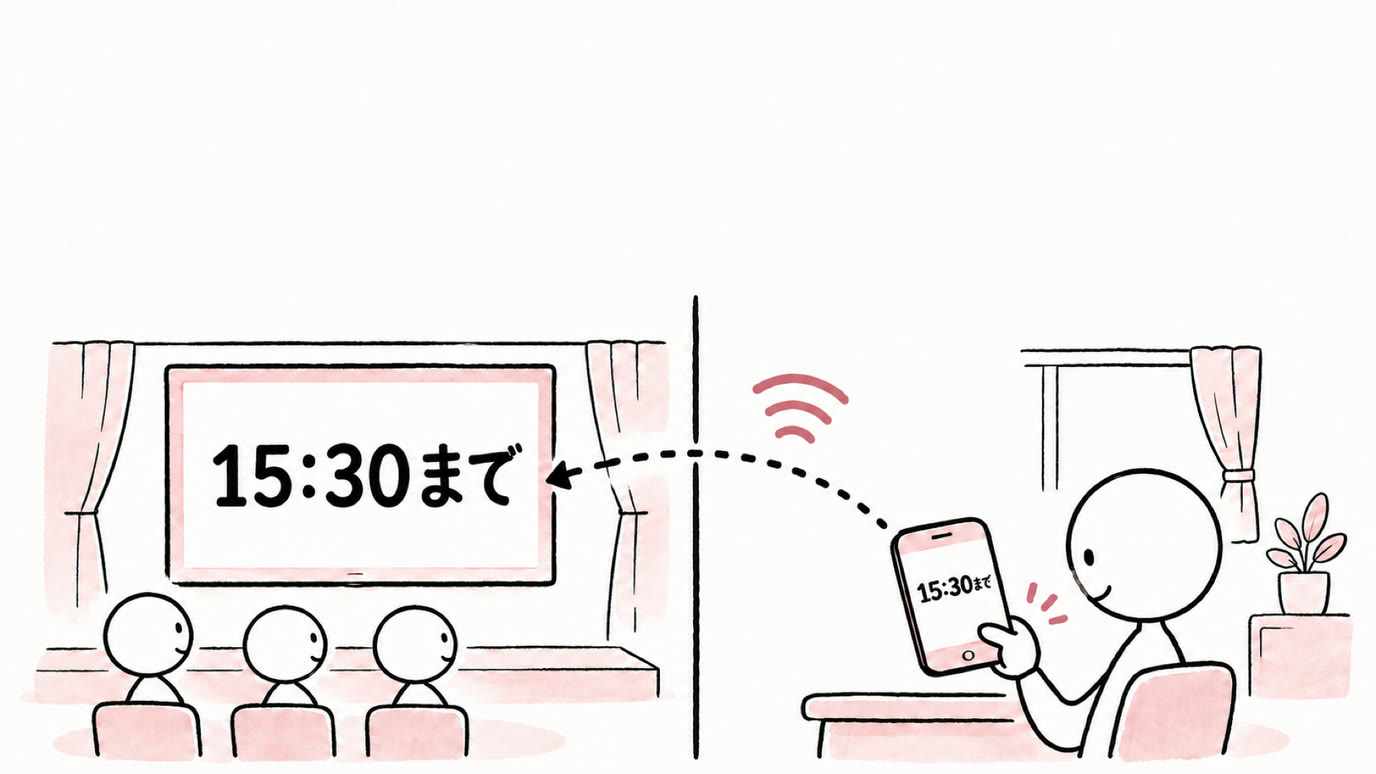
timer runs only on the computer where it is open. When you want to change the time from somewhere other than the computer connected to the venue screen, or show the same display to the room and to online participants, use presentimer.
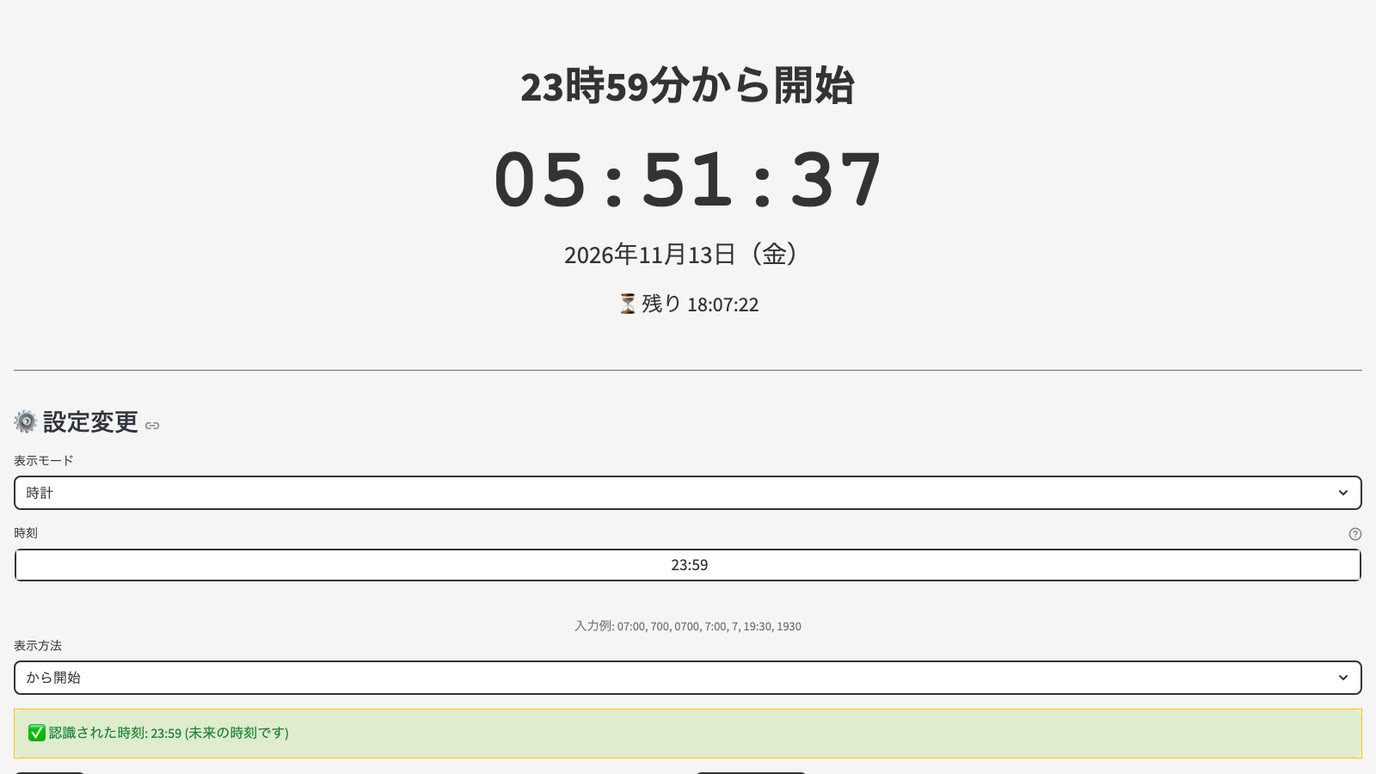
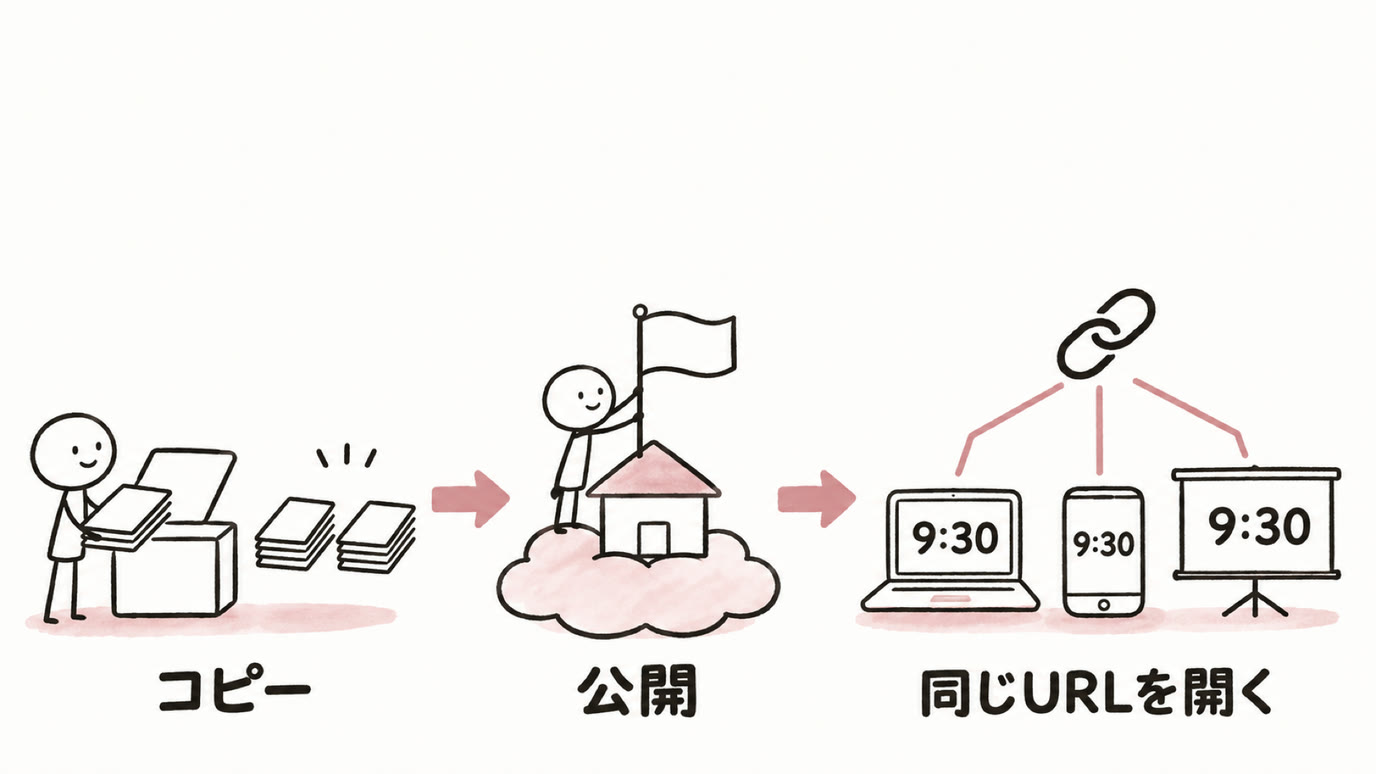
Everyone who opens the same presentimer URL shares the same settings. Change the time on the smartphone in your hand, and the display on the venue screen switches within about a second.
What it does
- Clock mode: shows “から開始” (start at) or “まで” (until) with the time, plus the time remaining or elapsed.
- Presentation timer mode: counts down from a set duration or to a set end time. Enter the duration as minutes:seconds (
15:00for 15 minutes). You can start, pause, and reset. - Background color: the background turns pink at the set time. A button also switches it by hand.
- Time input:
700,0700,7:00, and1930are all accepted.
Sharing it via Streamlit Community Cloud
presentimer is built with Streamlit, a Python library. To share it, register the repository with Streamlit Community Cloud (https://share.streamlit.io/), Streamlit’s free hosting service. This is how I use it too.
- Sign in to GitHub, open https://github.com/shoei05/presentimer, and press “Fork” at the top right. A copy is created in your account.
- Open https://share.streamlit.io/ and sign in with your GitHub account.
- Press “Create app”, and set Repository to your fork (
your-user-name/presentimer), Branch tomain, and Main file path toapp.py. - Enter any name you like in App URL and press “Deploy”. In a few minutes you get
https://the-name-you-chose.streamlit.app/.
Open this URL both on the computer connected to the screen and on the device of the person operating it, and you are ready.
Things to keep in mind
- Anyone who knows the URL can change the settings. Share the URL only among the organizers.
- On the free hosting service, an app goes to sleep after 12 hours without traffic. If you see “Yes, get this app back up!” when you open it, press the button and it starts in about a minute. Opening it once before the session begins on the day is a good idea.
Closing
I use timer when I just want to put the time on screen right away, and presentimer when I want to change the time from outside the room. Both are public on GitHub, so you can change the colors or wording and adapt them for your own use. Comments and bug reports are welcome on X (@shoei05) or in GitHub Issues.