Manual templates for arranging online visits using only phone numbers
Contents
Introduction
I believe that for people undergoing treatment or recuperation, the presence of the family and partners they care about is a vital source of support. The same is undoubtedly true for their families and partners as well. However, due to the COVID-19 pandemic, many hospitals currently prohibit visits, weakening both physical and psychological connections with loved ones. To address these issues, hospitals are being encouraged to introduce online visits using tablets.
At the same time, there is still little know-how regarding online visits, and I recognize that many hospitals are proceeding through trial and error. I suspect some hospitals have even given up on introducing them because they lack this know-how. Furthermore, administrative and operational constraints often make it difficult to communicate via email or semi-official social media accounts, which I believe acts as a barrier to holding online visits.
I have drafted this proposal on the premise that all communication takes place solely by phone. There are likely some oversights here and there. Please feel free to edit and adapt it to suit your facility's situation. I hope we can pool our collective wisdom to overcome these difficult circumstances. If your facility permits the use of email or social media accounts, you may find the "Guide to Online Visits" by the Japanese Association of Retirement Housing helpful. In fact, aside from verbally communicating the meeting ID and password over the phone, the steps are almost identical to the manual above, so I recommend reading through it once.
Please download the manual from the bottom of the page.
Accepting visit requests
Creating a printed handout explaining online visits to give to patients and families will make the process go more smoothly. Please refer to the attached "Guide to Online Visits." The "Online Visit Information Handout Template" in the "Guide to Online Visits" from the Japanese Association of Retirement Housing should also be helpful. As a general rule, requests should come from the patient. If the patient is unable to make decisions due to impaired consciousness or other reasons, we accept requests for online visits from the family with the attending physician's permission. If you are unsure how to proceed, do not decide alone; consult with the clinical ethics team or the ward team to reach a decision.
Proposed plan for online visits using Zoom
Download and install Zoom on a hospital-provided, internet-connected PC or tablet.

To prepare on the hospital side, you will need to create an account to configure the settings.
For instructions on creating an account, please refer to "4. Zoom Online Visit Manual for Facilities and Hospitals" in the "Guide to Online Visits" by the Japanese Association of Retirement Housing.
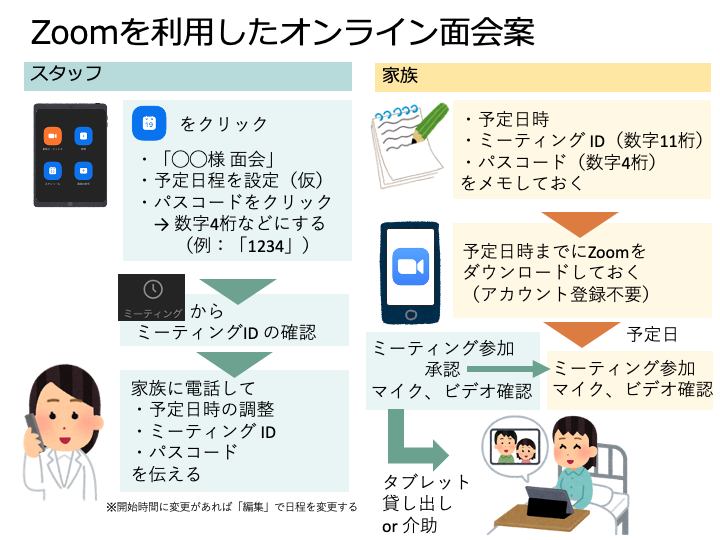
Because you will state the meeting ID and password verbally over the phone, the hospital does not need to obtain family email addresses or set up social media accounts.
1. Creating a meeting
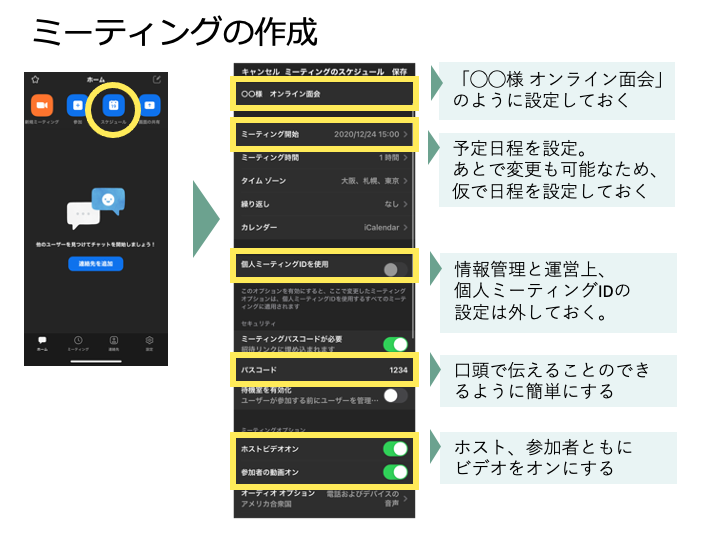
Press the Schedule button to go to the setup screen, and enter the details while keeping the following points in mind:
- Enter a title like "Visit for [Name]" so you can easily tell whose visit it is when looking at it later.
- Set a tentative date and time, as the schedule can be changed later.
- Do not use the Personal Meeting ID for this.
- You can edit the passcode by tapping it. Change it to a string of characters that is easy to convey verbally.
- Turn video on for both the host and participants.
Once configured, tap "Save" > "Add" in the upper right corner. As future app versions are released, simple passwords will likely trigger an error. If that happens, you will probably need to devise passwords that can still be conveyed verbally, such as "abc123###".
2. Calling the family
Return to the home screen, press the Meetings button, and confirm that the meeting you just scheduled has been added. Since a meeting ID has now been generated, write down this ID and the passcode.
Next, call the family and give them the:
- Scheduled date and time
- Meeting ID
- Passcode
If they wish to adjust the visit date, press "Edit" at this point and change the date and time. If you have two or more tablets, different patients can use them for online visits at the same time. However, because a single account cannot host two or more calls simultaneously, please be sure to prepare an additional account. Take care not to mix up the meeting dates, times, passcodes, and IDs.
3. Conducting the online visit
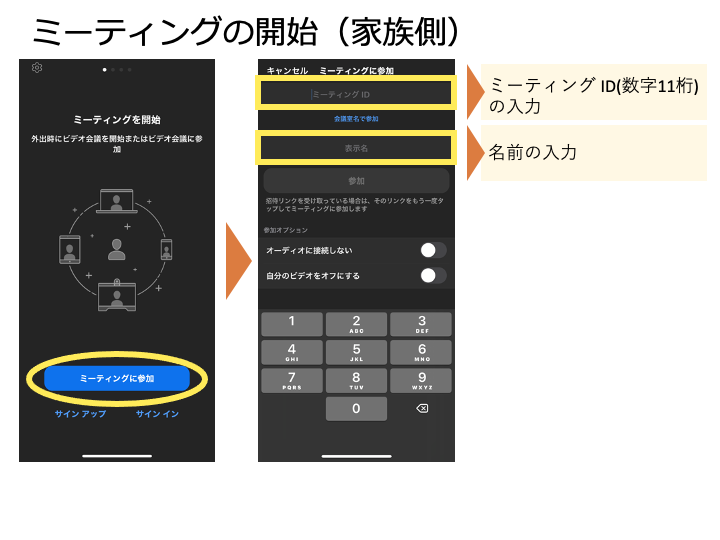
Have the family download Zoom before the scheduled date and time. They do not need to register for an account. Have them press the "Join a Meeting" button and enter the ID, their name, and the passcode to enter the meeting screen.
On the hospital side, press the Meetings button, select the scheduled meeting, and press "Start" to enter the meeting room.
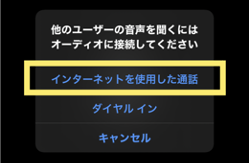
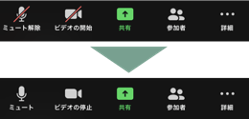
An audio confirmation prompt will appear first, so select "Call using Internet Audio." After that, when the family joins, you will be prompted to admit them, so press the "Admit" button. Confirm that both parties have their microphones and cameras turned on (check that there are no diagonal slashes through the mute or video icons). If everything is working properly, the online visit can begin.
When finished, click the End button in the upper right corner to end the call.
Downloading the manuals
This is just a brief manual, but I hope you find it useful.
Please download the manual files below.
This document is in the public domain. Please feel free to modify it.