Stop Dropbox from syncing .git and .Rproj.user in RStudio project folders

Contents
When you use RStudio, Dropbox can sometimes get stuck in a constant syncing state. RStudio's project file monitoring feature seems to conflict with temporary Git files. To prevent this, you need to exclude the .git and .Rproj.user folders from syncing in your Dropbox settings.
See this post for instructions on managing RStudio projects with GitHub.
I have summarized how to run RStudio on Docker in this post.
Exclude target files from syncing in Dropbox
Due to the current Dropbox UI, you might think of three main ways to do this:
- Right-clicking the folder in File Explorer (Finder on Mac) to uncheck the sync option
- Selecting the folder in the Dropbox web application and excluding it from syncing
- Excluding it from syncing through the Dropbox desktop application
However, to get straight to the point, only the third method actually worked.
Open the Dropbox folder
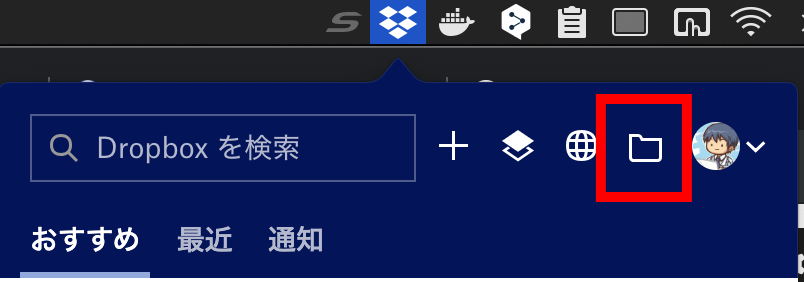
Click the Dropbox icon in the taskbar (or menu bar), then click the folder icon (outlined in red) next to your username.
Exclude .git and .Rproj.user from syncing
Navigate to your project folder, right-click the target .git and .Rproj.user folders, and select "Don't sync to dropbox.com".
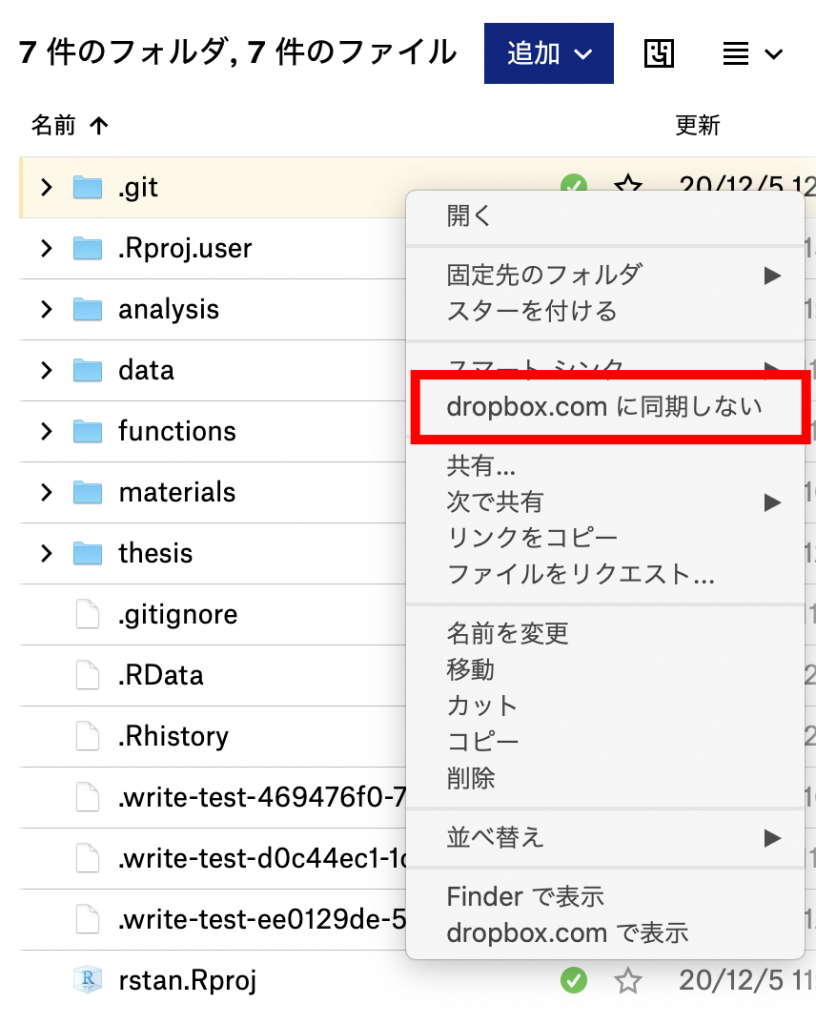
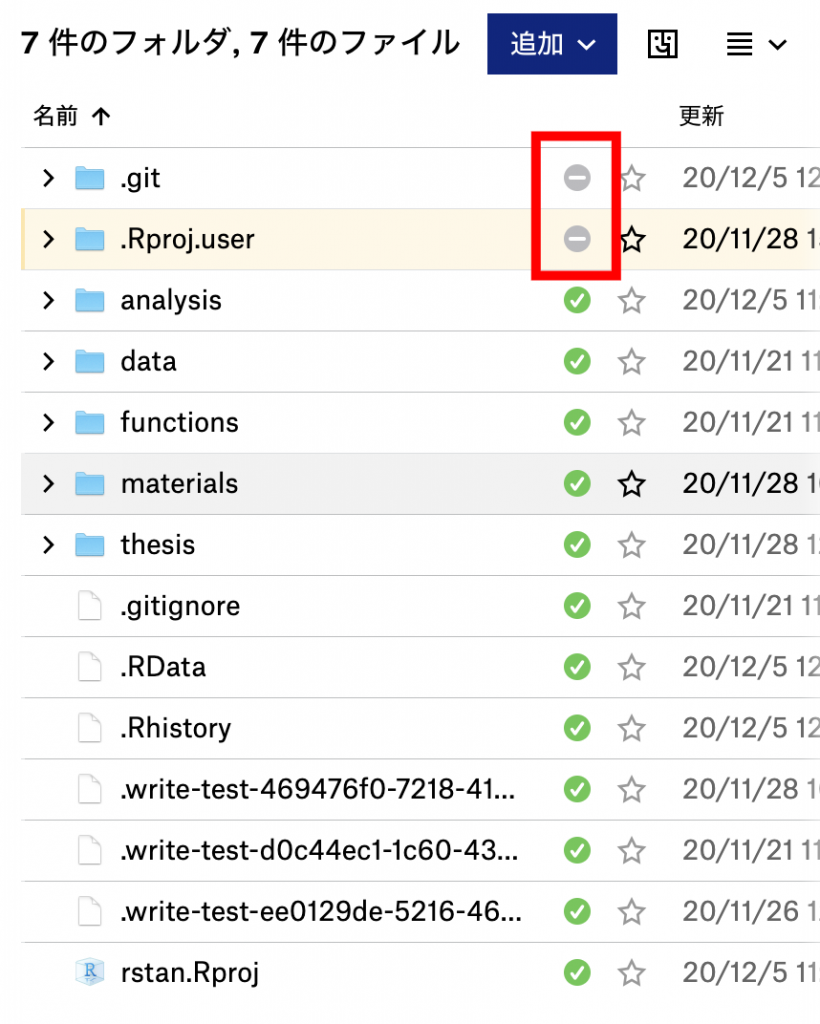
This stops them from syncing.
Check the folders
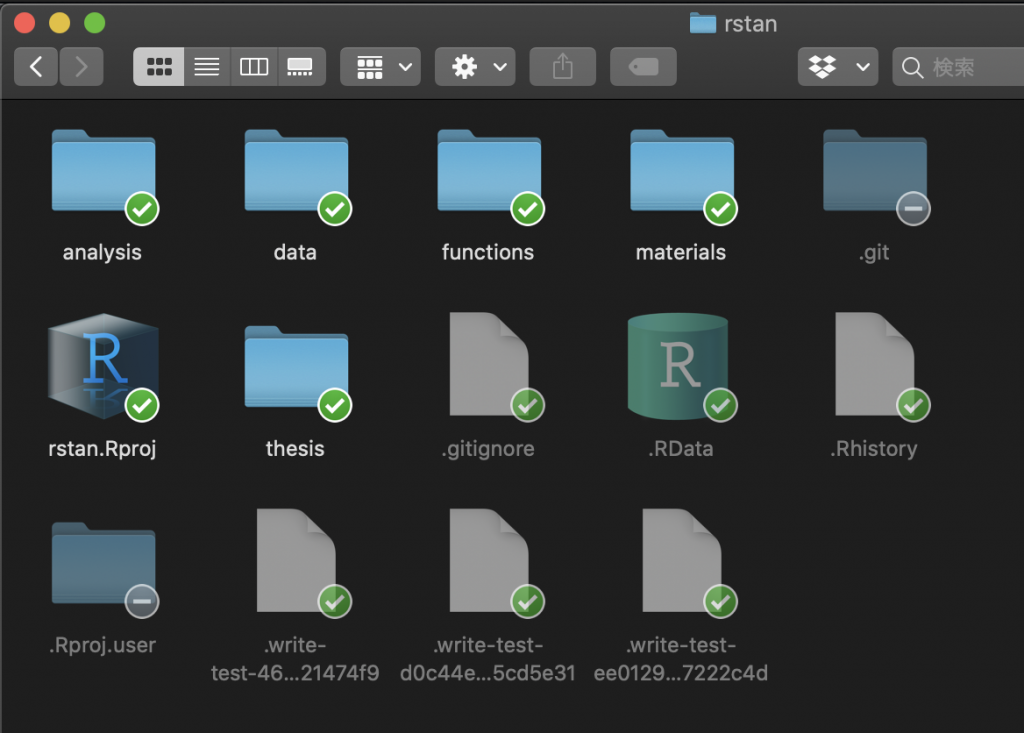
Let's check in File Explorer (or Finder) to confirm that the folders are no longer syncing. Because temporary files are hidden, you first need to make hidden files visible. On a Mac, press ⌘ + Shift + . (period) to show hidden files.
This isn't particularly complicated, but I couldn't find many posts that laid out the steps clearly, so I wrote this down for my own reference. I hope you find it useful.
I created the "rstan" project folder shown above for a Bayesian statistics course from Sugaku Bunka ((Introduction to Bayesian Statistics | Sugaku Bunka. Published December 5, 2015. Accessed February 21, 2021. https://sugakubunka.com/bayesian_statistics/)) that I am currently taking.
I am enrolled in the second-half course for 2020 and have online lectures every Saturday through February. Classes that previously required traveling to a classroom in Osaka or Tokyo are now available online, which has been a huge help for someone living far away like me.