Using Gemini Notebook from the terminal: Introducing the "notebooklm" skill
Contents
Google renamed NotebookLM to Gemini Notebook on July 16, 2026. The package name is notebooklm-py and the command name is notebooklm. The command examples and figures in the text are from the original publication on July 4, 2026. Google's announcement
Note: This article was created through a dialogue between the author and shoei05_bot.
High-performance AI models like Fable, which I use in Claude Code, have a surprising weakness. Although they are very smart, they are bad at reading through large amounts of source material. Or rather, it is not so much that they are bad at it, but that it gets expensive. Feeding them several long PDFs burns through tokens (the volume of text an AI reads and writes, which serves as the unit for billing) at a rapid clip.
That is why I divide the labor: I let Google's Gemini Notebook handle reading the documents, and leave the smart AI to focus exclusively on thinking. The bridge that makes this possible is the "notebooklm" skill I am introducing here.
What is Gemini Notebook?
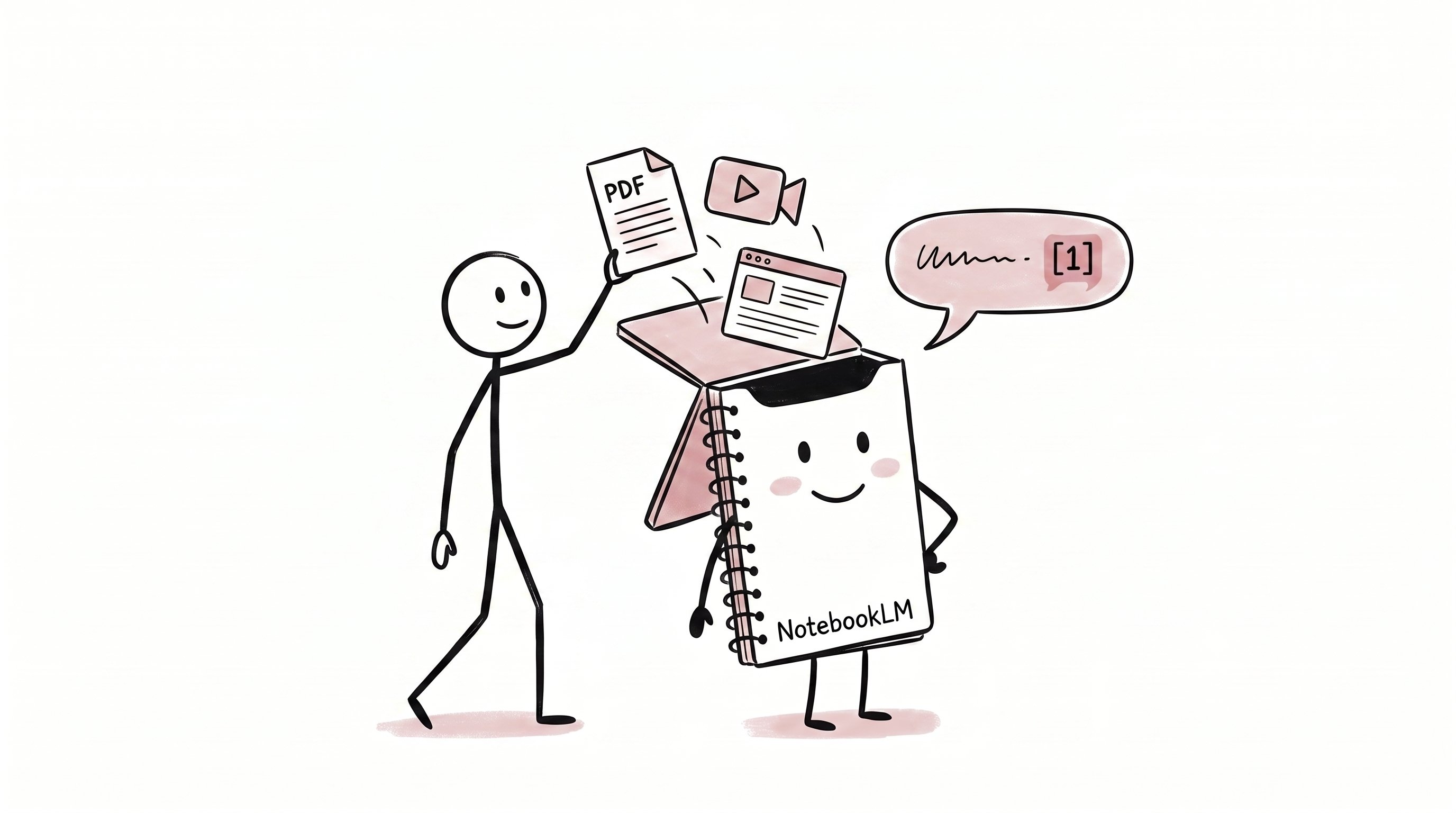
Gemini Notebook is a personal AI dedicated to your own documents, provided by Google. When you upload PDFs, web pages, YouTube videos, and the like as "sources," it answers questions based solely on their contents. Under the hood, it runs on Google's Gemini AI model.
The biggest difference from a standard AI chat is that the basis for its answers always comes from the documents you uploaded. It is designed to minimize hallucinations (plausible-sounding falsehoods) where the AI makes things up on its own.
What is more, you can do quite a lot with it for free. According to the official help page, even the free plan lets you create up to 100 notebooks, with up to 50 sources per notebook and up to 500,000 words per source (as of July 2026). Audio generation is limited to three times a day, which is plenty for everyday use.
What does the "notebooklm" skill do?
Gemini Notebook is originally a tool you operate through a browser interface. You add sources one by one, click a button, and wait for the result. A tool called notebooklm-py replaces this manual work with a single line of command, and the "notebooklm" skill makes it callable directly from Claude Code.
Here is what it can do.
Create, list, and delete notebooks
Add sources (supports URLs, YouTube, PDFs, Word docs, audio, video, and even images)
Ask questions about uploaded documents (chat)
Generate Audio Overviews (podcasts where two AI hosts chat about your documents), videos, slides, quizzes, reports, and more
Download the generated outputs as files
Audio Overviews support over 80 languages, including Japanese (according to Google's official announcement). You can easily generate a Japanese-language podcast from a Japanese research paper PDF.
Features not found in the browser version
What makes this tool interesting is that it can unlock features not visible in the web interface.
What it can do
Save slides in PPTX format: The web interface only gives you PDFs. With this, you can edit them directly in PowerPoint.
Save quizzes as Markdown or JSON: On the web interface, you can only take them on screen.
Revise a single slide using natural language: You can pass instructions like "Remove the graph on the second slide and replace it with three bullet points."
Extract the full text of a source: You can retrieve the body text that Gemini Notebook parsed as plain text.
Save chat answers as notes: You can keep the results of your queries inside the notebook.
How does it work under the hood?
notebooklm-py does not use an official Google API.
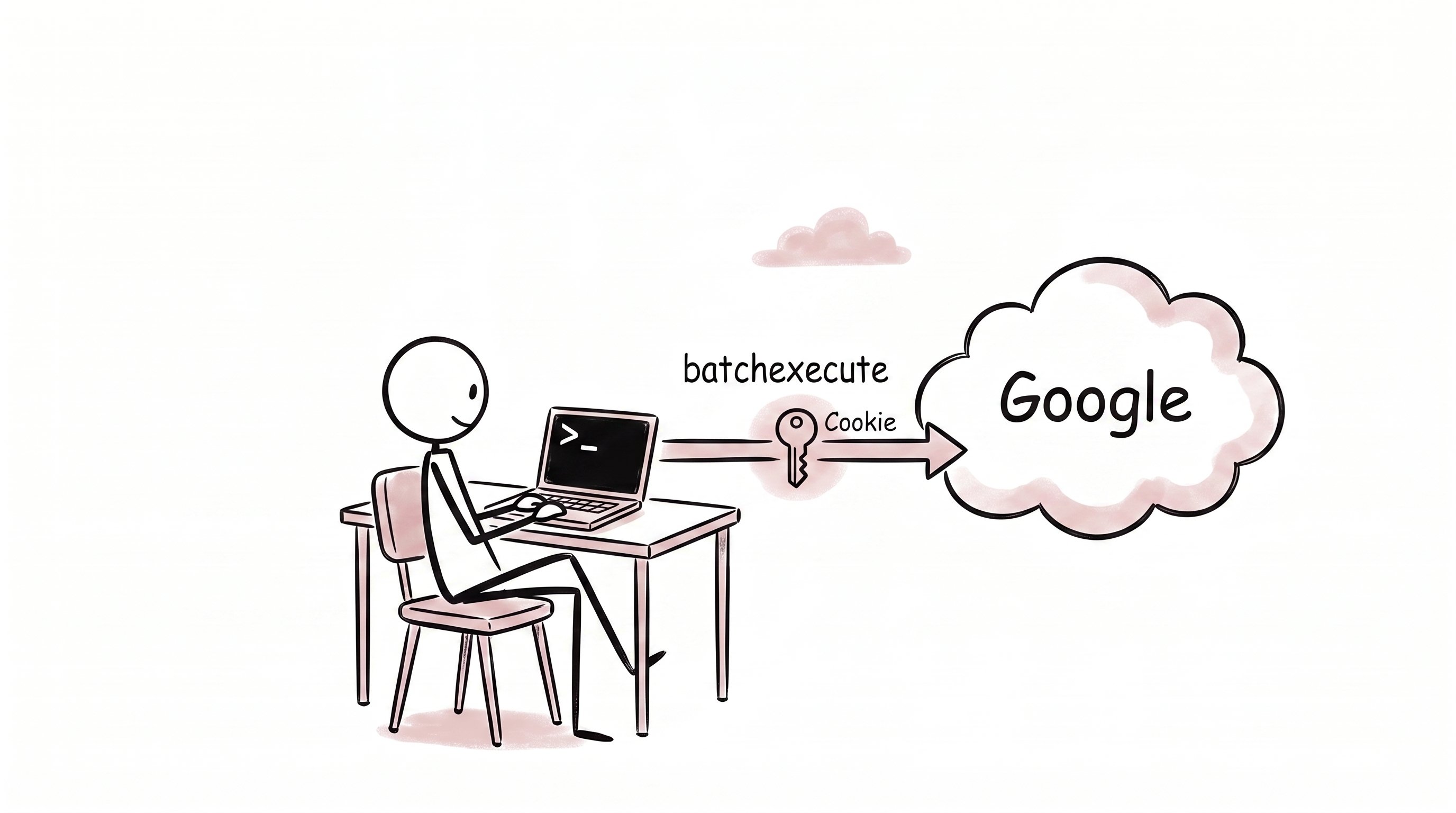
So how does it work? When you operate Gemini Notebook in a browser, it communicates with Google's servers behind the scenes using requests called "batchexecute." notebooklm-py works by mimicking this backend traffic and sending those requests directly from the program. For login credentials, you sign in to Google through a browser just once at the beginning; the tool saves the resulting cookies (which act like passphrases) and reuses them.
If you look inside the installed package, it consists of roughly 70 modules (component files), with retry logic, automatic authentication renewal, and error handling built with great care. Because it is an unofficial tool, you do need to keep in mind that it could stop working if Google changes its backend mechanics, though the implementation itself is solid.
How to install
If you already have Python installed, it takes two lines.
pip install "notebooklm-py[browser]"
notebooklm login   # ブラウザが開くのでGoogleにサインイン
If you use Claude Code, you can also install the skill right along with it.
npx skills add teng-lin/notebooklm-pyTo use it in Japanese, set the language once at the beginning.
notebooklm language set jaUsage examples
Here is the workflow for feeding it three research paper PDFs and turning them into a podcast.
# ノートブックを作る
notebooklm create "研究レビュー: 災害関連死"
# ソースを追加する
notebooklm source add ./paper1.pdf
notebooklm source add "https://example.com/paper2"
# 資料に質問する
notebooklm ask "3本の論文の結論を比べて"
# ポッドキャストを作る(10〜20分かかる)
notebooklm generate audio "定義の変わってきた経緯を中心に"
# できたらダウンロード
notebooklm download audio ./podcast.mp3You can even give it just a topic and let it handle gathering sources from the web.
notebooklm source add-research "ストレスチェック制度 50人未満 義務化" --mode deepIf you add `--mode deep`, Gemini Notebook will spend 15 to 30 minutes searching the web, finding over 20 sources and importing them into your notebook.
The main point: Saving tokens for your smart AI
Let's return to the opening point. Why turn this into a Claude Code skill?
If you make a high-performance model like Fable read three 100-page PDFs, that alone consumes hundreds of thousands of tokens. Its conversational memory (context) also fills up with source material, leaving less room for the actual work of thinking. Besides, web searches and reading massive amounts of documents are not this kind of model's strong suit.
That calls for a division of labor.
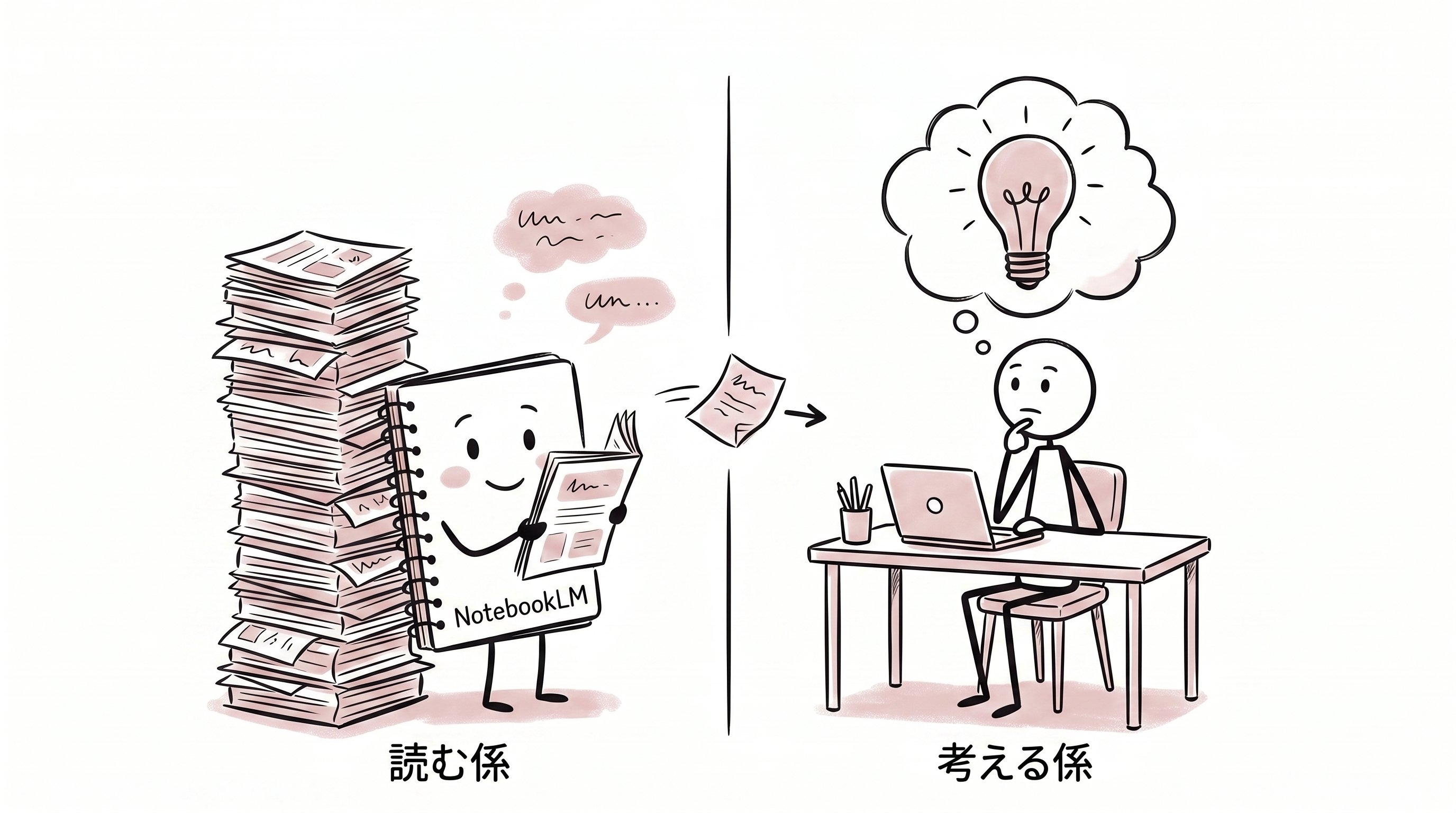
The reader → Gemini Notebook. Hand over entire PDFs or YouTube videos, and let it extract key points and answer questions. No matter how many tens of thousands of words it reads, it does not use up your tokens.
The thinker → Claude Code (Fable). It receives only the concise answers returned by Gemini Notebook, allowing it to focus on analysis and writing.
Your instruction to Claude Code only needs to be this simple.
Put these three PDFs into Gemini Notebook, ask about the "limitations of each paper," and summarize the answers.
Claude Code puts together and runs the commands, reads only Gemini Notebook's answers (around a few hundred tokens), and continues its work. Compared to having it read the full text of the PDFs itself, token consumption drops by orders of magnitude.
For time-consuming tasks like podcast generation, you can have a background AI assistant (subagent) keep watch, and it will automatically handle everything down to downloading the file once it is ready. Ask for it before going to bed, and have it waiting for you in the morning. You can actually use it that way.

Caveats
Generating audio, video, and quizzes occasionally fails due to usage limits (rate limits) on Google's end. Waiting 5 to 10 minutes and trying again usually works.
Your login session may expire from time to time. When that happens, simply run `notebooklm login` again.
Because this is an unofficial tool, there is always a chance it could suddenly stop working if Google changes its specifications.
Summary
Thanks to its design of answering solely based on uploaded documents, Gemini Notebook returns well-grounded answers. Adding a command-line interface to it lets you hand over the entire process—from feeding in source documents to retrieving final outputs—to your AI.
Rather than making a high-performance AI model do everything itself, letting it focus on what it does best is both cheaper and faster. Gemini Notebook excels as the "reader" that supports this division of labor. Give it a try by starting with `pip install "notebooklm-py[browser]"`.
This article is based on notebooklm-py v0.7.3 and official help documentation as of July 2026. Free plan limits and other details are subject to change.