Batch-highlighting revised text in Word

Contents
- What you need
- Update: If you do not have a file with tracked changes
- Select Review > Compare > Compare Documents
- Select the Original document and the Revised document
- Running the macro
- Code explanation by ChatGPT
- Tip 1: Adding highlights to revisions while keeping existing highlights in the manuscript
- Tip 2: Highlighting changes while keeping the tracked changes
- Tip 3: Highlighting with a color other than yellow
- Update (September 9, 2023): Handling deleted text
- Conclusion
(ChatGPT)
あなたはブロガーです。よいイントロダクションの記事を提案してください。論文のrevisionを提出する際に、変更箇所をハイライトして、と言われることがありますが、作業が大変です。修正履歴をみながら、そこに手作業でハイライトする。そこに人為的なミスがでてきたりする。そのような大変さをイントロダクションに盛り込んで下さい。
Writing academic papers is a core part of a researcher's work and the main way to share findings with the world. Yet getting a paper published in a journal usually requires a long process of repeated peer review and revision. Every researcher eventually has to revise a manuscript in response to feedback from editors and reviewers.
During revisions, editors sometimes ask authors to highlight all changes in the resubmitted manuscript, which turns out to be a surprisingly tedious task. Highlighting changes by hand while checking tracked changes invites human error, and the repetitive work often causes stress and fatigue.
This article shows how to use a Word macro to highlight all revised sections at once.
I referred to the following post when writing this article.((Rikei Daigakuinsei. How to batch-highlight tracked changes in Word when revising a paper [in Japanese]. Research-related blog. Published 1642232153. Accessed April 23, 2023. https://master2.hatenadiary.com/entry/2022/01/15/%E8%AB%96%E6%96%87%E3%83%AA%E3%83%90%E3%82%A4%E3%82%B9%E3%81%AE%E6%8F%90%E5%87%BA%E6%99%82%E3%81%AE%E5%A4%89%E6%9B%B4%E5%B1%A5%E6%AD%B4%E3%81%AB%E3%81%A4%E3%81%84%E3%81%A6 ))
“Some journals require you to submit a Word file with changes from the initial submission highlighted. Here is a macro that highlights all insertions recorded in Word's Track Changes in one go.”
How to batch-highlight tracked changes in Word when revising a paper – Research-related blog (hatenadiary.com) [in Japanese]
I also found a few other articles covering similar macros.(([Word VBA] Word macro to highlight tracked insertions [in Japanese]. Minna no Word Macro. Published April 11, 2017. https://www.wordvbalab.com/code/5963/ ))(([Word VBA] Word macro to highlight changes [in Japanese]. Minna no Word Macro. Published March 10, 2014. https://www.wordvbalab.com/code/3146/ ))
What you need
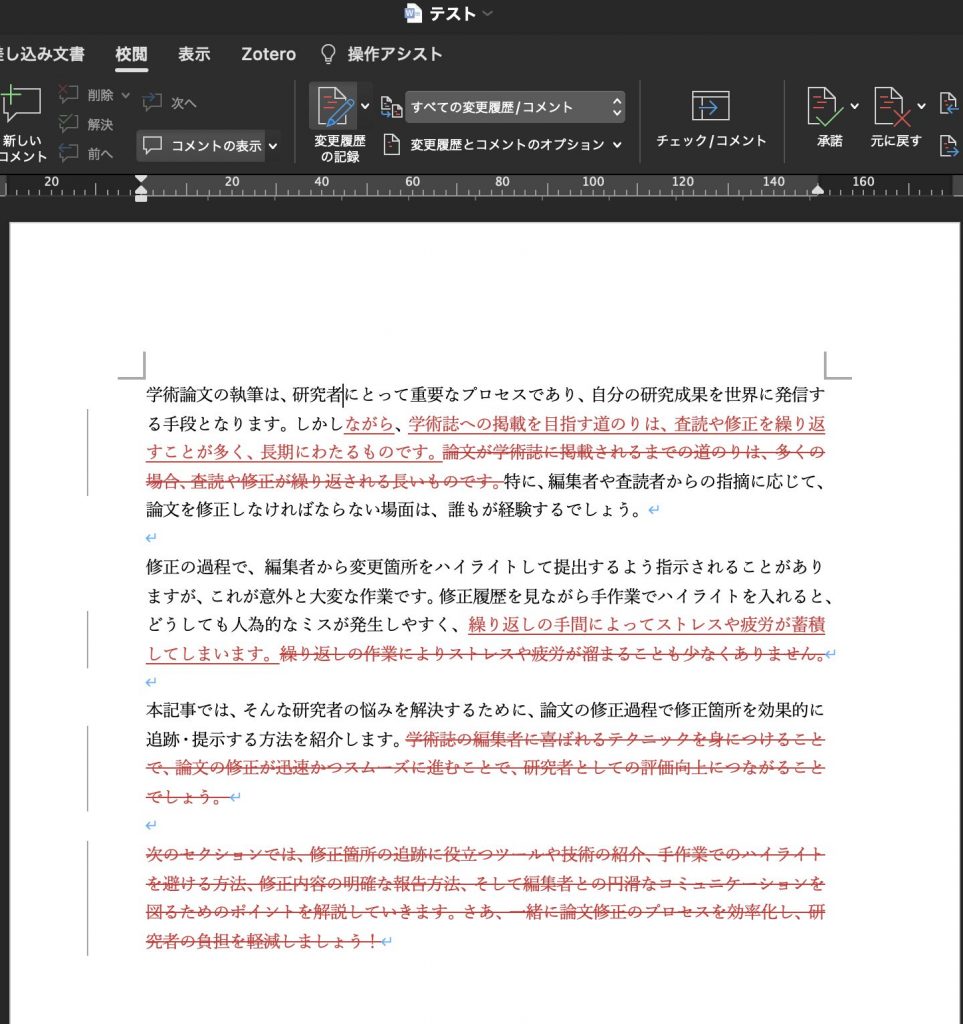
- A Word file with tracked changes
Prepare a Word file that has recorded all revisions since the initial submission using the Track Changes feature.
Update: If you do not have a file with tracked changes
If you forgot to turn on Track Changes, you can still generate a file with tracked changes in seconds as long as you have the latest version and the older version you want to compare it against.
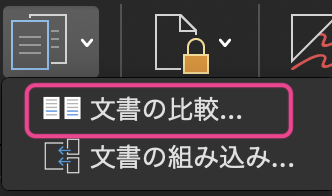
Select Review > Compare > Compare Documents

Select the Original document and the Revised document
You can leave the "Label changes with" field blank.
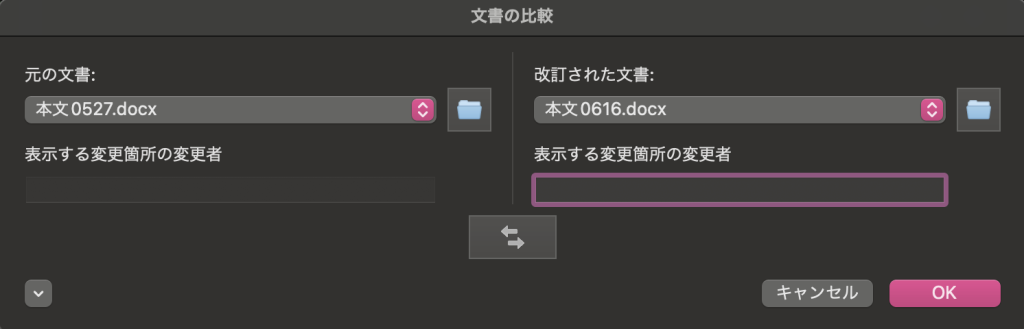
Click OK, and Word will compare the original and revised documents to create a new file with tracked changes. Save this file under any name and proceed to run the macro.
Running the macro
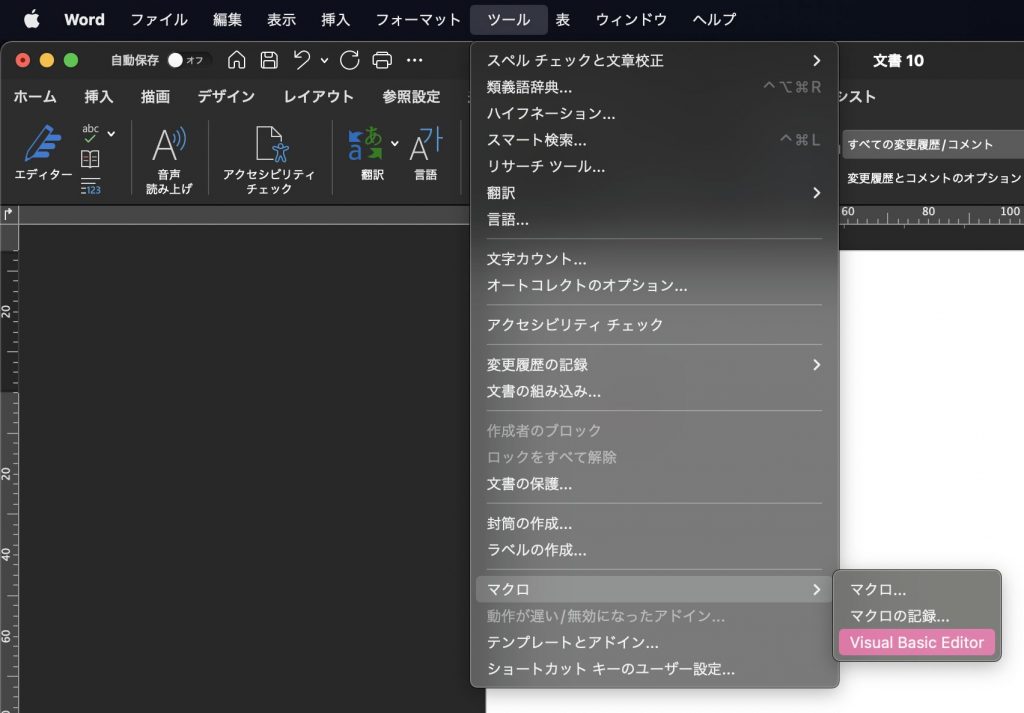
Select Tools > Macro > Visual Basic Editor.
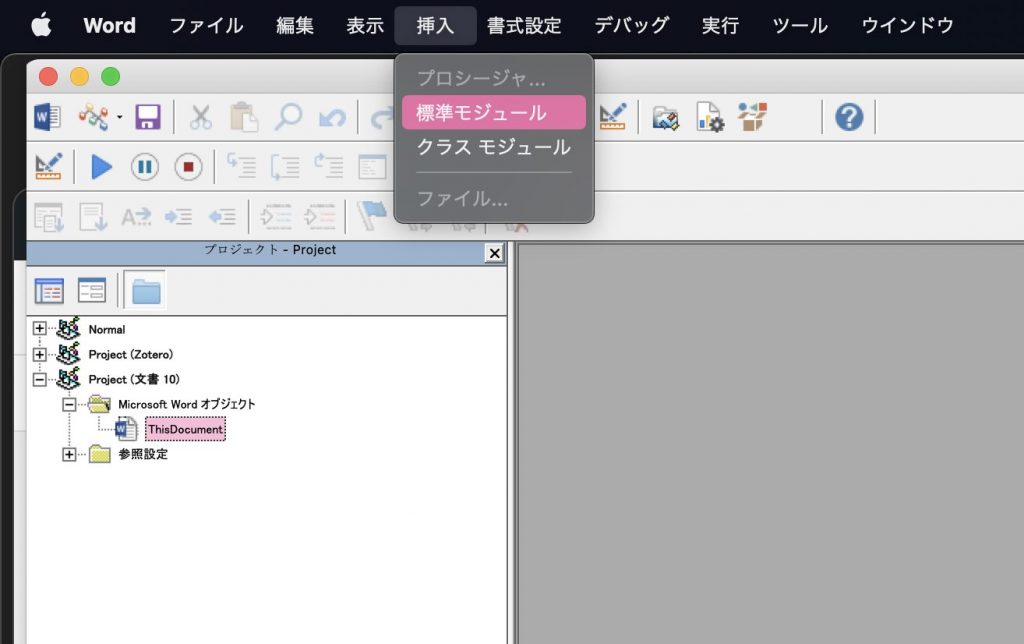
Select Insert > Module
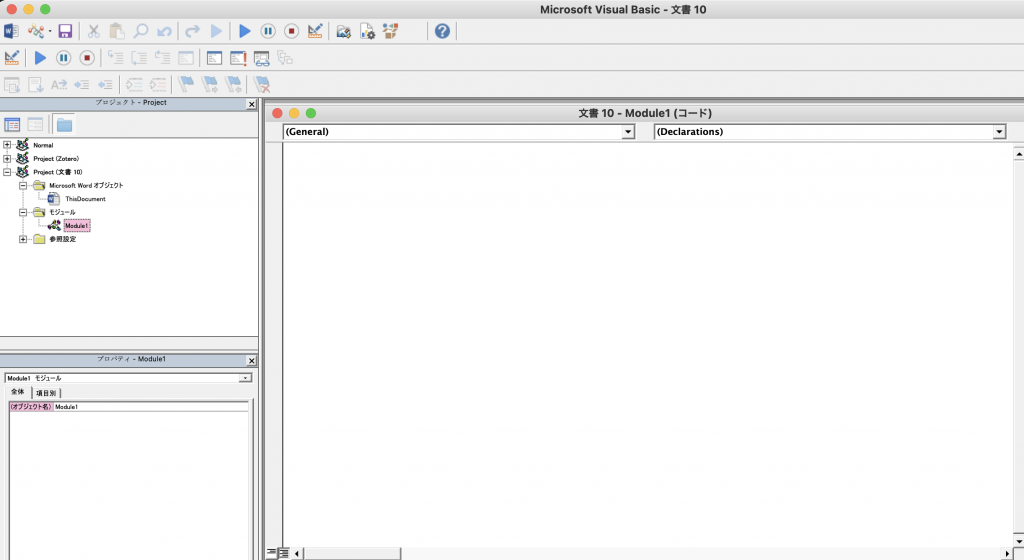
Copy the code below into the module. I have added and modified some comments from the reference article.
Sub 変更履歴_追記箇所を蛍光ペンの黄色にする()

  ' 変数を宣言
  Dim myRev As Revision
  Dim newDoc As Document ' チェック用文書

  ' 変更履歴の記録をオフにする
  ActiveDocument.TrackRevisions = False

  ' 文書が保存されている場合に実行
  If ActiveDocument.Path <> "" Then
    If ActiveDocument.Saved = True Then
      ' アクティブな文書に基づいて新しい文書を作成
      Set newDoc = Documents.Add(Template:=ActiveDocument.FullName)
    Else
      ' 実行前に文書を保存するようユーザーに促す
      If MsgBox("文書を保存してから実行します。" & vbCr & _
                "保存しますか?", vbYesNo, "実行前の確認") = vbYes Then
        ActiveDocument.Save
        Set newDoc = Documents.Add(Template:=ActiveDocument.FullName)
      Else
        ' ユーザーが文書の保存を選択しない場合、マクロを終了
        Exit Sub
      End If
    End If
  Else
    ' マクロ実行前に文書を保存するようユーザーに指示するメッセージを表示
    MsgBox "現在のファイルを保存してから実行してください。"
    Exit Sub
  End If

  ' チェック用文書のハイライトを解除
  newDoc.Range.HighlightColorIndex = wdNoHighlight

  ' 新しいチェック用文書の各リビジョンを処理
  For Each myRev In newDoc.Revisions

    ' リビジョンのタイプを確認
    Select Case myRev.Type

      ' リビジョンが挿入の場合
      Case wdRevisionInsert
        With myRev.Range
          ' 挿入されたテキストを黄色でハイライト表示
          .HighlightColorIndex = wdYellow
          ' リビジョンを承認
          .Revisions.AcceptAll
        End With

      ' リビジョンが挿入以外の場合
      Case Else
        With myRev.Range
          ' リビジョンを承認
          .Revisions.AcceptAll
        End With

    End Select

  Next
End SubCode language: PHP (php)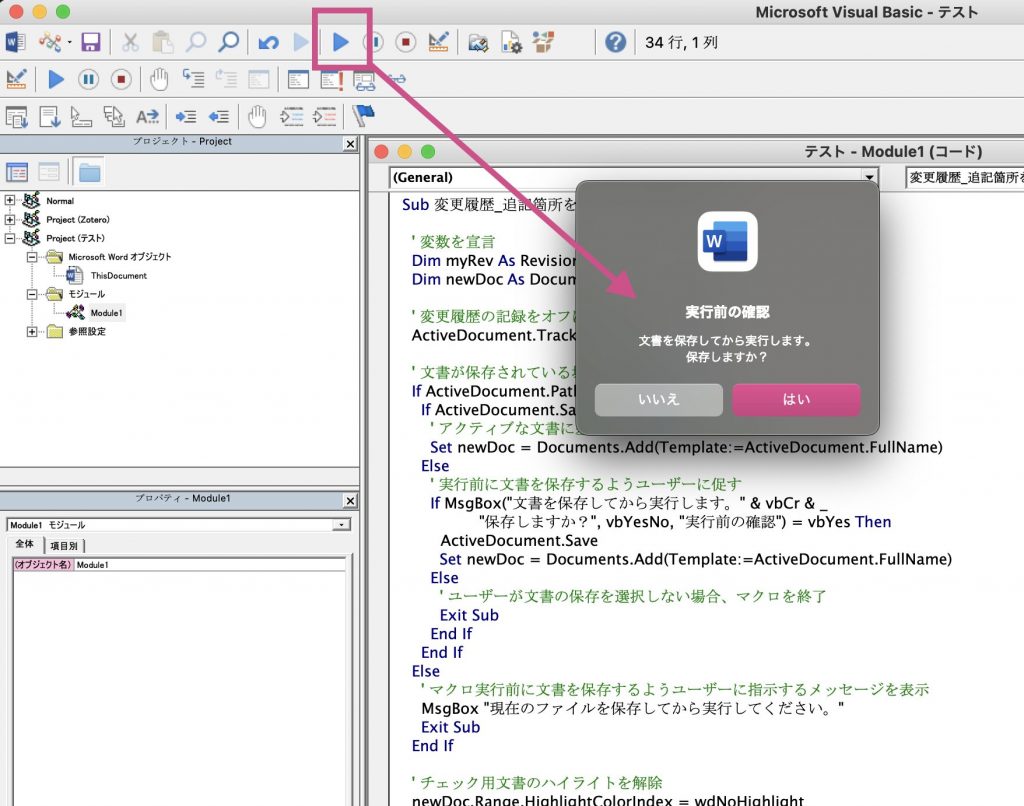
Click the play button in the upper left. When prompted to save the current document, click "Yes".
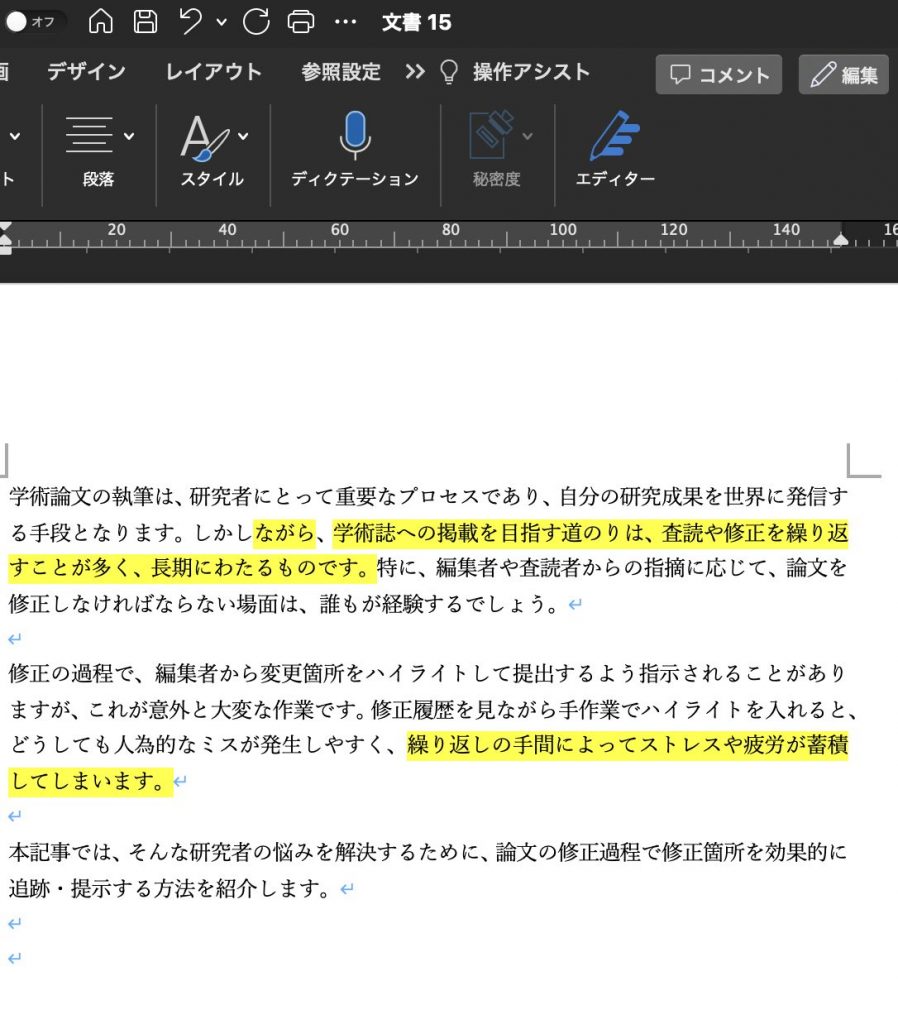
Word creates a new document with all the revised sections highlighted.
Code explanation by ChatGPT
(ChatGPT) 以下のコードについて解説してください。
This code is a Microsoft Word macro that highlights inserted text in yellow. Below is a breakdown of each part.
- Declaring variables
Dim myRev As Revision: Declares the variablemyRevas aRevisionobject.Dim newDoc As Document: Declares the variablenewDocas aDocumentobject. This is the document used for checking.
- Turning off Track Changes
ActiveDocument.TrackRevisions = False: Turns off Track Changes in the active document.
- Executing if the document is saved
- This section checks whether the active document has been saved. If it has, the macro creates a new document for checking. If not, it prompts the user to save. If the user declines to save, the macro exits.
- Removing existing highlights in the check document
newDoc.Range.HighlightColorIndex = wdNoHighlight: Removes all existing highlights in the new check document.
- Processing each revision in the new check document
- This section uses a
For Eachloop to process each revision in the new check document.
- This section uses a
- Checking the revision type
Select Case myRev.Type: Performs the following actions depending on the revision type.- For insertions (
Case wdRevisionInsert):With myRev.Range: Performs the following actions on the revision range.- Highlights the inserted text in yellow (
.HighlightColorIndex = wdYellow). - Accepts the revision (
.Revisions.AcceptAll).
- Highlights the inserted text in yellow (
- For revisions other than insertions (
Case Else):With myRev.Range: Performs the following actions on the revision range.- Accepts the revision (
.Revisions.AcceptAll).
- Accepts the revision (
- For insertions (
This produces a new check document where inserted text is highlighted in yellow and all other revisions are accepted.
Tip 1: Adding highlights to revisions while keeping existing highlights in the manuscript
As written, the macro clears any existing highlights in the document. If you want to keep your existing highlights and add new ones, find:
' チェック用文書のハイライトを解除
 newDoc.Range.HighlightColorIndex = wdNoHighlight
Either delete that line, or add a single quote (') at the beginning to comment it out (leaving it as a comment so it does not run):
' チェック用文書のハイライトを解除
' newDoc.Range.HighlightColorIndex = wdNoHighlightCode language: PHP (php)
Change it to the above.
Tip 2: Highlighting changes while keeping the tracked changes
Use the same approach as in Tip 1.
' リビジョンを承認
.Revisions.AcceptAll
This line appears in two places; delete or comment out both of them.
Tip 3: Highlighting with a color other than yellow
You can specify available colors in Microsoft Word VBA through the WdColorIndex enumeration.
Examples:
wdTurquoise: TurquoisewdBrightGreen: Bright greenwdPink: PinkwdYellow: YellowwdGray50: Gray (50%)wdGray25: Gray (25%)wdNoHighlight: No highlight
To use these colors, assign one of these constants to the HighlightColorIndex property.
Currently, the code reads:
' 挿入されたテキストを黄色でハイライト表示
 .HighlightColorIndex = wdYellow
Because it is set this way,
to highlight inserted text in bright green instead, change wdYellow to wdBrightGreen.
' 挿入されたテキストを黄色でハイライト表示
 .HighlightColorIndex = wdBrightGreen
Update (September 9, 2023): Handling deleted text
If you want to restore deleted text and format it as red strikethrough in addition to batch-highlighting revisions in Word, add the following code.
Sub 変更履歴_追記箇所を蛍光ペンの黄色にする()

  ' 変数を宣言
  Dim myRev As Revision
  Dim newDoc As Document ' チェック用文書

  ' 変更履歴の記録をオフにする
  ActiveDocument.TrackRevisions = False

  ' 文書が保存されている場合に実行
  If ActiveDocument.Path <> "" Then
    If ActiveDocument.Saved = True Then
      ' アクティブな文書に基づいて新しい文書を作成
      Set newDoc = Documents.Add(Template:=ActiveDocument.FullName)
    Else
      ' 実行前に文書を保存するようユーザーに促す
      If MsgBox("文書を保存してから実行します。" & vbCr & _
                "保存しますか?", vbYesNo, "実行前の確認") = vbYes Then
        ActiveDocument.Save
        Set newDoc = Documents.Add(Template:=ActiveDocument.FullName)
      Else
        ' ユーザーが文書の保存を選択しない場合、マクロを終了
        Exit Sub
      End If
    End If
  Else
    ' マクロ実行前に文書を保存するようユーザーに指示するメッセージを表示
    MsgBox "現在のファイルを保存してから実行してください。"
    Exit Sub
  End If

  ' チェック用文書のハイライトを解除
  newDoc.Range.HighlightColorIndex = wdNoHighlight

  ' 新しいチェック用文書の各リビジョンを処理
  For Each myRev In newDoc.Revisions

    ' リビジョンのタイプを確認
    Select Case myRev.Type

      ' リビジョンが挿入の場合
      Case wdRevisionInsert
        With myRev.Range
          ' 挿入されたテキストを黄色でハイライト表示
          .HighlightColorIndex = wdYellow
          ' リビジョンを承認
          .Revisions.AcceptAll
        End With

      ' リビジョンが削除の場合
      Case wdRevisionDelete
        With myRev.Range
          .Revisions.RejectAll
          .Font.StrikeThrough = True
          .Font.Color = vbRed
        End With

      ' リビジョンが挿入以外の場合
      Case Else
        With myRev.Range
          ' リビジョンを承認
          .Revisions.AcceptAll
        End With

    End Select

  Next
End SubCode language: PHP (php)
Conclusion
When you send a manuscript to an English editing service, the editors sometimes accept all existing tracked changes and leave only their own edits tracked. To avoid this, I recommend either asking the service not to clear your tracked changes or highlighting your revisions before sending the file.
Many readers of this post are likely in the middle of responding to peer reviewers. Compiling research findings, writing a manuscript, going through peer review, and revising the text is a demanding process, yet I view it as an essential experience for any researcher.
I have had papers rejected several times myself. Each time, I come back to the quote below. I sincerely hope your papers are accepted.
“Researchers need the ability to write papers, but they also need the strength to get them published. Intelligence is what matters when writing a paper, but when getting it published, what matters is the ability to control emotions such as discouragement, anger, disappointment, and doubt after a rejection, along with unwavering conviction, objectivity in assessing the situation, and sound judgment.”
Anger and discouragement over rejection [The strength to get papers published] – Science and Technology in Japan (scienceandtechnology.jp)